How does the edit mode tour work?
Short answerThe first time you press Edit, a short tour walks you through edit mode in eight steps on a computer or seven on a phone. Each step lights up the part it talks about, and some show a hand doing it for you. Skip it whenever you like and replay it later with the question mark in the edit bar.
Follow the tour
On Overview you may first see a card that says "Make this page your own". Press Try it now, or press Edit yourself; Maybe later closes the card.

The Make this page your own card next to the Edit button, with Maybe later and Try it now Step 1, Welcome to edit mode, says what the tour is about. Press Show me to begin, or Skip tour if you would rather explore on your own.
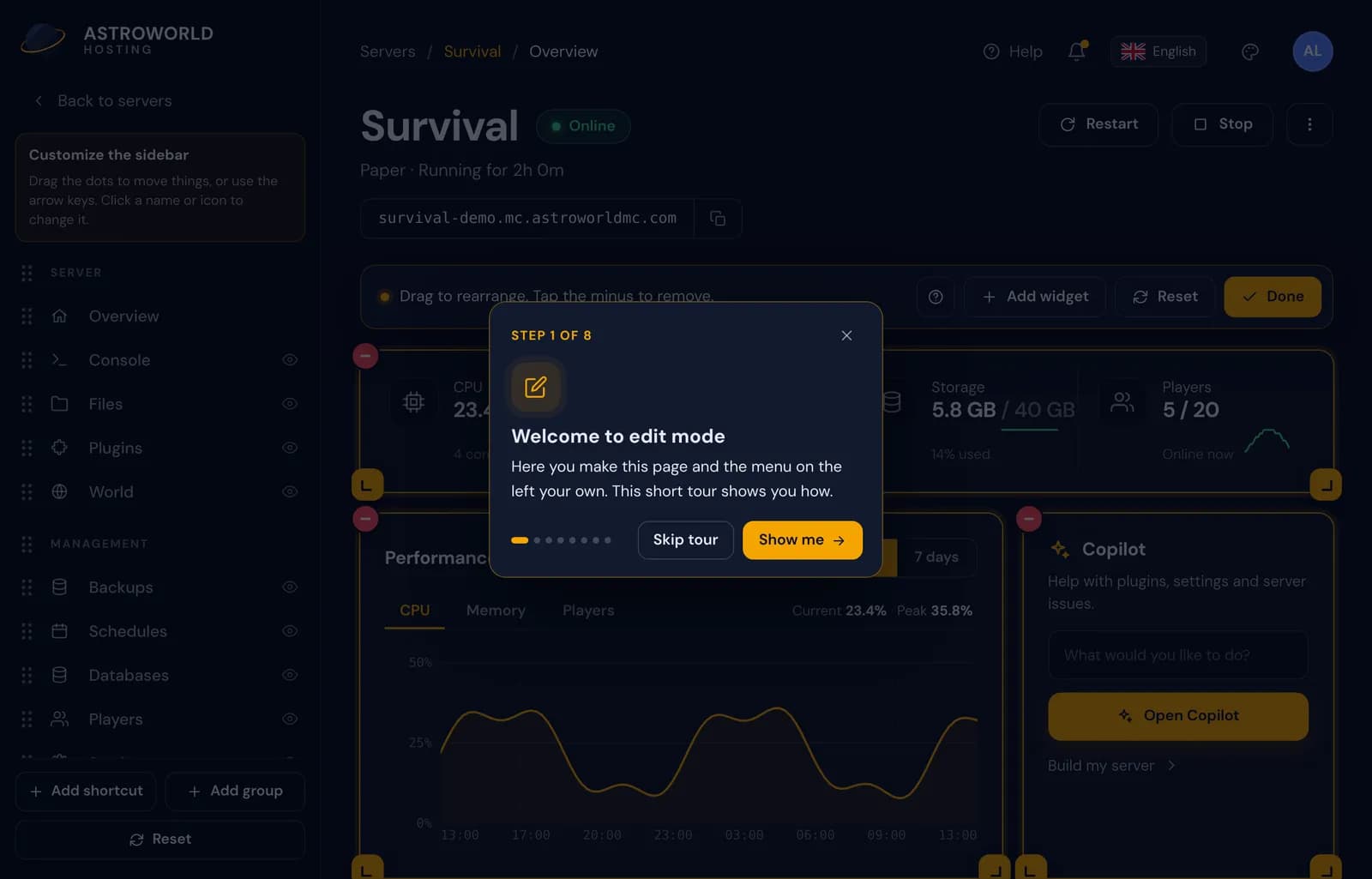
Step 1 of 8 of the edit mode tour, Welcome to edit mode, with Skip tour and Show me Step 2, Add widgets, points at the Add widget button and mentions the 22 widgets to choose from, which land at the bottom of the page.

Step 2 of the tour pointing at the Add widget button Step 3, Drag to move, shows a hand dragging a widget while the others slide aside. On a computer it adds the keyboard way: Tab, the arrow keys and Shift for the size.
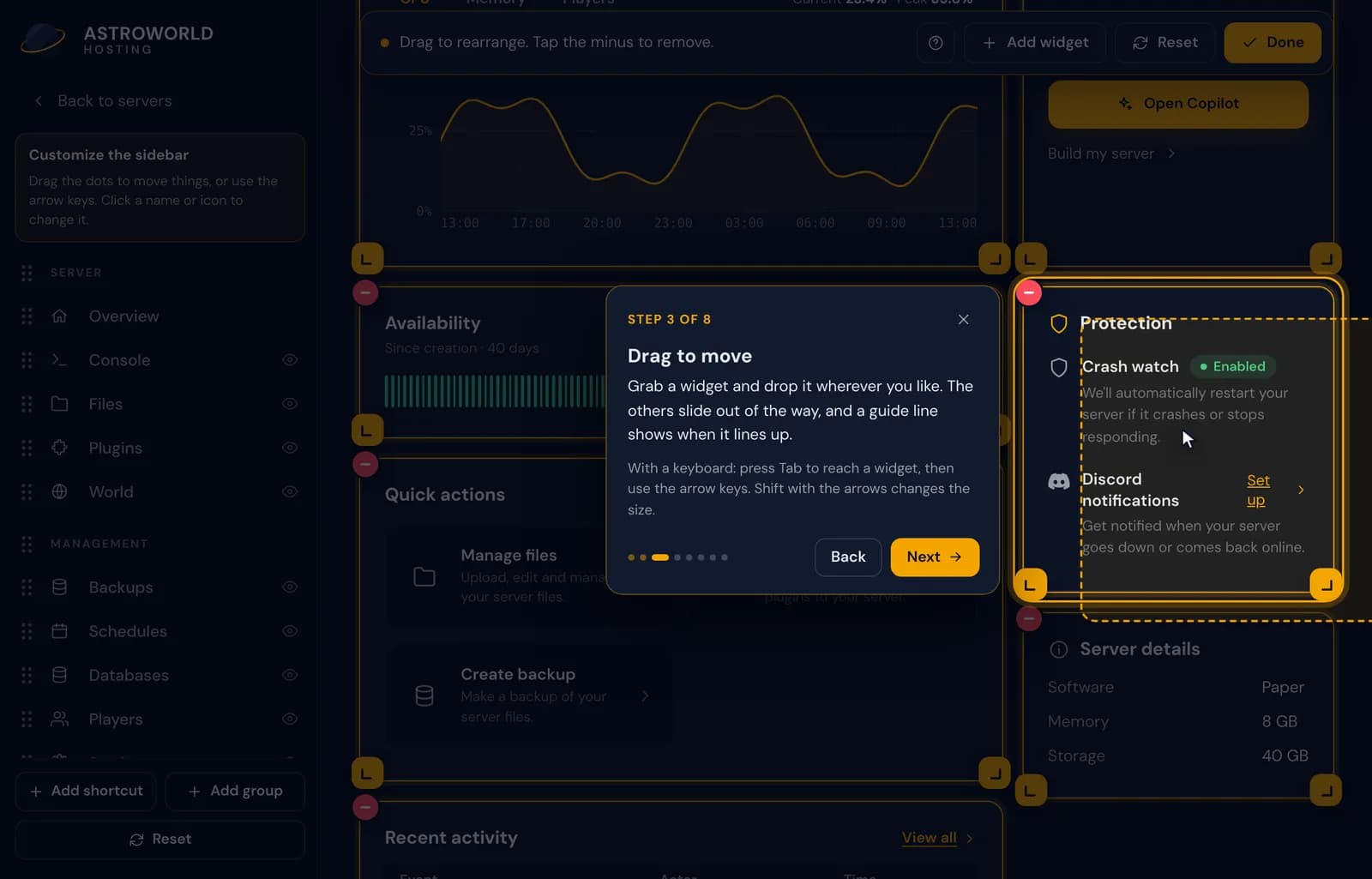
Step 3 of the tour, Drag to move, with a demonstration on the Protection widget Step 4, Make it bigger or smaller, demonstrates the resize corner and explains that the left corner moves the left side.
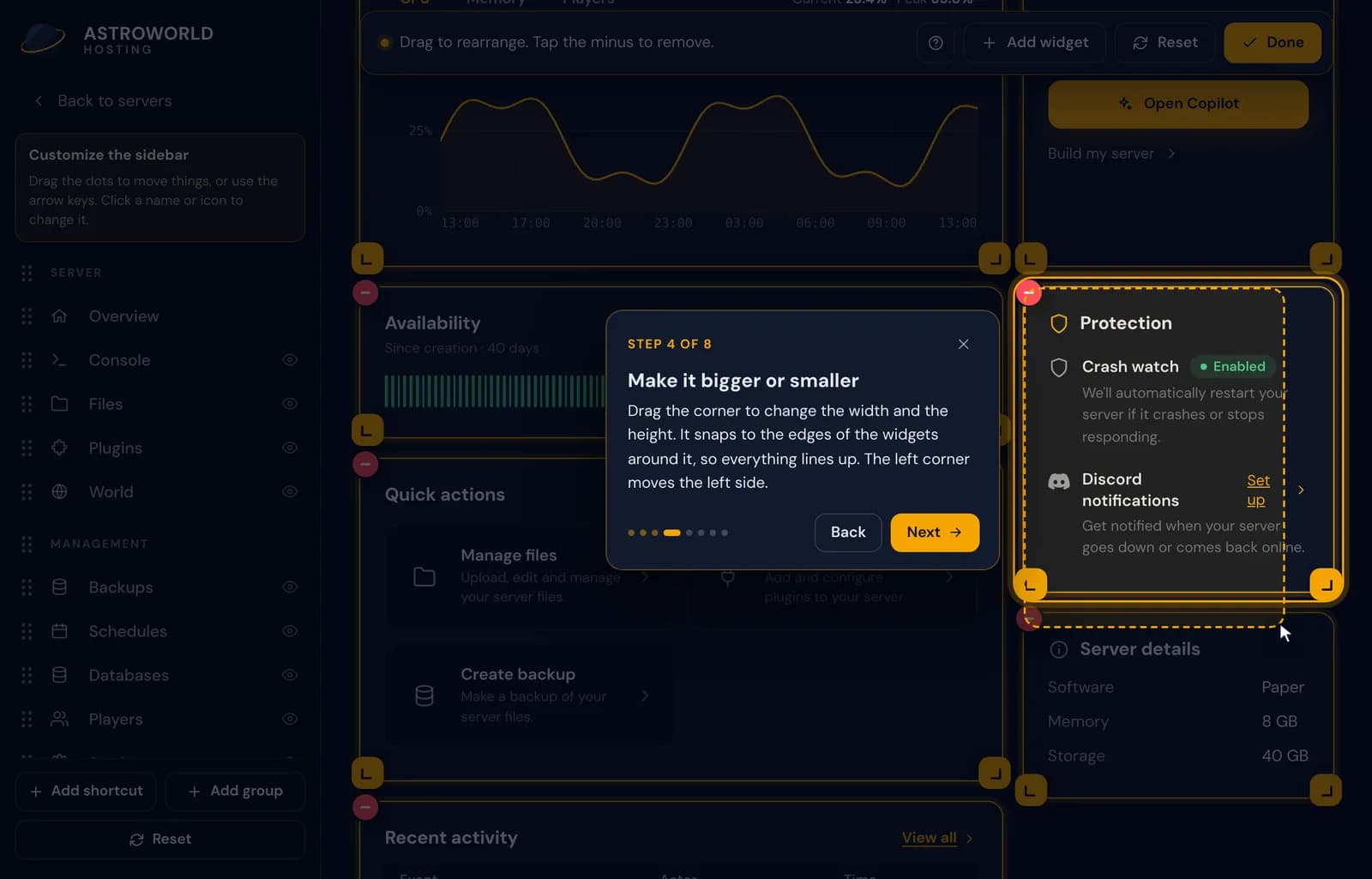
Step 4 of the tour, Make it bigger or smaller, showing the resize corner of a widget Step 5, Remove a widget, lights up the minus and promises that Add widget brings any widget back.
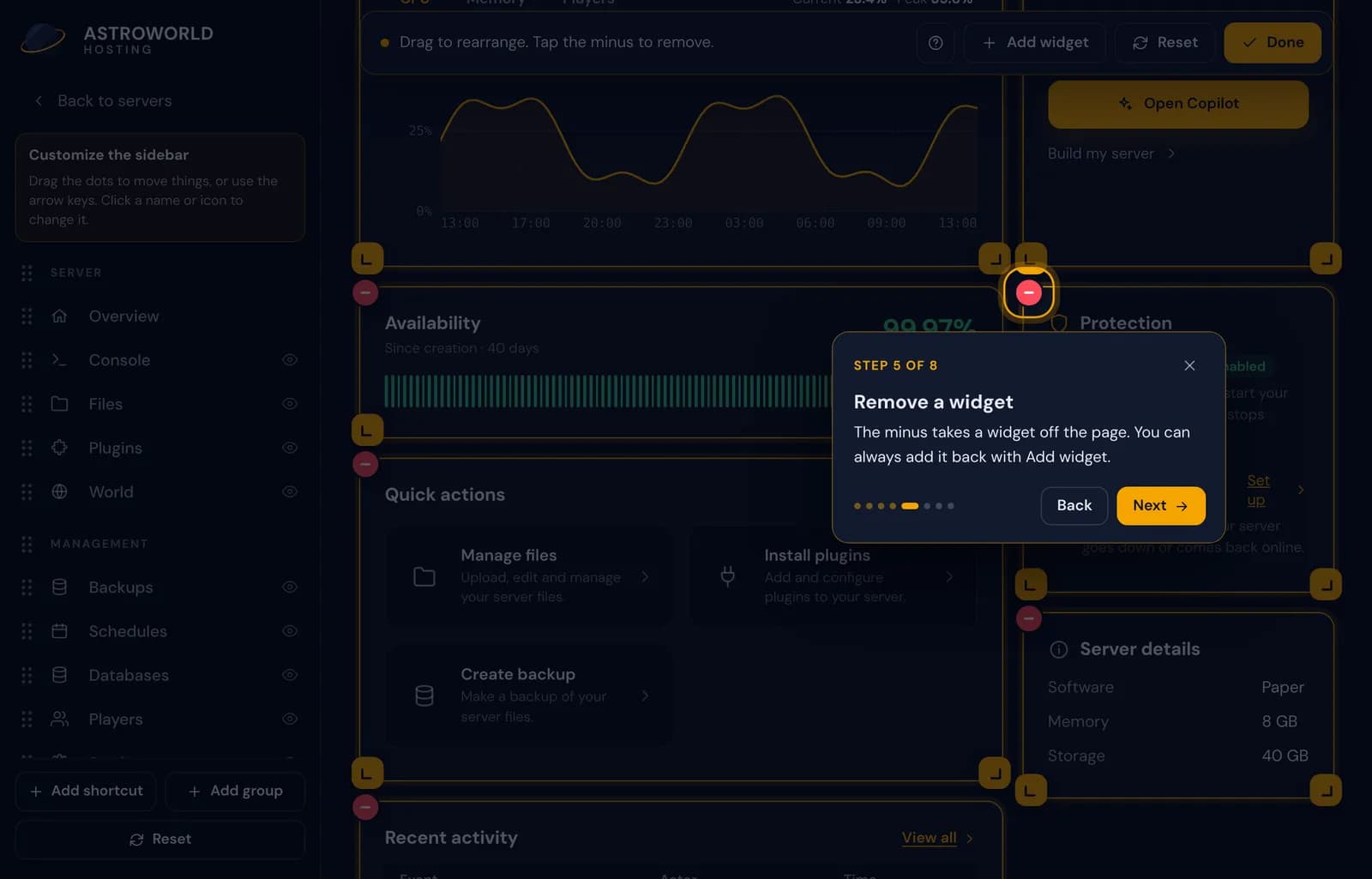
Step 5 of the tour pointing at the minus of a widget Step 6, Your own sidebar, moves to the menu on the left: drag the dots, give a page a nickname, pick another icon or hide a page with the eye.
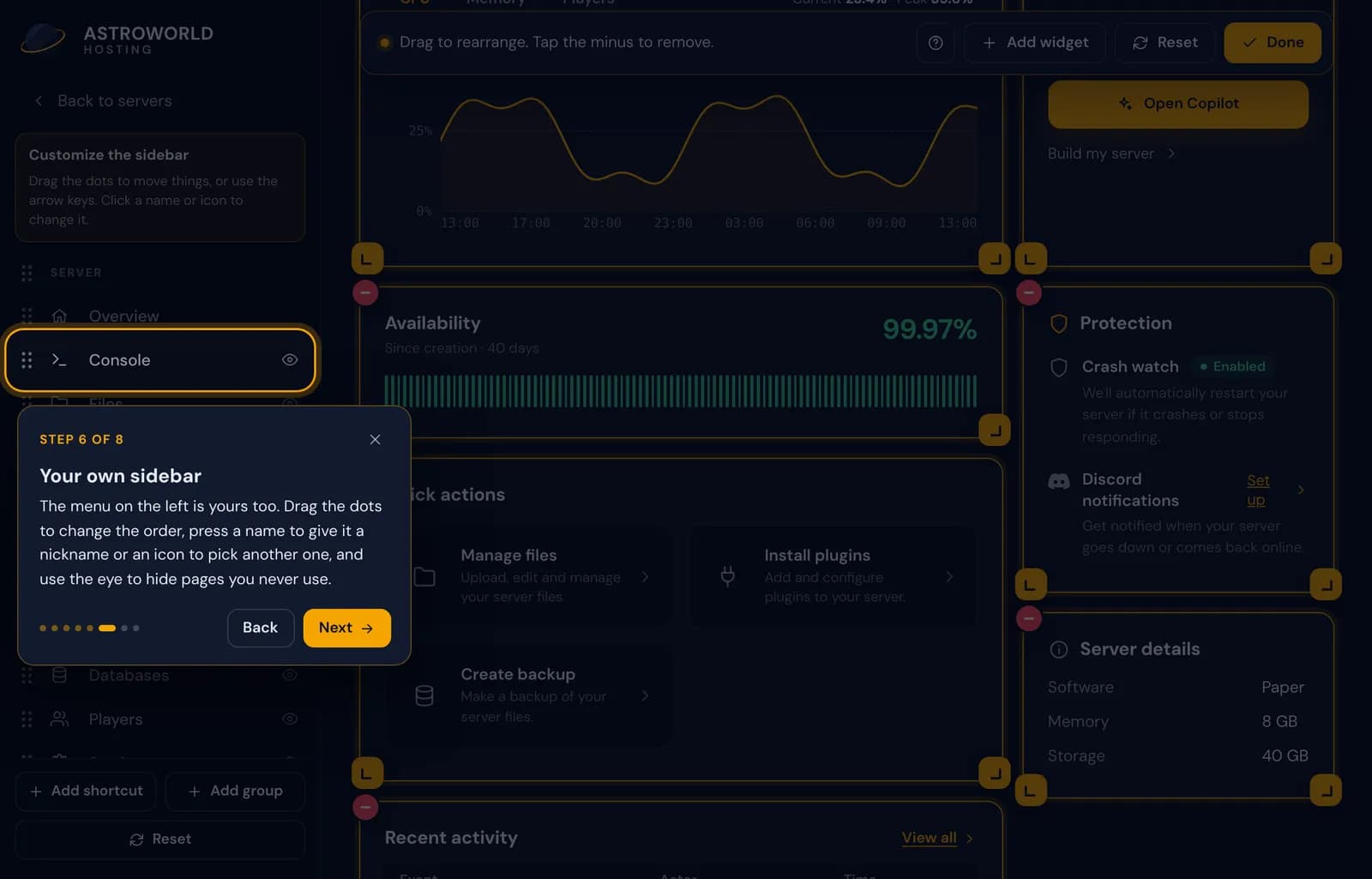
Step 6 of the tour, Your own sidebar, pointing at the Console row in the sidebar editor Step 7, Shortcuts and groups, points at Add shortcut and Add group at the bottom of the sidebar.
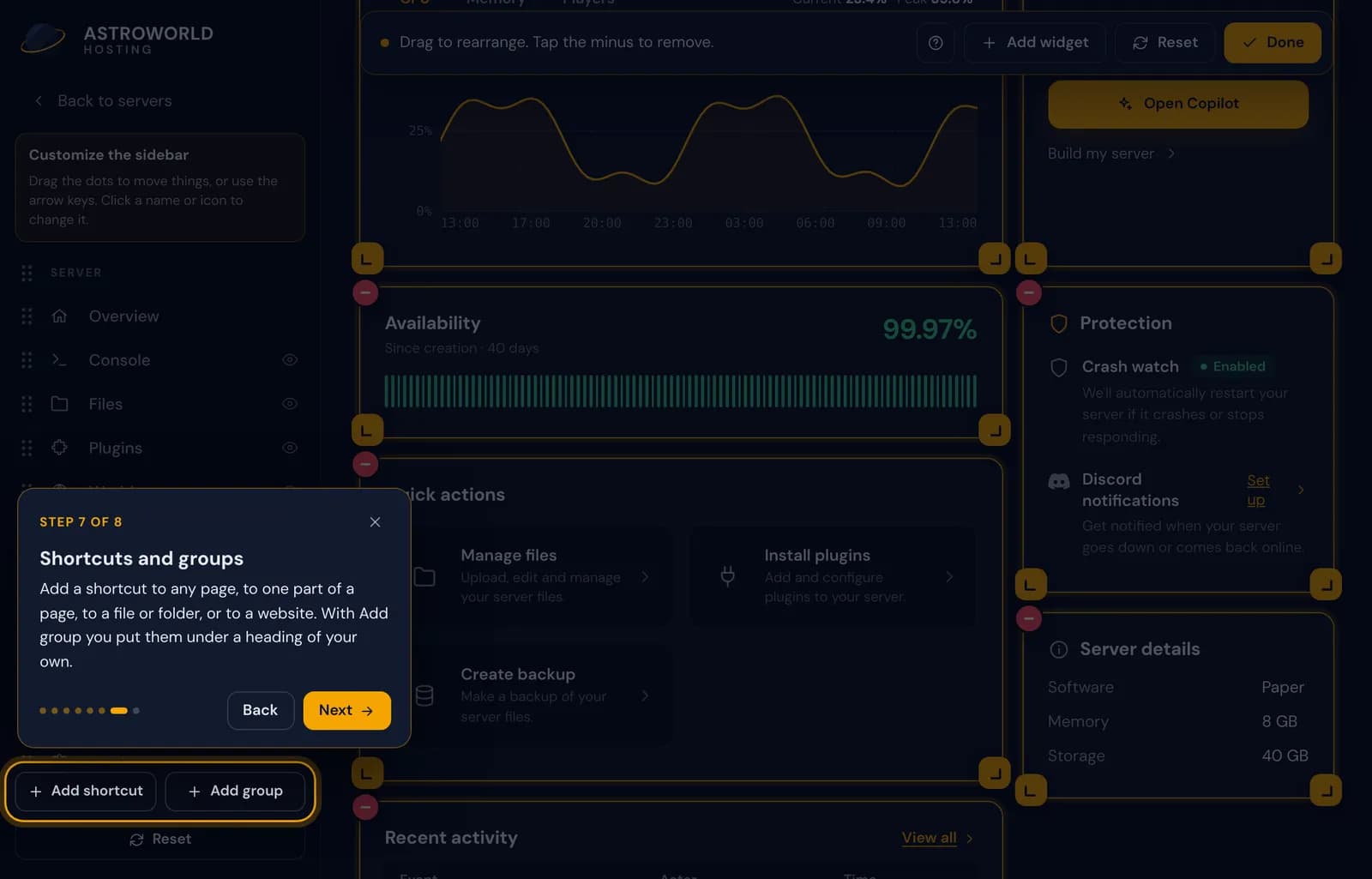
Step 7 of the tour pointing at Add shortcut and Add group Step 8, Saved as you go, explains that changes are stored straight away and that Done closes edit mode. Press Got it to finish.
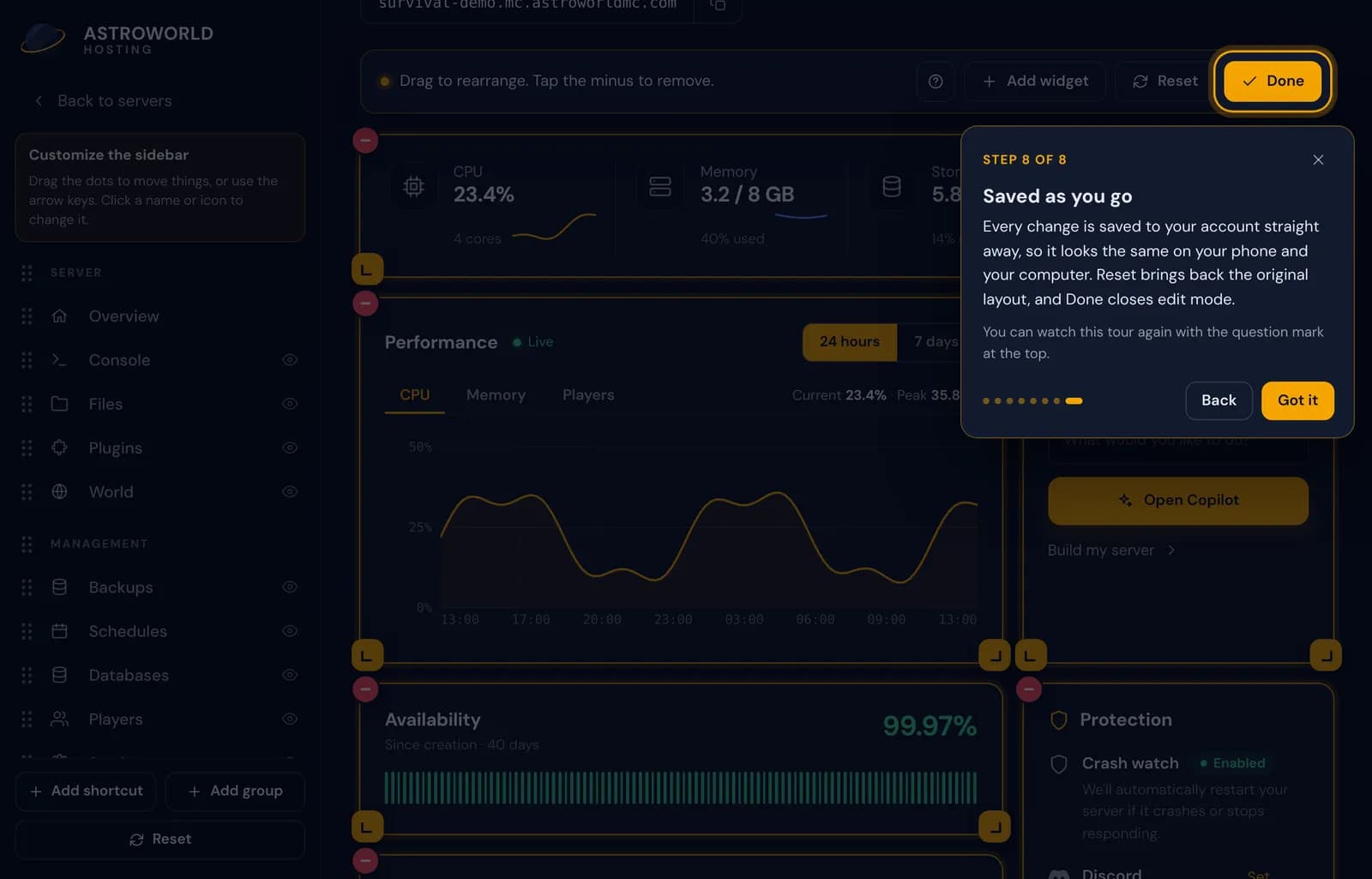
Step 8 of the tour, Saved as you go, pointing at Done, with Got it Want to see it again? The question mark in the edit bar plays it from the first step.

The question mark in the edit mode bar that starts the tour again, marked in red
Buttons and lines in the tour
| What it says | What it means and what to do |
|---|---|
Step 1 of 8 | The counter on every card. On a phone or in a narrow window it counts to 7. |
Skip tour | Stops the tour. The x at the top of the card and the Escape key do the same. |
Show me | The button on the first card that starts the tour. |
Back | Goes to the previous step, so you can read it again. |
Got it | The button on the last card. Edit mode stays on, so you can start straight away. |
Later you open this with the pencil at the top of the menu. | An extra line on narrow screens, where the sidebar editor is a drawer behind the pencil. |
Maybe later | Closes the announcement card. It does not come back for your account. |
When the tour starts by itself
The tour runs automatically the first time your account opens edit mode, and your account remembers that it ran. Skipping counts as seen, so the tour does not pop up again on your phone or another computer.
The announcement card
Accounts that have not tried edit mode yet get a one-time card on Overview, "Make this page your own", with a small moving preview of what edit mode does. It lights up the Edit button and never opens on top of another window.
You will not get the card when the server is suspended or when you have already seen the tour.
How the tour shows you around
Each step dims the page and leaves a window around the part it explains, so you see the real button rather than a picture of it. The card moves out of the way when it would cover that part.
On a phone, the steps about the sidebar slide the menu open for you and close it again when you move on.
Questions people also ask
Does skipping the tour turn off edit mode?
No. Edit mode stays on and you can carry on with your changes. Press Done when you are finished.
Can I watch the tour on another device?
Yes. The question mark in the edit bar starts it on any device, as often as you like.
Why does my tour have seven steps?
On a phone or a window less than 1000 pixels wide, widgets always use the full width, so the step about resizing is left out.