How do I customize my server panel with edit mode?
Short answerOpen Overview in your server panel and press Edit. Your widgets get a frame to drag them by, corners to resize them and a minus to remove them, and the sidebar on the left turns into a list you can reorder and rename. Press Done or Escape when you are finished; every change is saved to your account the moment you make it.
Open edit mode
Open your server panel. Edit mode belongs to Overview, the first page in the sidebar, so go there first if you are on another tab.
Press Edit. On a computer it sits on the right, just above the first row of widgets; on a narrow screen it gets a row of its own under the server buttons.
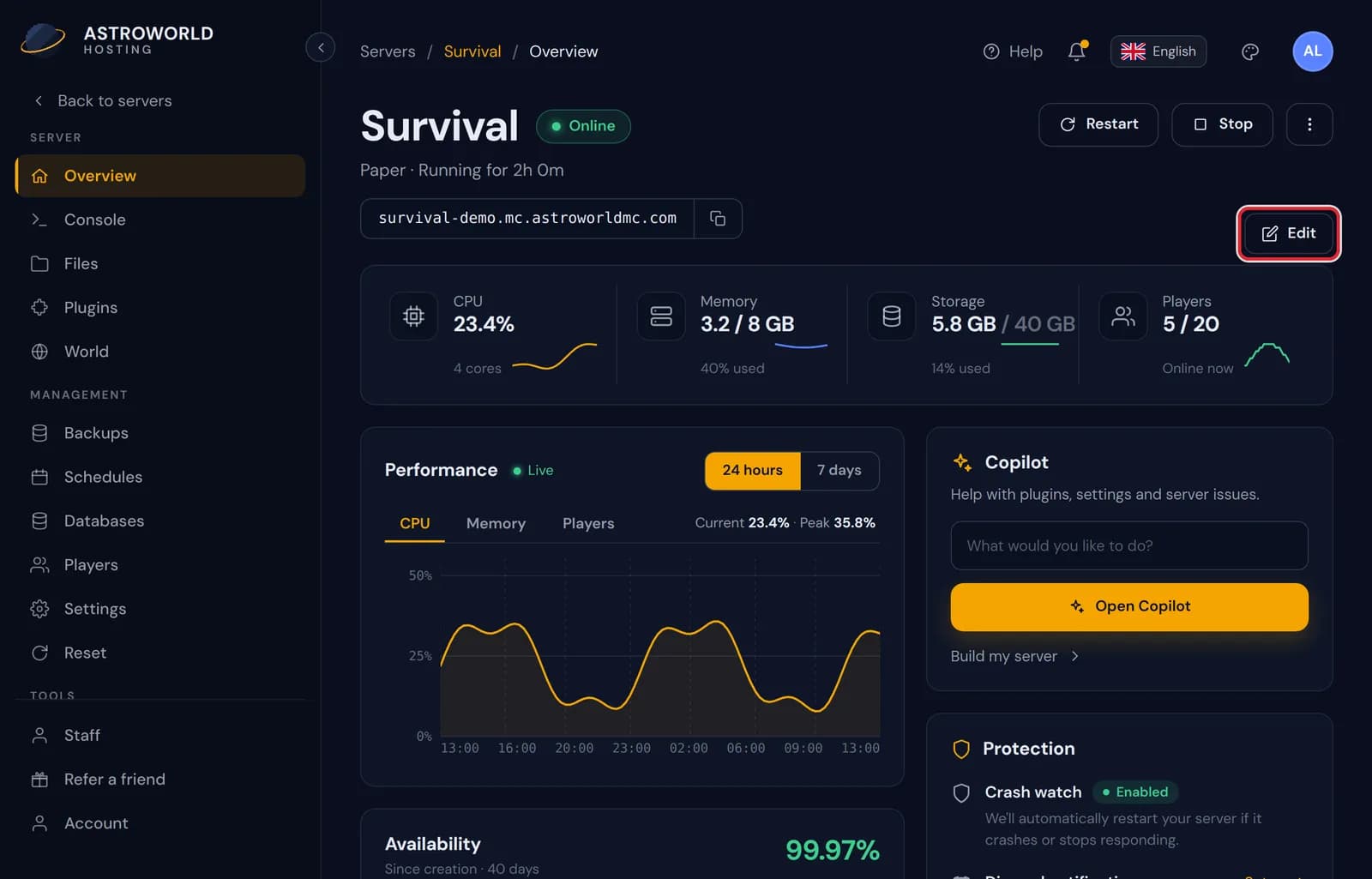
The Edit button on the Overview page of the server panel, marked in red The page switches to edit mode. Each widget gets a dashed amber frame, a red minus at its top left and a resize corner at the bottom, and the sidebar opens its own editor at the same time.
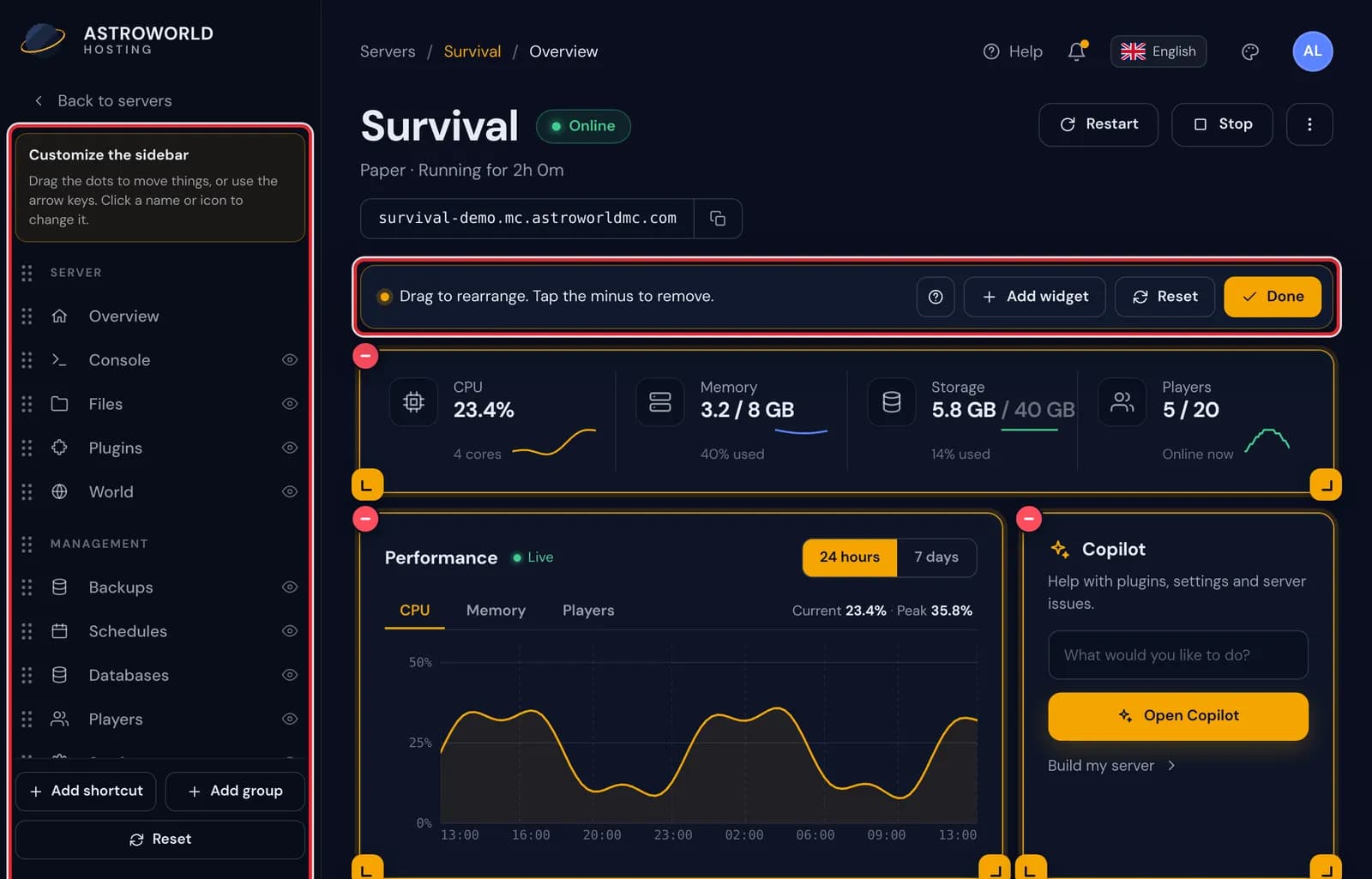
The panel overview in edit mode, with framed widgets on the right and the sidebar editor on the left 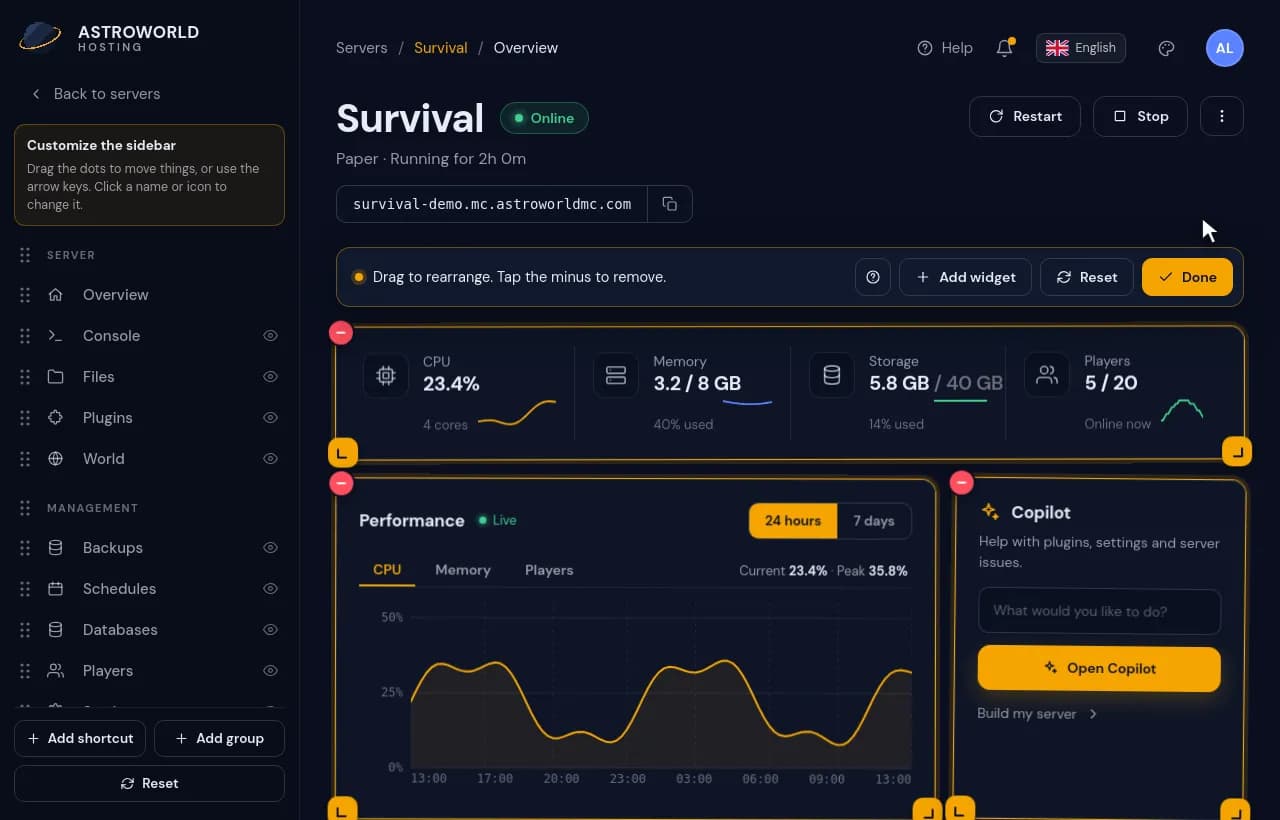
Pressing Edit on the panel overview, after which every widget gets a frame, a minus and resize corners Read the bar above the widgets. It opens with a one-line tip on moving and removing widgets, and holds four controls: a question mark that plays the tour again, Add widget, Reset and Done.

The edit mode bar, with the hint text followed by its four controls Make your changes, then press Done or the Escape key. There is no save button: the panel stores each change as you make it, so Done only closes edit mode.
Buttons and labels in edit mode
| What it says | What it means and what to do |
|---|---|
Edit | Turns edit mode on. You only find it on Overview, not on the other pages of the panel. |
Drag to rearrange. Tap the minus to remove. | The reminder at the start of the edit bar. It stays there for as long as edit mode is on. |
Add widget | Opens the list of all 22 widgets. Widgets that are already on your page are marked Added. |
Reset to default? | What the Reset button turns into after one press. Press it again to return to the standard overview, or click anywhere else to keep your own layout. |
Done | Leaves edit mode. Your layout was saved while you worked, so there is nothing left to confirm. |
What you can change in edit mode
On the overview you choose which widgets you see, where each one sits and how wide and tall it is. There are 22 of them, from live CPU and memory figures to a console with a command line, one-click commands, your schedules and a private note.
In the sidebar you decide the order of the pages, the name and icon of each one, which pages stay out of sight and which headings group them. Shortcuts can point to a page or one card on it, to something in your server files, or to a website.
Your layout follows your account
The layout is stored with your Astroworld account rather than in the browser. Log in on your phone or on another computer and the overview and the sidebar look the way you left them.
One layout covers every server on your account: the widgets fill in with the data of whichever server you open. People you invited through the Staff tab log in with their own account, so they arrange their own panel and never change yours.
The standard overview is never far away
Until you change something, Overview shows the standard page that every customer starts with. The Reset button among the edit controls brings that page back whenever you like, and the sidebar editor has a Reset of its own for the menu.
Questions people also ask
Does edit mode change anything on my Minecraft server?
No. It only changes how the panel looks to you. Your world, files, players and settings are not touched, and taking a widget off the page does not switch off the feature behind it, such as crash watch or scheduled backups.
Is there a limit to how many widgets I can use?
Each widget can be on the page once, so the most you can have is all 22. The list marks a widget Added as soon as it is on your overview.
Can I undo a change?
There is no undo button. Drag a widget back, add a removed one again with Add widget, or press Reset to start over from the standard overview.