How to Install Plugins on Your Minecraft Server
Plugins are what turn a server into yours. Getting one in takes six steps, and the first one is the one people skip: 3 of the 7 kinds of server software we offer can load a plugin at all.
The short answer
Run Paper, Purpur or Spigot
A plugin needs the Bukkit API. On Fabric, Forge, NeoForge or Vanilla the jar does nothing.
Jar in the plugins folder, then restart
Download from SpigotMC, Modrinth, Hangar or the developer's GitHub, nowhere else.
Read the startup log
One line per plugin it loaded. A Java version error there is the most common failure, and the startup tab fixes it.
The steps and the error table below are those three lines in full.
Step 1: Make Sure You Are Running the Right Server Software
A plugin needs the Bukkit API underneath it, and that is a property of the server software rather than of Minecraft. Paper, Purpur, Spigot have it. Fabric, Forge, NeoForge, Vanilla do not, and a plugin jar dropped on one of those does nothing at all. If you are not sure which one you are on, the startup tab in the panel names the jar. Paper is what we install by default: it is Spigot with a long list of performance fixes on top and it takes the same plugins.
| Server software | Loads plugins | What it does load |
|---|---|---|
| PaperWhat we put on by default | Yes, Bukkit API | Any Bukkit, Spigot or Paper plugin |
| Purpur | Yes, Bukkit API | Any Bukkit, Spigot or Paper plugin |
| Fabric | No | Fabric mods |
| Forge | No | Forge mods |
| NeoForge | No | NeoForge mods |
| Spigot | Yes, Bukkit API | Any Bukkit, Spigot or Paper plugin |
| Vanilla | No | Nothing. Vanilla has no loader of either kind |
Steps 2 to 6: Find It, Upload It, Restart, Verify
Find Your Plugin
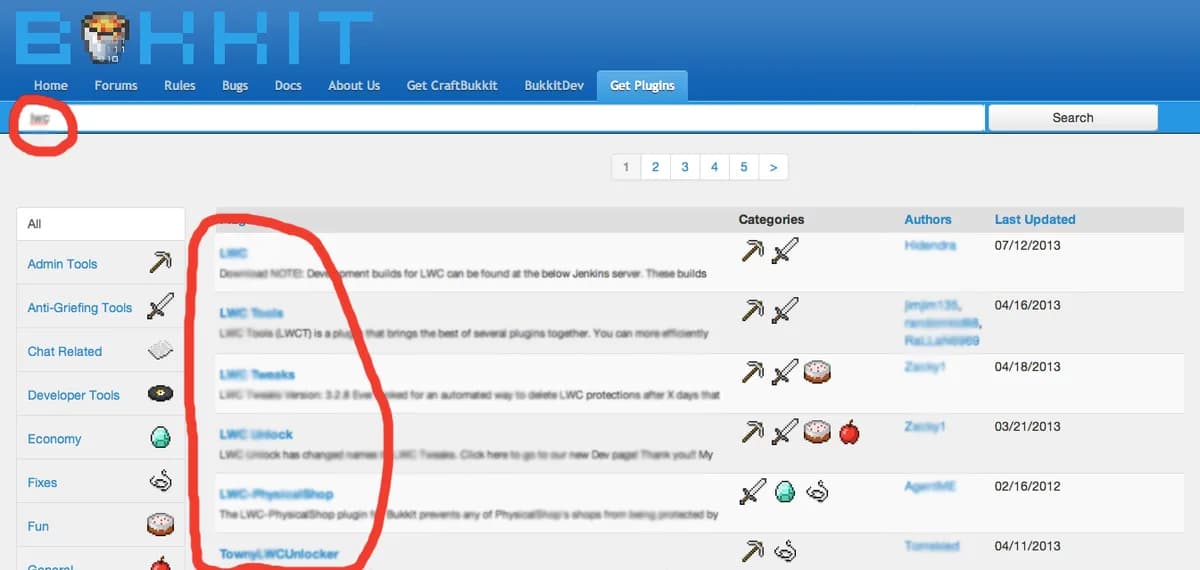
SpigotMC is the oldest and largest repository, Modrinth is the newer one and leans open source, and Hangar is Paper's own. Those three and the developer's own GitHub releases are the list. A jar from a chat server or a file locker can hand somebody operator rights on your server, wipe the world, or use the machine to attack other people, and it will look exactly like the real plugin while it does it.
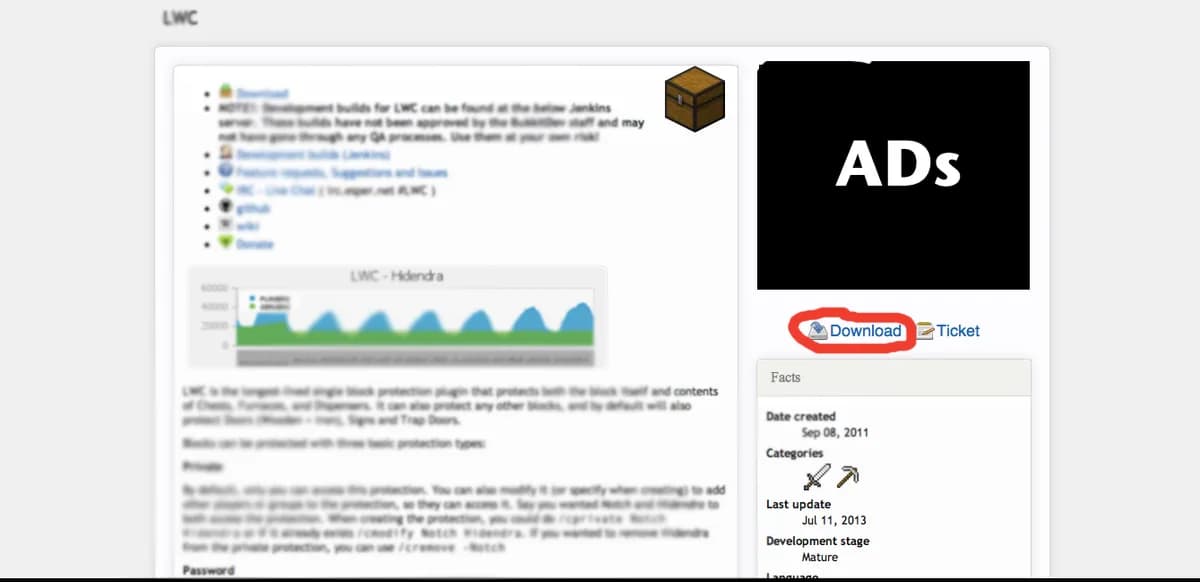
Download the .jar File
Plugin pages list the versions they support. A plugin built for a different major version usually refuses to enable, and sometimes enables and then breaks halfway through. If a plugin arrives as a zip with several jars in it, its page says which of them belongs on the server.
Upload to the /plugins Folder
In the file manager the server root holds world, logs and plugins. The jar goes in plugins, loose, not in a folder of its own. Drag and drop into the browser window works too.
/plugins/YourPlugin.jarRestart Your Server, and Never /reload
It is tempting because nobody gets kicked, but a reload leaves the old classes in memory and the old event listeners registered, and the bugs that come out of that are close to undebuggable. Stop the server properly and let the panel bring it back.
stopVerify and Configure
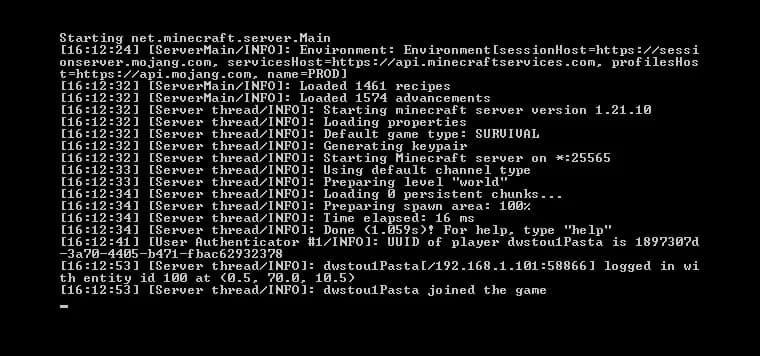
A plugin that loaded says so by name. Red text with a stack trace under it usually names a missing dependency or a version mismatch in its first two lines. After the first successful start the plugin writes its own config, and changes to that file need another restart or the plugin's own reload command.
/plugins/YourPlugin/config.yml
Common Issues and How to Fix Them
Two things go wrong more often than everything else combined. The first is Java. An UnsupportedClassVersionError in the console always means the same thing: the jar was compiled for a newer Java than the one the server is starting with. Of the 16 Minecraft versions we offer, 9 want Java 21 and 7 want something older, and the startup tab is where you set it.
| Minecraft version | Java it needs |
|---|---|
| LatestWhat a new server gets unless you pick otherwise | Java 21 |
| 26.2 | Java 21 |
| 26.1.2 | Java 21 |
| 26.1.1 | Java 21 |
| 1.21.11 | Java 21 |
| 1.21.8 | Java 21 |
| 1.21.4 | Java 21 |
| 1.21.1 | Java 21 |
| 1.20.6 | Java 21 |
| 1.20.4 | Java 17 |
| 1.20.1 | Java 17 |
| 1.19.4 | Java 17 |
| 1.18.2 | Java 17 |
| 1.16.5 | Java 8 |
| 1.12.2 | Java 8 |
| 1.8.9 | Java 8 |
The second is a missing dependency. Plugins lean on each other: most economy plugins want Vault as the bridge to your permissions plugin, and anything that touches packets wants ProtocolLib. The plugin page lists what it needs, and the console names it on the line above the stack trace.
Recommended Starter Plugins
| Plugin | What it gives you |
|---|---|
| EssentialsX | The commands people expect: /home, /warp, /tpa, kits, and a basic economy. |
| LuckPerms | Ranks and permissions, and the one almost everything else hooks into. |
| Vault | The bridge between an economy plugin and a permissions plugin. Nothing on its own. |
| WorldGuard | Region protection, so spawn survives the first griefer. |
| WorldEdit | Selections and brushes for building and terrain, and WorldGuard depends on it. |
Five is a working server. Add two or three at a time and restart in between: twenty jars at once tells you nothing about which one broke the boot.
Or have the Copilot install it for you
Everything above is the route by hand, and it is worth knowing. The AI Copilot in your panel does the same job from one sentence: it resolves the build for your server software and your Minecraft version at the moment it installs, puts the jar in the right folder, and reads your startup log back to see whether the plugin really loaded. It installs only from a vetted list of more than 500 plugins and has no way to fetch a jar from a loose address, which is the whole point of that list. Every install keeps a way back, and it never restarts your server without you clicking. The AI security check then reads your plugin folder for the three things that go wrong later: the same plugin installed twice, disabled jars left lying around, and plugins behind on a release where the hole is already public. Ask it for a backup before a batch of installs and it takes one, and if your server no longer starts after an install, restoring a backup puts the whole server folder back the way it stood an hour earlier.
Questions people ask while installing
Can I use plugins and mods on the same server?
Not on our software list. The three that take plugins do not load mods, and the three that load mods do not take plugins. Hybrid servers exist and break on every Minecraft update. If you need both, run two servers behind a proxy.
How many plugins can a server handle?
The count is not the problem, what they do is. Twenty small command plugins cost less than one that scans chunks every tick. If your tick time climbs after an install, that plugin is the first thing to take back out.
Why is /reload bad if it works?
Because it usually appears to work. The old classes stay in memory, listeners stay registered twice, and the errors that follow point at the wrong plugin. A restart takes a minute and tells you the truth.
Which Java version should my server run?
The one your Minecraft version needs, which is in the table above. Newer Java than required is usually fine; older is an UnsupportedClassVersionError before the world loads.
Do premium plugins work on a hosted server?
Yes. They are ordinary jars in the same folder. Some check a licence over the network on startup, which is worth knowing when you are debugging a plugin that only fails on boot.
Plans that run a plugin server
 Mini4 GB€6.9524-month term · €6.95/mo, and the same price every time it renews
 Starter8 GB€10.9524-month term · €10.95/mo, and the same price every time it renews
See all 21 plans across three editionsAnswer four questions and get the size
Both tables on this page are read out of our own order form when the page is built: the software column is the dropdown on the configure page, and the version column is the version list next to it. Add one there and it appears here.
What twenty plugins cost per tick
Each plugin you add gets its turn inside every tick, and a few of them write to disk while the world keeps running. Twenty well-behaved plugins are cheap; one that scans chunks on a timer is not. On the Performance line that work lands on an AMD Ryzen 9 5900X in Germany or an AMD Ryzen 9 7950X with DDR5 RAM in Poland with its own NVMe slice, so a save no longer stalls the tick that follows it.


Which plugins to add next
Once plugins load, the next question is which ones are worth it, and Best Minecraft Server Plugins 2026, Top 50 List goes through fifty of them. EssentialsX tends to come first, and How to Set Up EssentialsX, /sethome, /spawn & /tpa sets up homes, spawn and teleports. If an operator still gets a permission error from a plugin command, see How to Fix OP Permissions Not Working in Minecraft, and How to Hide Commands from Players on a Minecraft Server keeps plugin commands out of the tab list for players who cannot use them.
Written and checked by the Astroworld Hosting team. Last reviewed on 6 September 2026.
Delivery: most servers are handed over instantly and run within seconds of payment, the rest follow within 60 minutes during the day and within 12 hours at night.