Minecraft hosting guide
How to Set Up LuckPerms Ranks
Four groups, three lines of inheritance, and every command on this page comes out of the same four. Build the ladder once, and adding a rank later takes one command instead of five files.
The short answer
LuckPerms, Bukkit build, on Paper, Purpur or Spigot
Upload the jar, restart, and the plugin writes its own folder.
Four groups that inherit upwards
member, helper, moderator, admin. Each inherits the one below it, and weight decides which one shows.
A prefix needs two more plugins
Vault plus a chat plugin such as EssentialsX Chat. LuckPerms stores the prefix, they display it.
Every command on this page is below in the order you run it, and the web editor does the same job with a mouse.
What Is LuckPerms?
LuckPerms is the permissions plugin for Bukkit-based server software: Paper, Spigot and Purpur. It replaced PermissionsEx and GroupManager, which stopped being maintained and carry known bugs on current Minecraft versions. What it does is decide, per player, what is allowed: regular players get /home but not /fly, moderators can ban but cannot reach WorldEdit. All of that runs through groups, permissions and inheritance, and those three are the whole model.
Installing LuckPerms
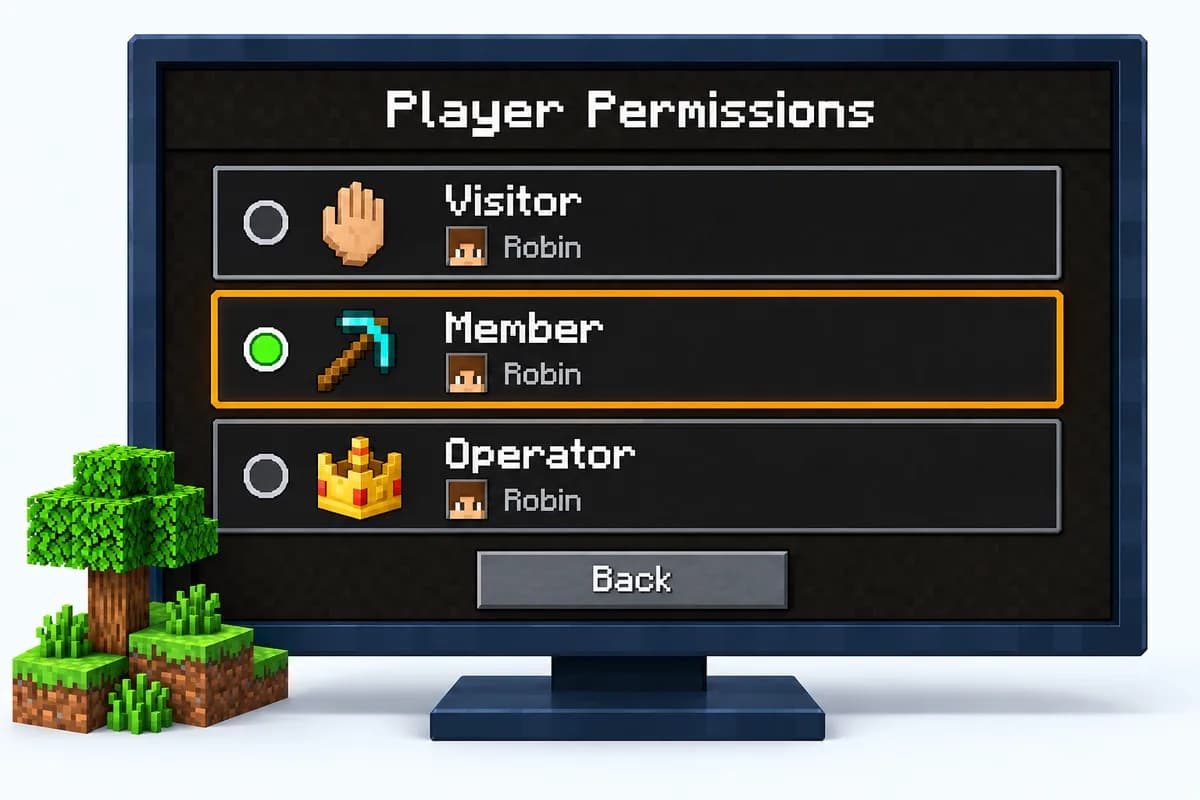
Download it from luckperms.net and take the Bukkit build, not the Velocity, BungeeCord or Fabric one: they are different plugins with the same name. Upload the jar to the plugins folder and restart. Our plugin installation guide covers the file manager side if this is your first jar. After the restart LuckPerms writes its own folder, and it stores everything in a flat H2 file. That is fine for one server. MySQL or MariaDB only becomes necessary when several servers have to share one set of ranks.
/plugins/LuckPerms/Understanding Groups, Users, and Permissions
| Term | What it is | Example |
|---|---|---|
| Permission | A single string that a plugin checks before it lets something happen. | essentials.home |
| Group | A named bundle of permissions. This is where you do the work. | member |
| User | One player, who belongs to groups and inherits everything they carry. | A player added to moderator |
Set permissions on groups and put players in groups. Never the other way around. Per-player permissions look quicker for the first two people, but by the twentieth player they can no longer be maintained, because a change then has to be made twenty times instead of once.
Creating Your Rank Hierarchy
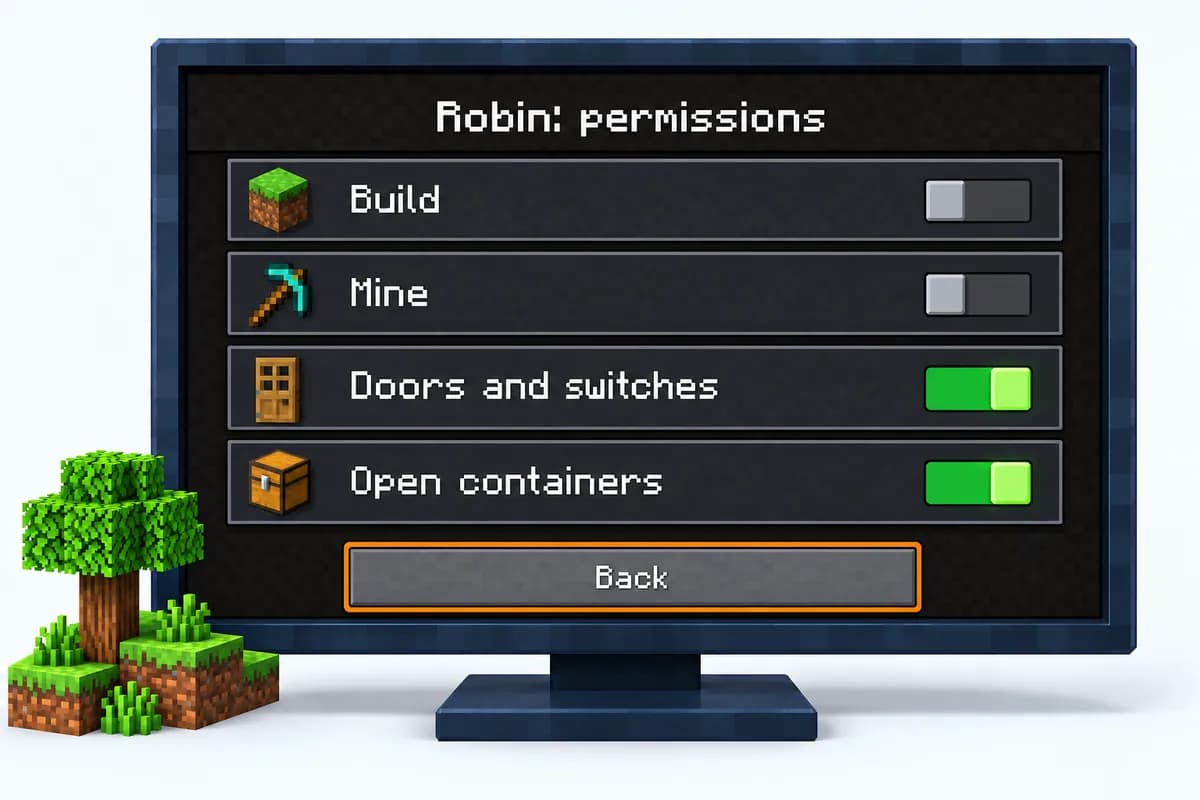
Three to five ranks is what almost every server ends up with. These four are a working starting point. Run them in the console or in-game as an operator.
| Group | Inherits from | Weight | What it is for |
|---|---|---|---|
| memberChat prefix &7[Member], in gray | Nothing. This is the floor. | 1 | Everyone who joins. Homes, teleport requests, the basics. |
| helperNo prefix of its own | member | 10 | Answers questions, can mute and kick. No bans, no world edits. |
| moderatorChat prefix &a[Mod], in green | helper, then member | 50 | Bans, region checks, rollbacks. Everything a helper has, plus teeth. |
| adminChat prefix &c[Admin], in red | moderator, then helper, then member | 100 | Everything. Give this to as few people as you can stand. |
/lp creategroup member
/lp creategroup helper
/lp creategroup moderator
/lp creategroup admin
LuckPerms ships with a group called default that every new player lands in. You can hang permissions on default directly, or leave it empty and make your own bottom group the default one. The second is worth the extra step: it lets you change what a new player gets without touching the group LuckPerms itself falls back on.
Assigning Permissions to Groups
Every plugin documents its own permission strings. EssentialsX uses essentials.home, essentials.tpa and essentials.sethome, and granting one to a group is a single line.
/lp group member permission set essentials.home trueWildcards work too: essentials.home.* covers setting, deleting and teleporting to homes in one go. Keep them narrow. essentials.* hands out every admin command in the plugin, so give it only to the admin group.
Setting Up Inheritance
Inheritance is what stops you copying the same permission into four groups. A group that inherits another gets everything it has, plus whatever you add on top.
/lp group helper parent add member
/lp group moderator parent add helper
/lp group admin parent add moderator
Because the chain runs all the way down, admin ends up with moderator, helper, member and its own on top, without any of those permissions being written twice. Add a permission to member tomorrow and all 4 groups have it.
Group Weight and Display Order
Weight decides which group wins when a player is in more than one. The heaviest is the primary group, and that is what a chat prefix, a tab list entry and a display name read from.
/lp group member setweight 1
/lp group helper setweight 10
/lp group moderator setweight 50
/lp group admin setweight 100
Higher wins. A player in both member (weight 1) and moderator (weight 50) shows up as moderator everywhere it matters. The gaps between the numbers are deliberate: leaving room means the rank you invent next year can slot in between two existing ones without renumbering the ladder.
The Web Editor
Commands work, but once you have more than a few groups the editor is faster. Run it and LuckPerms hands you a one-time URL to a browser interface with every group, every inheritance chain and every permission in one view. Drag things around, click Save, and it applies to the running server without a restart. It is also where you notice that a group inherits something you did not mean to give it, which is very hard to see from a console.
/lp editorVault Integration for Chat Prefixes
A prefix in chat needs two more things: Vault, which lets other plugins read group data out of LuckPerms, and a chat plugin that actually formats the message, such as EssentialsX Chat or ChatControl. Install Vault first, then set the prefixes.
/lp group member meta setprefix 1 "&7[Member] "
/lp group moderator meta setprefix 50 "&a[Mod] "
/lp group admin meta setprefix 100 "&c[Admin] "
The ampersand codes are Minecraft colour codes: &7 is gray, &a is green, &c is red. The number after setprefix is a priority and works like weight does, so reusing the group's own weight keeps the two from ever disagreeing. EssentialsX Chat picks the prefix up from Vault by itself once the chat format in its config references it.
![A Java Edition chat log with lines from several players with the rank prefixes [Admin] and [Member], and join and leave messages](/_next/image?url=%2Fimages%2Fguides%2Fminecraft-server-chat-ranks-join-leave.webp&w=3840&q=75)
Adding Players to Groups
Once the ladder is set up, promoting somebody is one line, and it takes effect immediately: no restart, no relog.
/lp user PlayerName parent set moderatorThat sets their primary group. Because moderator inherits helper and member, they get those too. Beyond this there are contexts, which limit a permission to one world, temporary permissions with an expiry date, and per-server rules for networks, but the ladder above covers what most servers ever need.
Have the AI check what you just set
A rights setup changes after you finish it, as plugins and staff are added. The AI security check runs 31 checks on your own server across six groups, and one of those groups is this page seen from the other side: how many people are operator, how much power an operator level hands out, operators who are no longer on the whitelist, and whether taking someone off the whitelist actually removes them. It also reads the last 400 lines of your console for operator rights being handed out and for the commands that change rights, which is where a mistake in a permission file shows up before a player reports it. You get a count of critical findings, warnings and passed checks, each line saying what it saw on your server.
Questions people ask about ranks
Do I still need to op myself?
Better not to. An operator bypasses permission checks entirely, so you stop seeing what your own admin group can and cannot do. Put yourself in the top group instead and deop.
What is the default group for?
It is where LuckPerms puts a player it has never seen. Leaving it empty and giving new players your own bottom group means you can change what they start with without touching the fallback.
Does LuckPerms work on a modded server?
There are Fabric and Forge builds, but they are separate downloads and the plugin ecosystem around them is much smaller. On our software list the Bukkit-based options are where this guide applies.
My prefix does not show up in chat. Why?
Setting a prefix and displaying one are two plugins. LuckPerms stores it, Vault exposes it, and a chat plugin has to put it in the message. Missing any of the three and the prefix exists but nobody sees it.
Do I need MySQL?
Only for a network where several servers share one set of ranks. A single server runs fine on the flat file LuckPerms creates by itself, and that file is easier to back up.
Plans that run a plugin server
 Mini Performance4 GB€3.18First 3 months · then €7.95/moPlus €2.99 setup
 Starter Performance8 GB€6.38First 3 months · then €15.95/mo
See all 21 plans across three editionsAnswer four questions and get the size
Every command on this page is generated from one list of four groups, so the weights in the table, the inheritance chain and the prefixes cannot say three different things. Change a rank there and all four blocks change with it.
Permissions are cheap, the server around them is not
A permission plugin answers a lookup and goes back to sleep, so it is not what slows a server down. What follows it usually is: the claim plugin, the shop, the minigame arena and the twenty players they bring. When that stack is the plan, the memory is only half the question, and the other half is a thread of your own on an AMD Ryzen 9 5900X in Germany or an AMD Ryzen 9 7950X with DDR5 RAM in Poland.


When permissions still misbehave
An operator who still sees a permission error is one of the most common puzzles after a permissions plugin goes in, and How to Fix OP Permissions Not Working in Minecraft goes through the causes one by one. To keep commands a player cannot use out of sight entirely, see How to Hide Commands from Players on a Minecraft Server.
Written and checked by the Astroworld Hosting team. Last reviewed on 6 September 2026.
Delivery: most servers are handed over instantly and run within seconds of payment, the rest follow within 60 minutes during the day and within 12 hours at night.