How do I change the Java version of my server?
Short answerOpen Settings in your server panel and find the Startup card under Server software. Pick a Java version, press Save and restart the server: the panel marks the Java your Minecraft version needs as recommended, and on the same card a modpack can start from its own server jar.
Change the Java version
Open Settings in the sidebar and scroll to the Startup card, right under Server software. It shows the Java the server runs on now and, under the list, which Java your Minecraft release asks for. In the picture the server is set to Java 21 while Minecraft 26.2 needs Java 25, so it would not start.
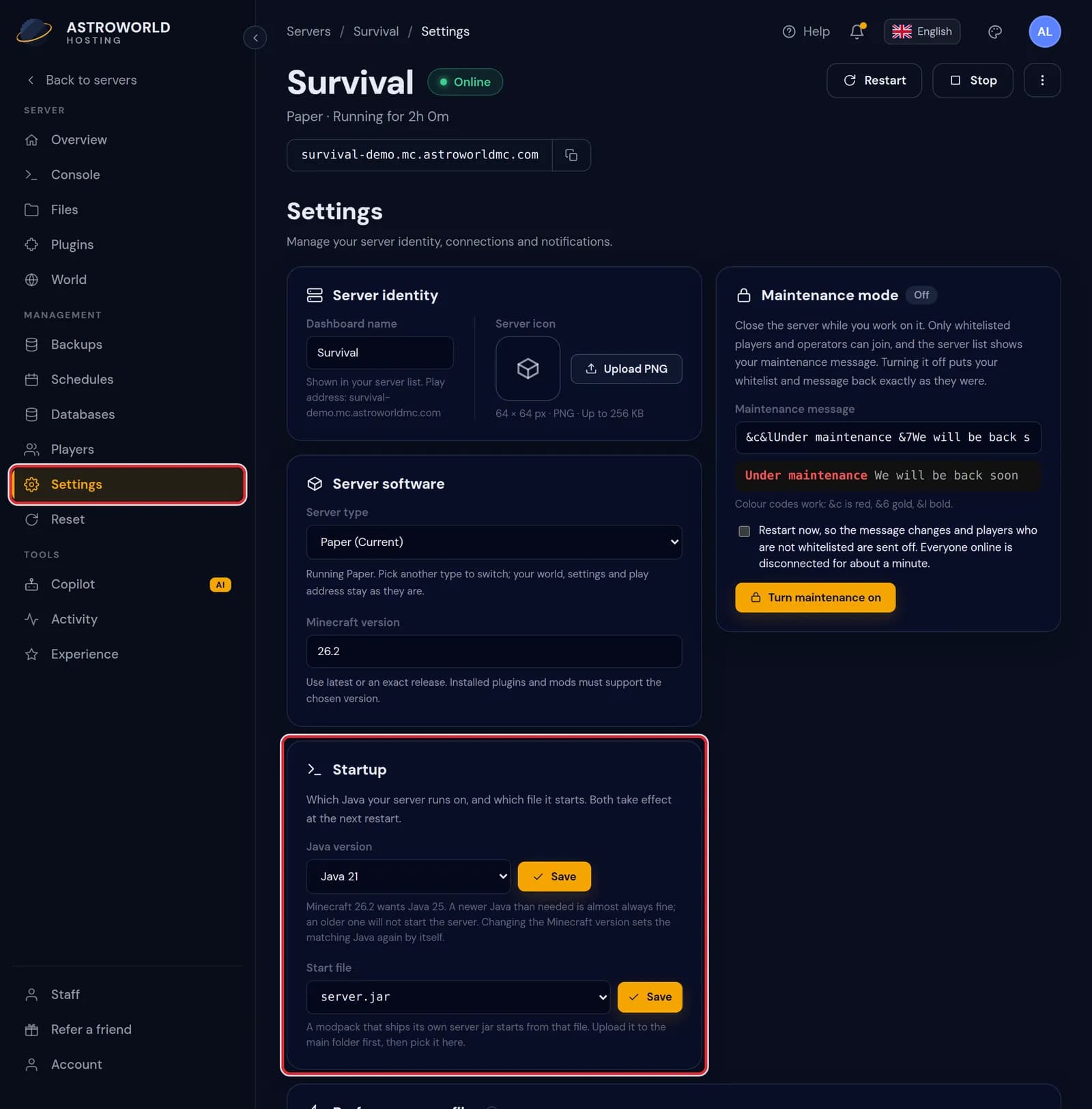
The Settings page with the Startup card marked in red, Java 21 selected and the line Minecraft 26.2 wants Java 25 Open the Java version list and choose the entry marked recommended. The list offers Java 8, 11, 16, 17, 21 and 25.
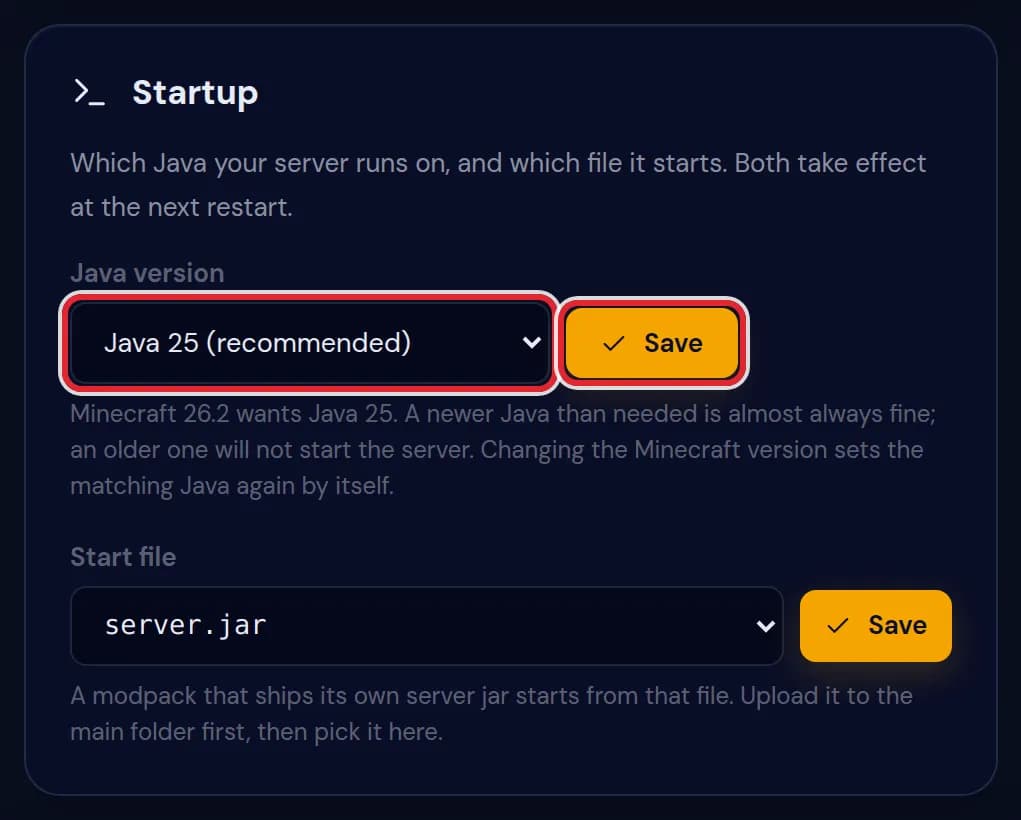
Java 25 (recommended) chosen in the Java version list, with the Save button next to it, both marked in red Press Save. A running server keeps the Java it started with, so restart it from the top of the panel to make the switch.
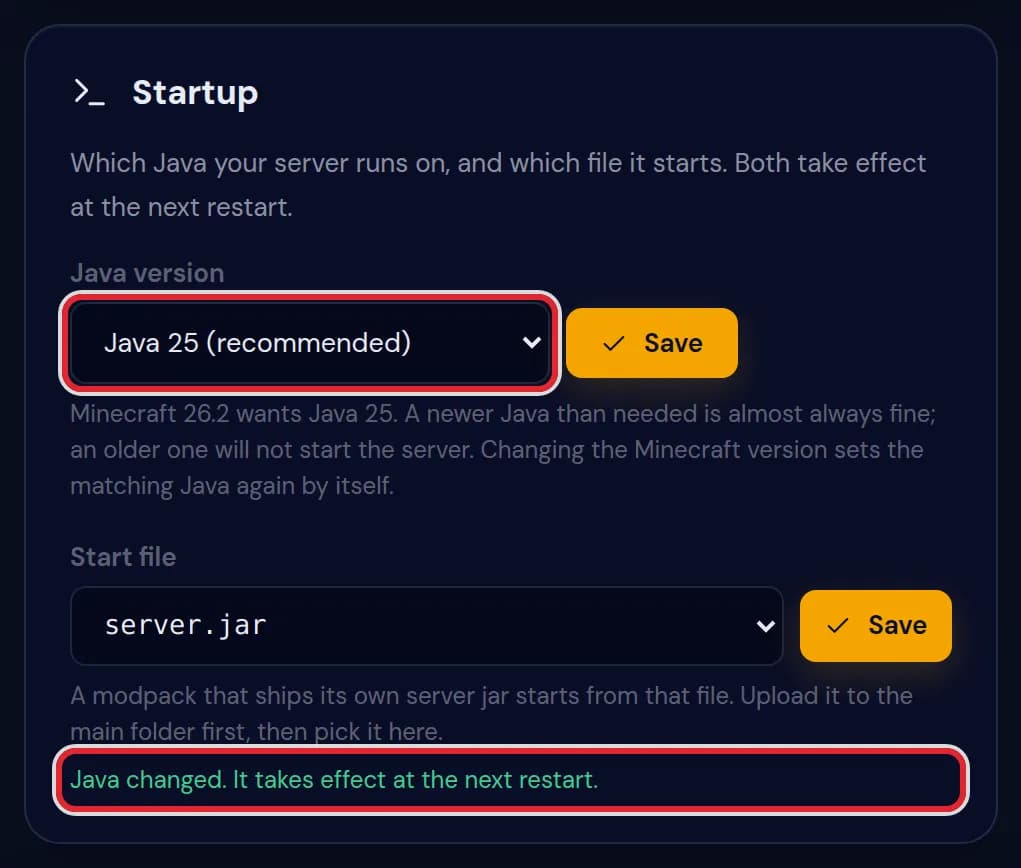
The confirmation Java changed. It takes effect at the next restart under the Startup card, marked in red On server types that can start from a jar of your choice, the Start file list holds every .jar in the main folder of the server, installers left out. Choose the jar of your modpack or loader and press the Save button next to it; it also counts from the next restart.
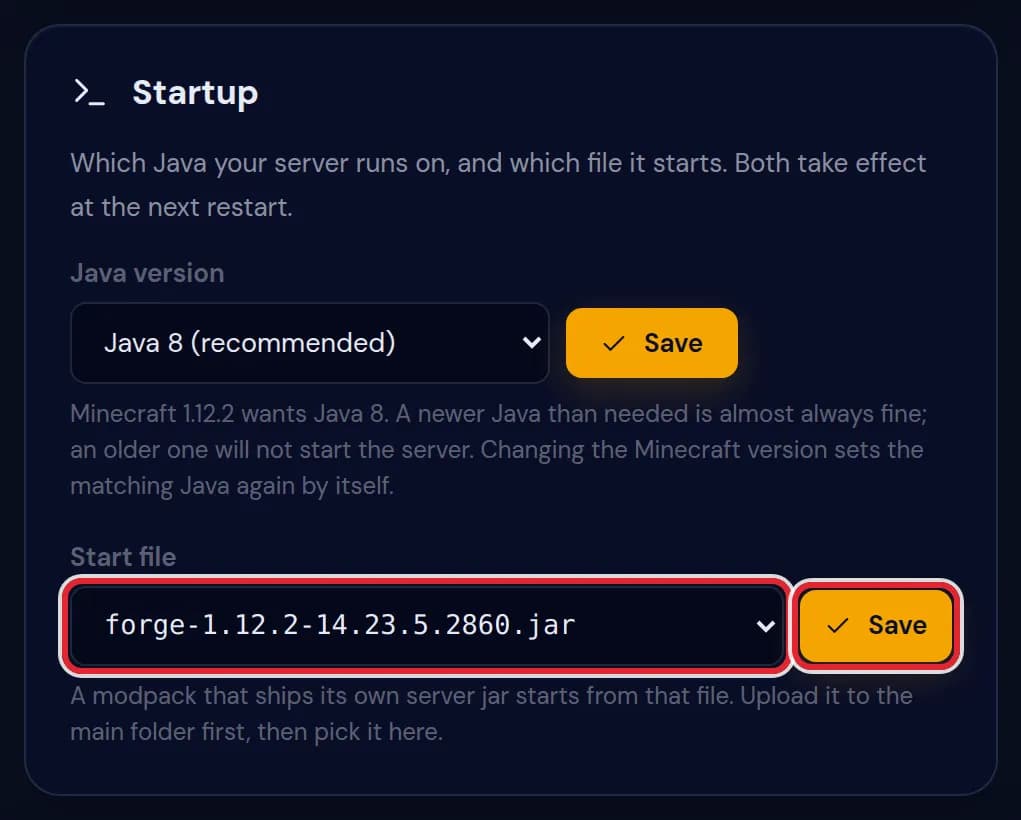
A Minecraft 1.12.2 server on Java 8 (recommended) with forge-1.12.2-14.23.5.2860.jar chosen as start file and Save marked in red Other server types always start the same way. There the Start file field only shows the file in use, and Java is the one thing you change.
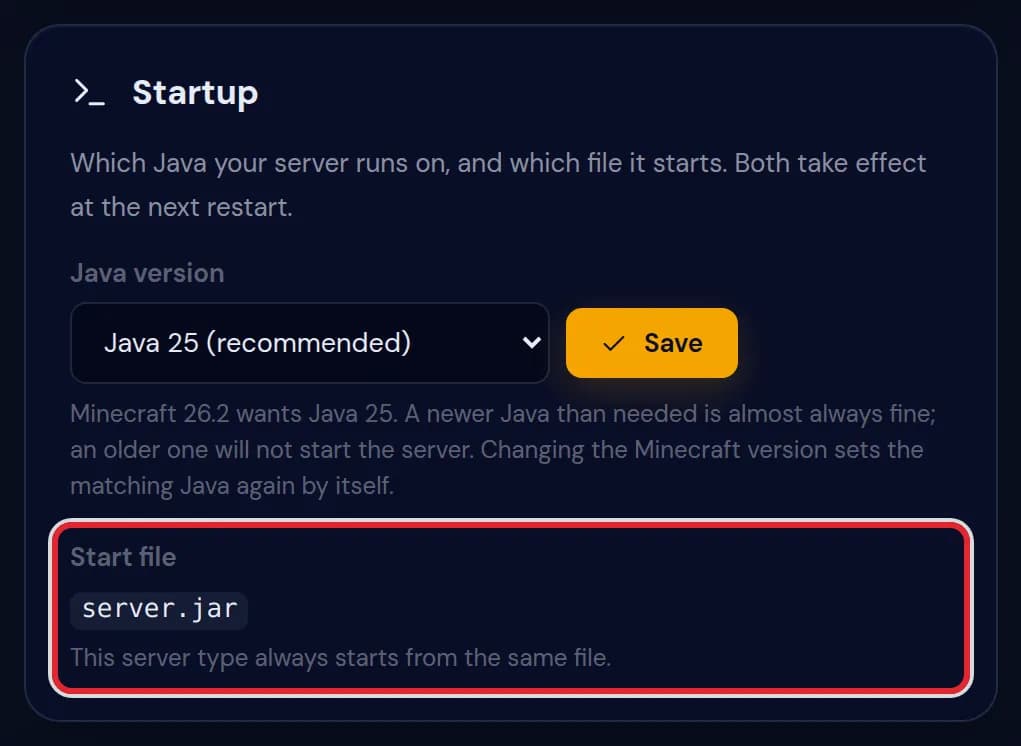
The Start file field showing server.jar with the line This server type always starts from the same file, marked in red
Messages on the Startup card
| What it says | What it means and what to do |
|---|---|
Java changed. It takes effect at the next restart. | Saved. Restart the server to run it on the Java you picked. |
Start file changed. It takes effect at the next restart. | The server will start from the jar you chose. Restart to try it, and watch the console while it loads. |
That Java version is not available. | Only the versions in the list can be used. Reload the page if the list looks out of date. |
This server does not run on Java. | Bedrock servers have their own software without Java, which is also why the card does not appear on them. |
This server is still being set up. | The server software is still being installed. Wait until the server is ready and save again. |
Pick a .jar file from the main folder. | The start file must be a jar directly in the main folder, not in a folder below it. |
That file is not in the main folder of the server. | The jar was moved or deleted after the page loaded. Reload the page and choose again. |
The start file of this server type is fixed. Ask support if you need another one. | This type has one way to start. When a pack truly needs another jar, support can look at it with you. |
This server type does not start from a jar file you can choose. | The type uses a start command of its own, so there is no file to pick. |
Which Java each Minecraft version needs
Minecraft 26.1 and newer need Java 25. For 1.21 up to 26.1 the panel also recommends Java 25, although the game accepts Java 21 there. 1.20.5 and 1.20.6 want Java 21, 1.18 to 1.20.4 want Java 17, 1.17 wants Java 16 and every older release runs on Java 8.
Going newer than needed usually works and going older never does. Old Forge is the exception: Forge for 1.12.2 and earlier only starts on Java 8.
When you change the Minecraft version on the Settings page, the panel picks the matching Java for you. This card is mostly for modpacks and for repairing a server whose Java was set by hand.
Reading a Java error in the console
A Java that is too old shows up in the console as a line about a class file version, saying that something was compiled by a more recent version of the Java Runtime. Class file version 61 stands for Java 17, 65 for Java 21 and 69 for Java 25: choose at least that Java and restart.
Minecraft 26.1 and newer say it in plain words instead: Minecraft 26.1 and newer requires running the server with Java 25.
Modpacks that bring their own server jar
Some modpacks ship a ready server jar, or a loader jar with the version in its name such as forge-1.12.2-14.23.5.2860.jar. Upload it into the main folder with Files, choose it under Start file and save. Installer jars are not in the list, because they build a server instead of running one.
A modpack installed from the Mods tab needs none of this: the panel sets its loader and Minecraft version itself. Memory is not on this card either; it comes with your plan.
Questions people also ask
Do I have to restart after changing Java?
Yes. Java is chosen at the moment the server process starts, so the new version is used from the next start or restart.
Can I run a newer Java than the recommended one?
Usually, yes. If a plugin or an old mod refuses to load afterwards, go back to the recommended version.
Why is there no Startup card on my server?
Bedrock servers do not use Java, so the panel hides the card there.