How do I add a widget to my panel?
Short answerPress Edit on Overview, then Add widget. Find the widget in one of the five groups or type part of its name in the search field, and press the plus next to it. It appears at the bottom of the page and the panel scrolls down to show it.
Add a widget
Go to Overview in your panel and press Edit to switch on edit mode.
Press Add widget in the bar above your widgets. A tile with the same name waits at the very bottom of the grid and does exactly the same.
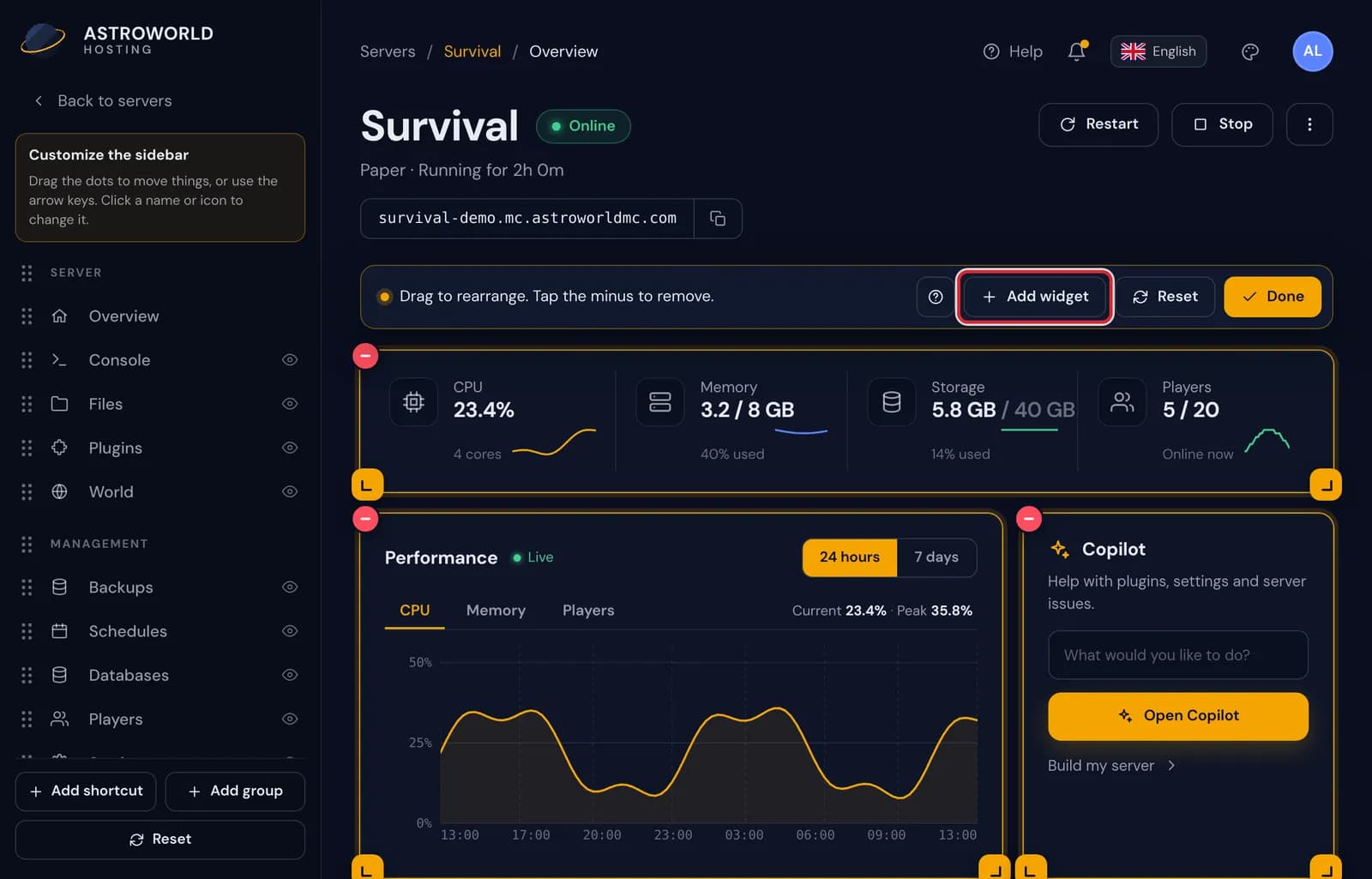
The Add widget button among the edit controls above the widgets, outlined in red A panel slides in from the right with every widget, sorted into Server, Performance, Help, Account and Personal. Under each name is one line that says what the widget shows.
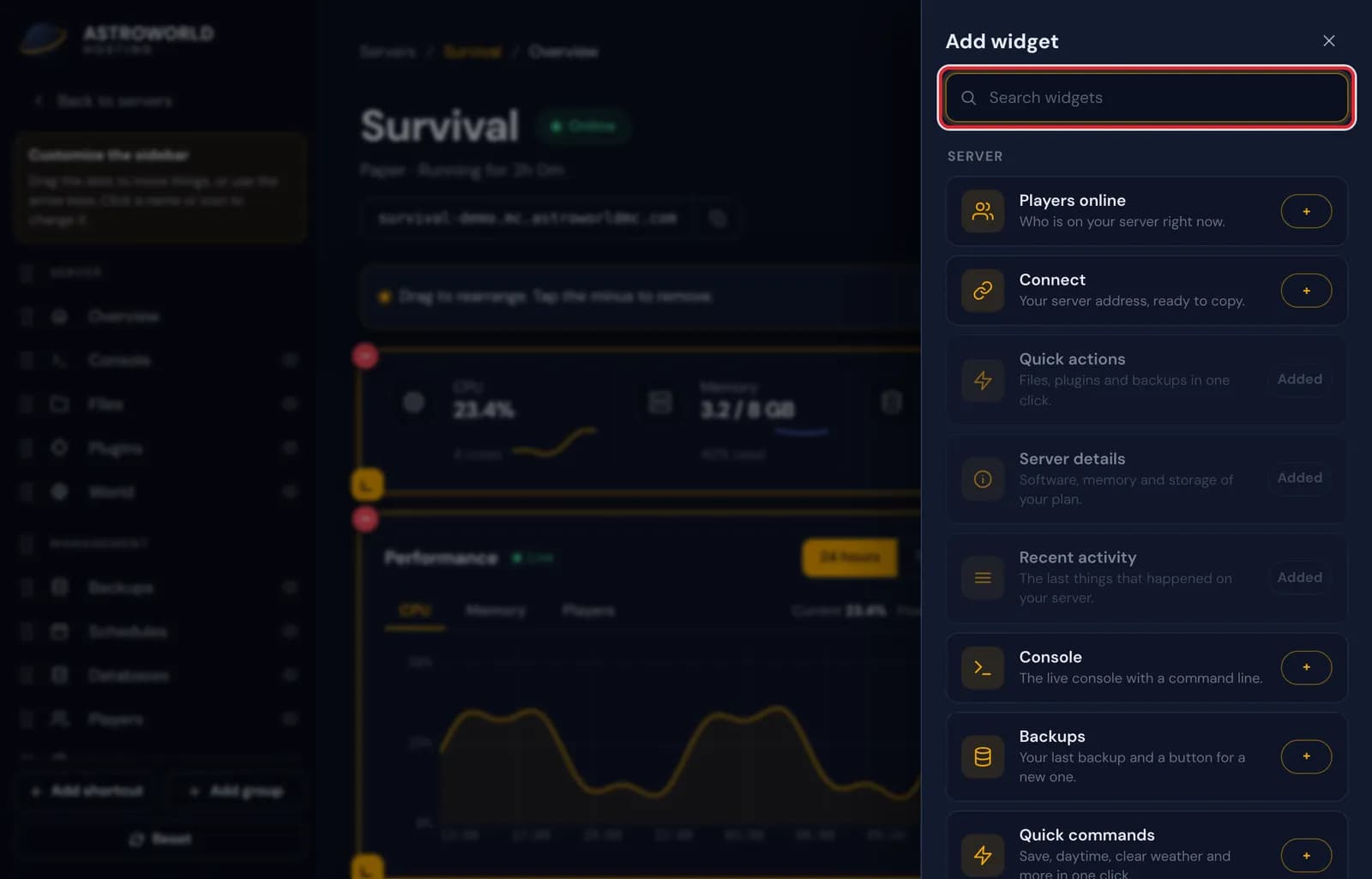
The Add widget panel with the search field at the top and the Server widgets listed below it Type in "Search widgets" to shorten the list. The search reads those short descriptions as well, so typing players also finds Live stats and the Performance chart, which both show a player count.
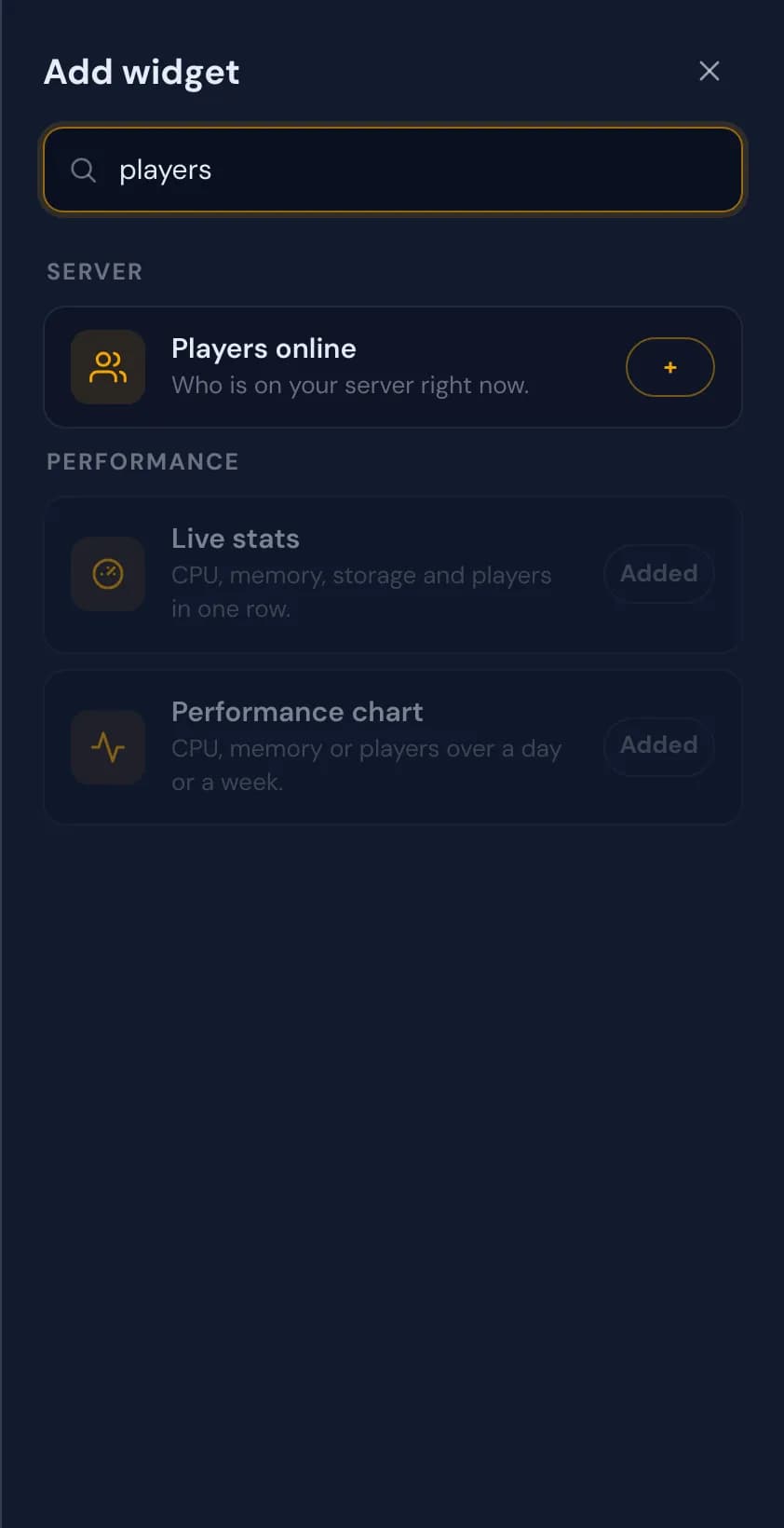
A search for players in the Add widget panel, which finds Players online, Live stats and the Performance chart A widget that is already on your page is greyed out and says Added, so you cannot place the same one twice. Press the plus next to a widget that is still free.
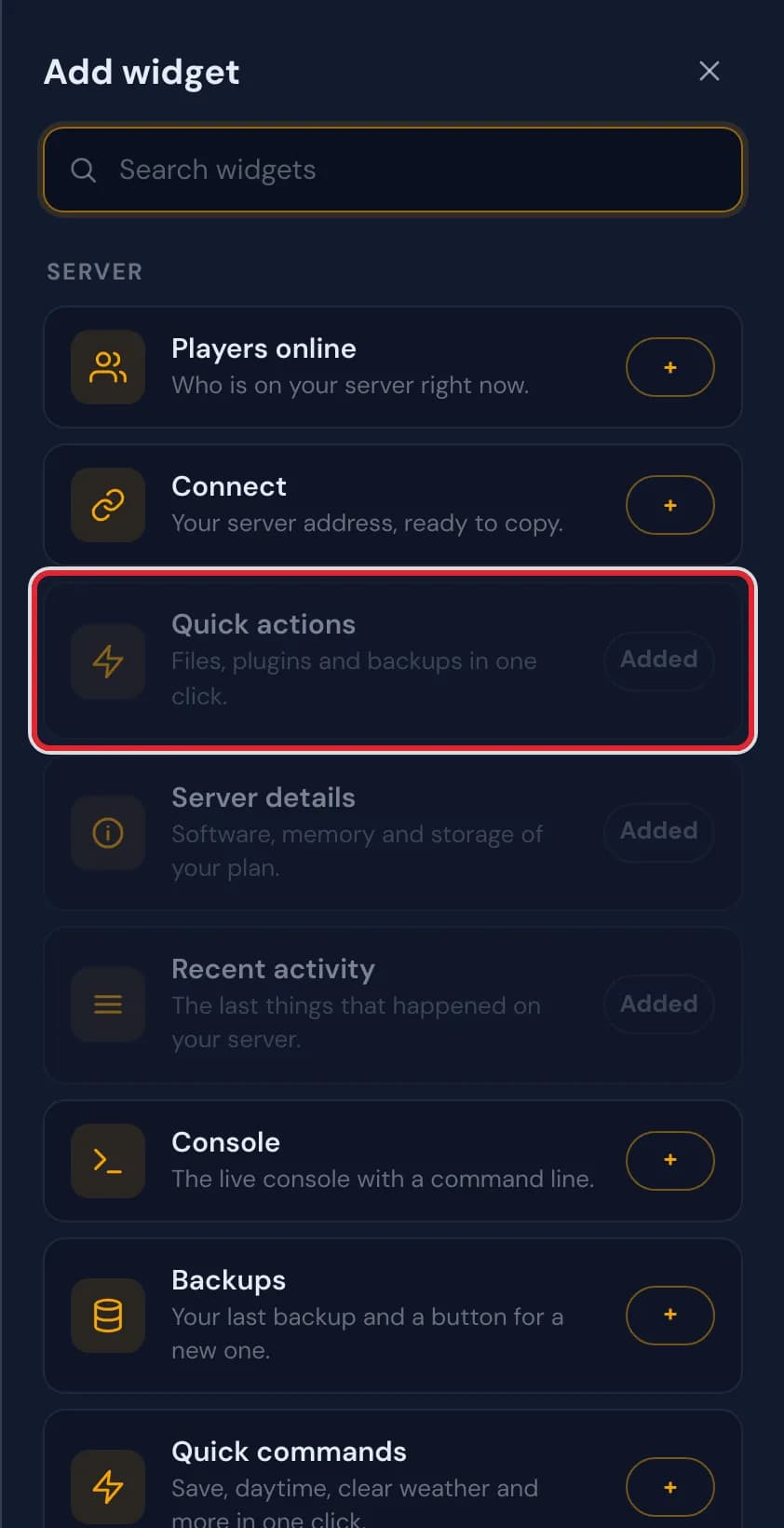
The widget list with Quick actions greyed out as Added and a plus next to the widgets that are still free The panel closes and the page scrolls to your new widget. It lands at the bottom on the left in its standard width, with the Add widget tile right under it.
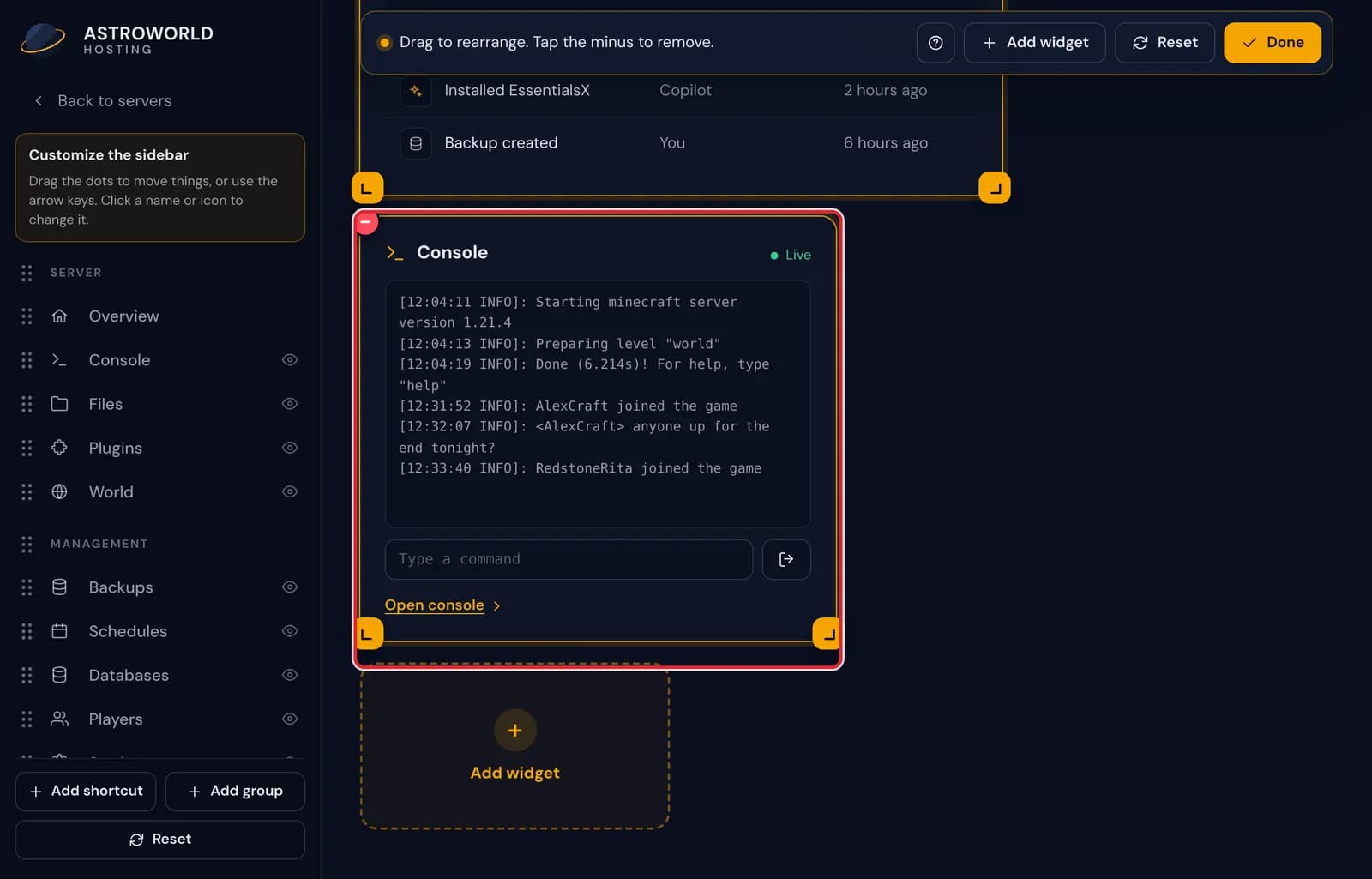
A new Console widget at the bottom of the panel overview, framed in red, above the Add widget tile 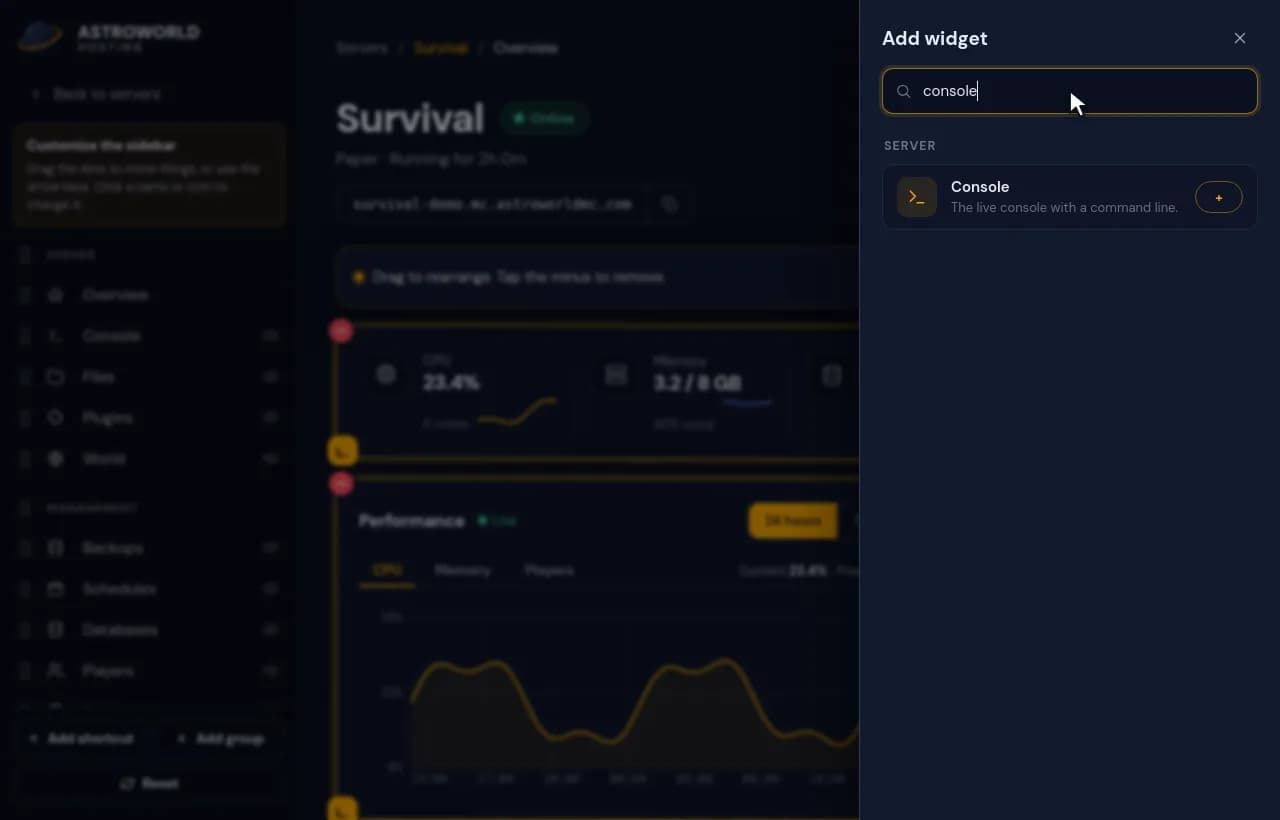
Opening Add widget, searching for console and pressing the plus, after which the Console widget appears at the bottom of the overview Drag the new widget to where you want it, or change its size with a corner. Press Done when the page looks right.
Messages you might see
| What it says | What it means and what to do |
|---|---|
Search widgets | The search field at the top of the list. It looks at the names and at the line under each name. |
No widgets match your search. | Nothing fits what you typed. Clear the field to see every widget again, or try a word for what you want to see, such as memory or backup. |
Added | That widget is on your overview already. Close the list and scroll down if you cannot see it. |
Which width a new widget gets
Every widget comes in at a standard width. Small ones such as CPU, Connect or Next payment take one third of the row, Console and Quick commands take half, the Performance chart and Recent activity take two thirds, and Live stats runs across the full width.
That is only where it starts. Drag a corner afterwards to make it anything from 2 of the 12 columns up to the whole row; Live stats is the one widget that needs at least half.
Good widgets to start with
If you play on the server yourself, Connect and Players online put the address and the player list on your first screen. Running events or a busy community? Quick commands and Schedules let you save the world, clear the weather or check the next restart without opening another page.
For troubleshooting, Last crash explains the most recent crash in plain words, and Console shows the live log with a command line underneath it.
Close the list without adding anything
Press the x above the list, click the dimmed page next to it or press Escape. Nothing changes on your overview until you press a plus.
Questions people also ask
Can I add the same widget twice?
No, each widget fits on the page once and the list marks it Added after that. Make it bigger instead if you want to see more of it.
Why does Next payment say billing is only visible to the server owner?
Payment details belong to the account that pays for the server. Staff members can add the widget, but for them it shows that message instead of a date and an amount.
Does adding widgets make my server slower?
No. A widget only shows information the panel already has, such as the stats, the player list or your schedules. Nothing is installed on the Minecraft server and none of its settings change.