How do I add a shortcut to the panel sidebar?
Short answerIn edit mode, press Add shortcut at the bottom of the sidebar. Choose where it goes: a page of your server or one card on that page, a file or folder, or a link. The name fills in by itself, you can pick an icon and a group, and Add shortcut puts it in your menu.
Add a shortcut
Open Overview and press Edit. In the sidebar, below your pages, you find Add shortcut.
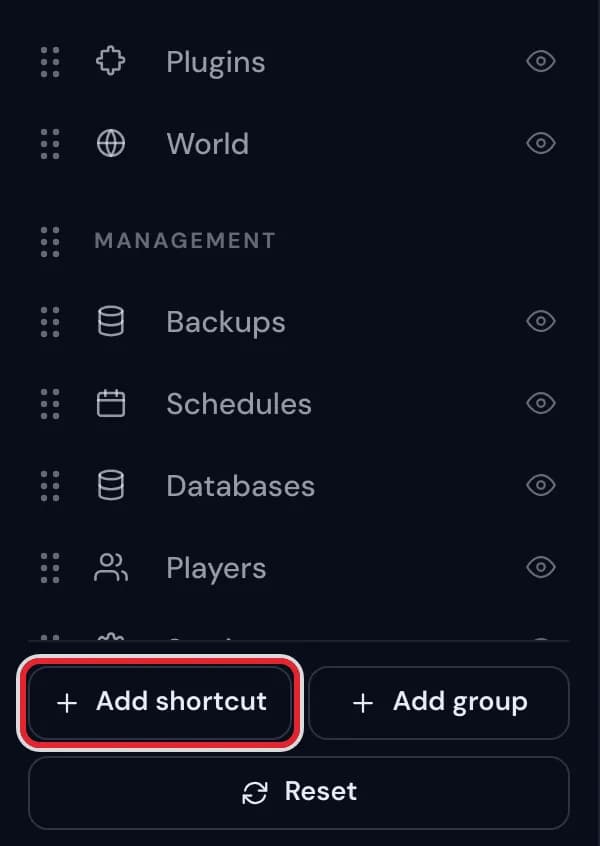
The Add shortcut button below the pages in the sidebar editor, with a red outline around it The New shortcut panel slides in. Under "Where does it go?" choose Page, File or folder, or Link.
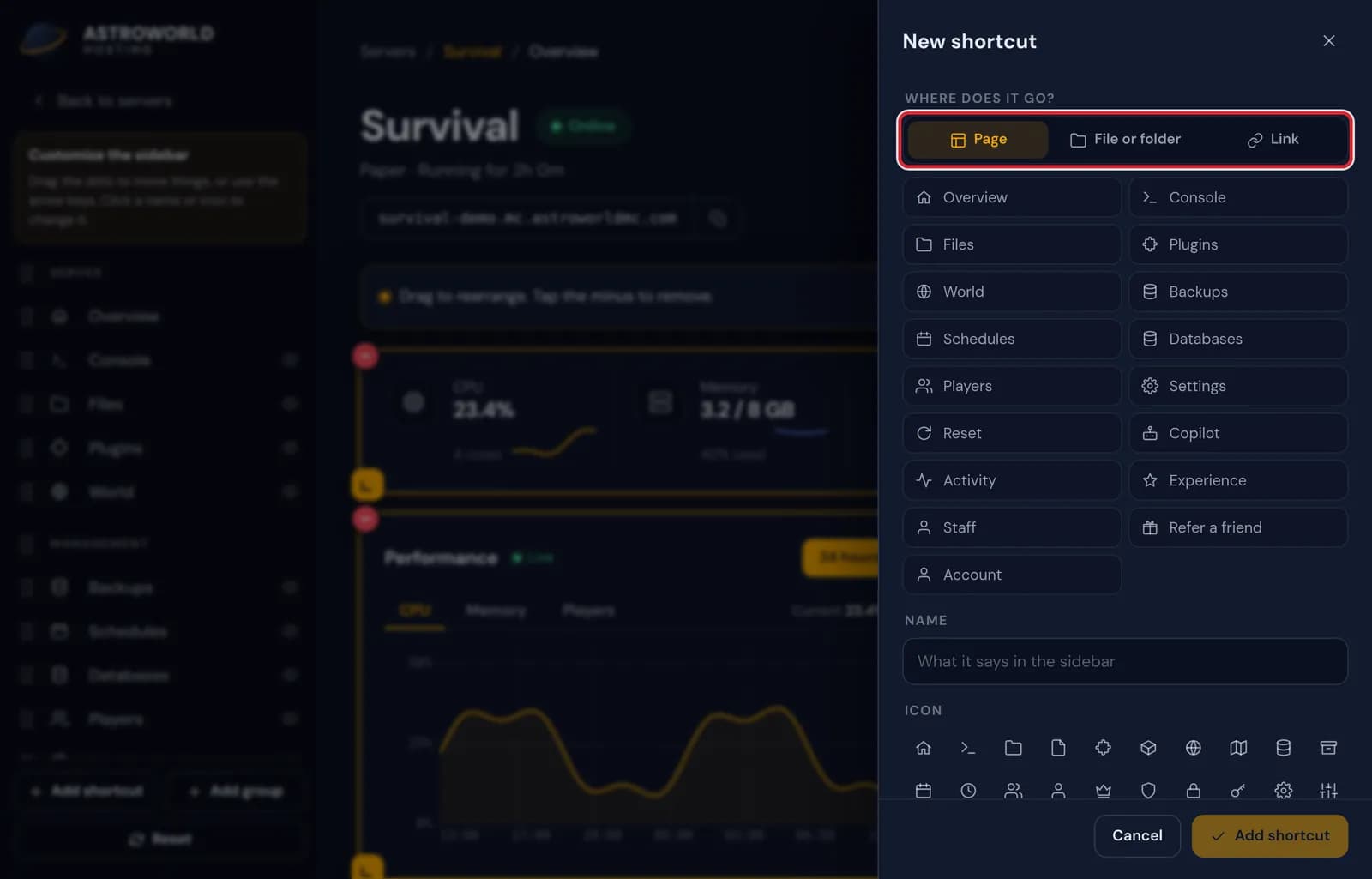
The New shortcut panel with the three choices Page, File or folder and Link For a page, pick one of the pages of your server. The shortcut opens at the top of that page, unless you press "Pick a part of the page" to point at one card on it.
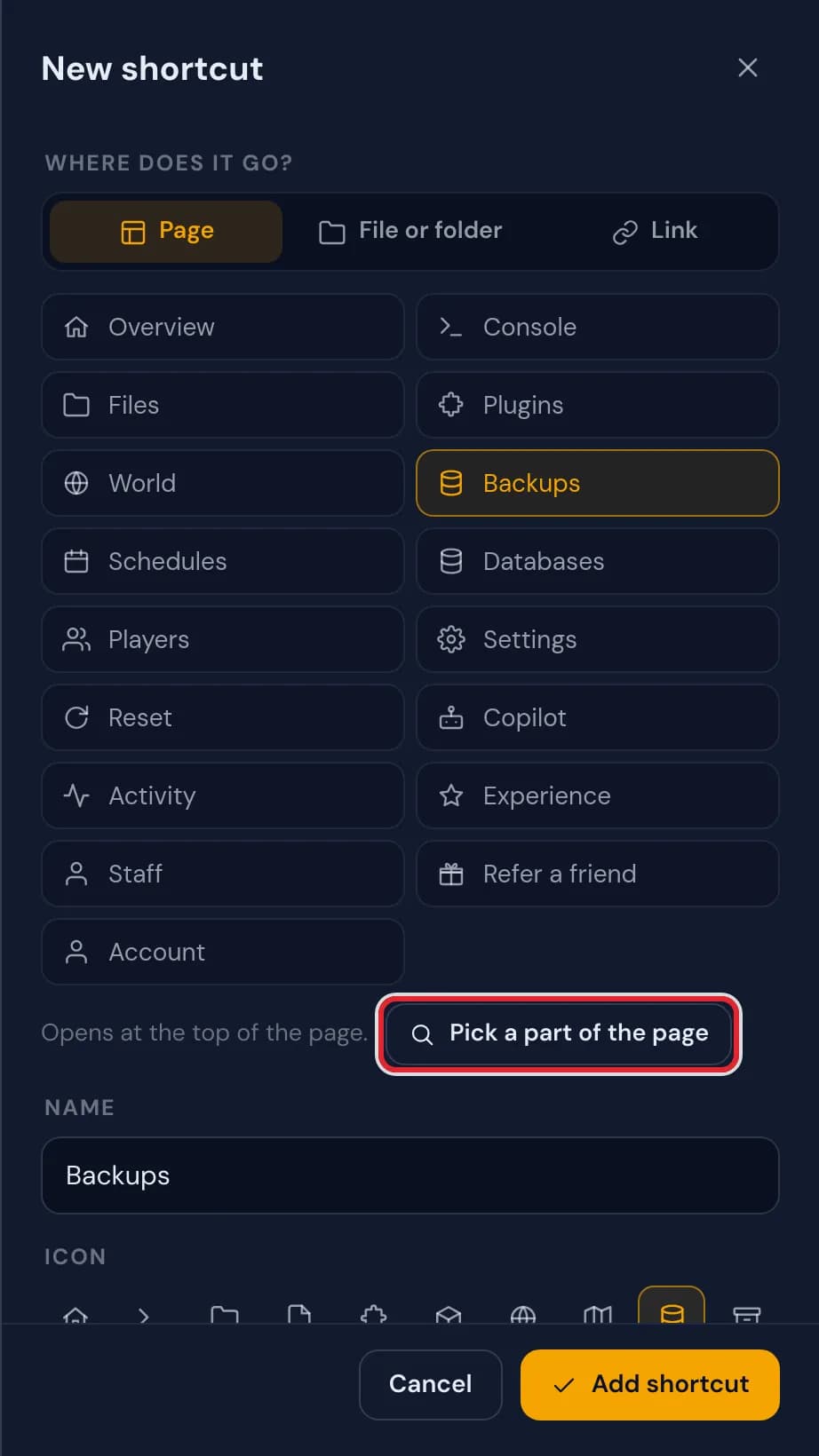
Backups chosen as the page, with the button Pick a part of the page marked in red The panel opens that page with a bar at the top that asks you to pick a part. Click the heading or card you want, or use Top of the page or Cancel in the bar.
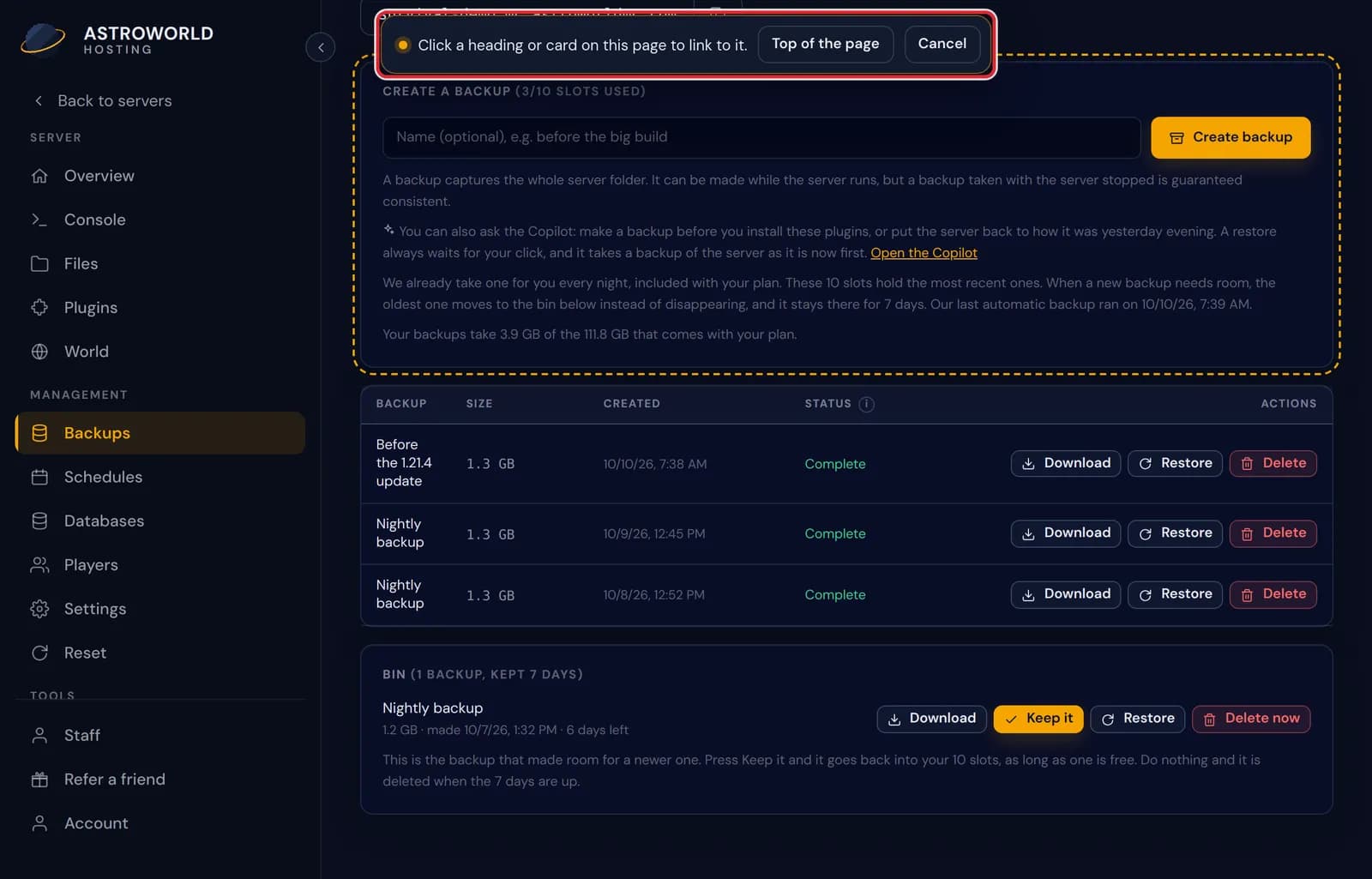
The Backups page in pick mode, with the instruction bar at the top and a card outlined Back in the shortcut panel, the part you picked shows as a label. The x on the label goes back to the top of the page, and "Pick another part" lets you choose again.
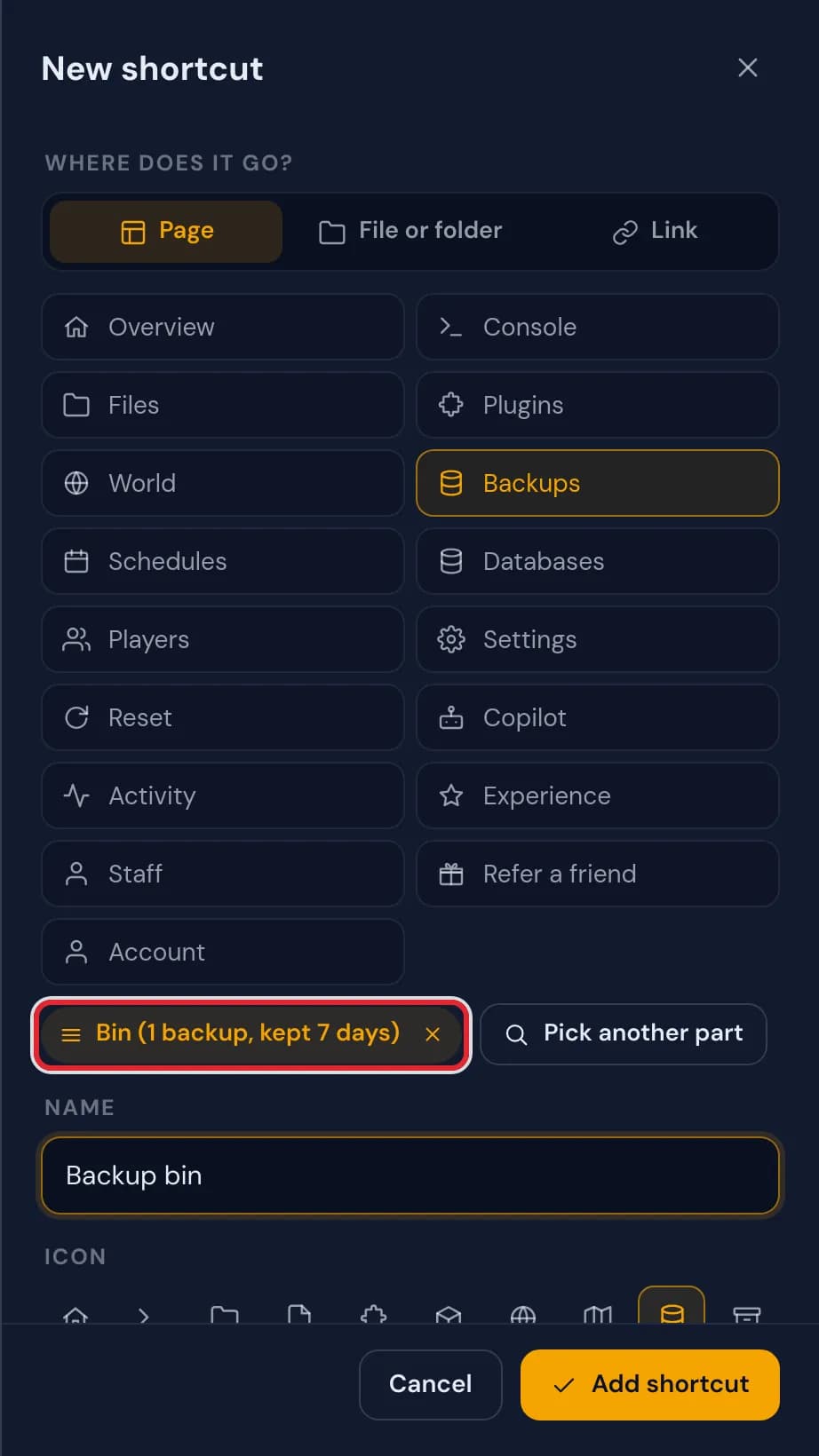
The chosen part Bin (1 backup, kept 7 days) shown as a label, with Pick another part next to it 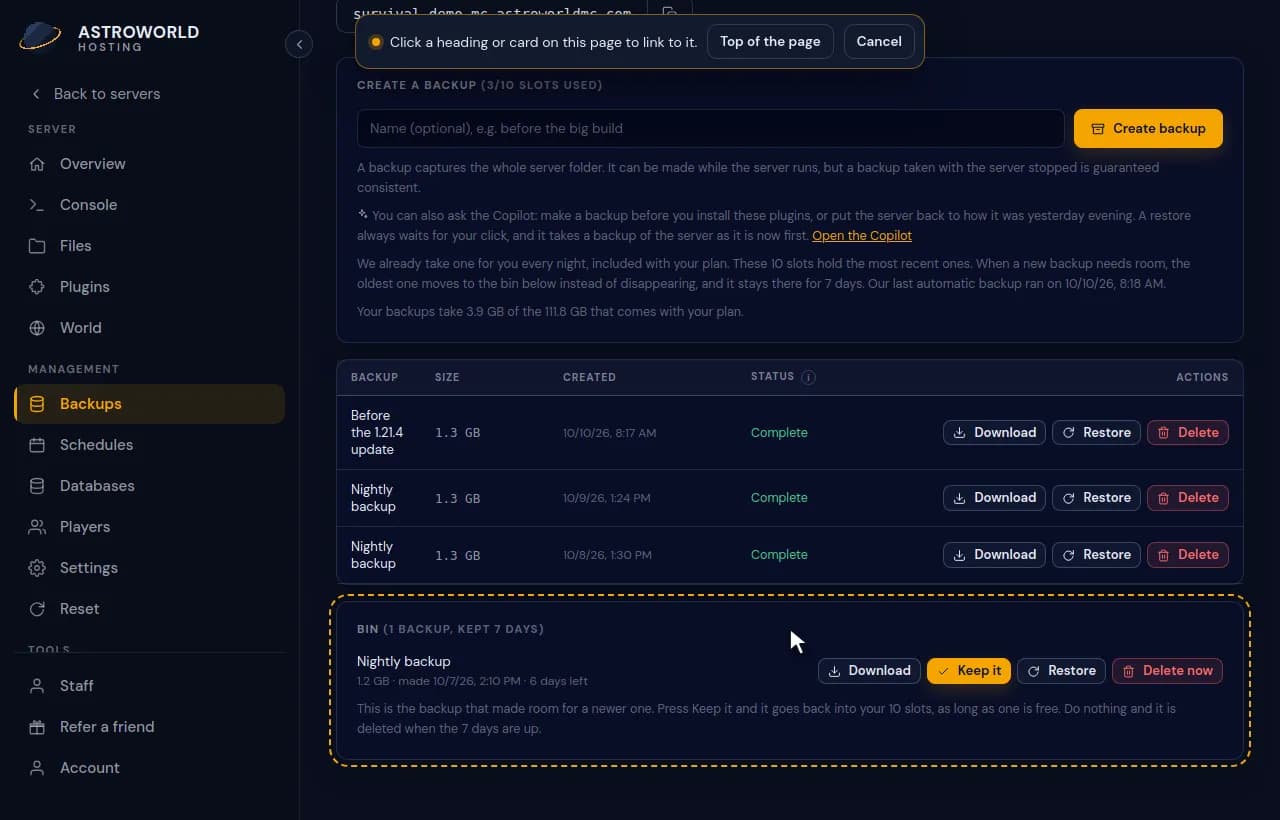
Making a shortcut to the bin on the Backups page and seeing it appear in the sidebar For a file or folder, open folders until you see what you want. Click a file to choose it, or press "Use this folder" for the folder you are in. A file shortcut opens straight in the editor.
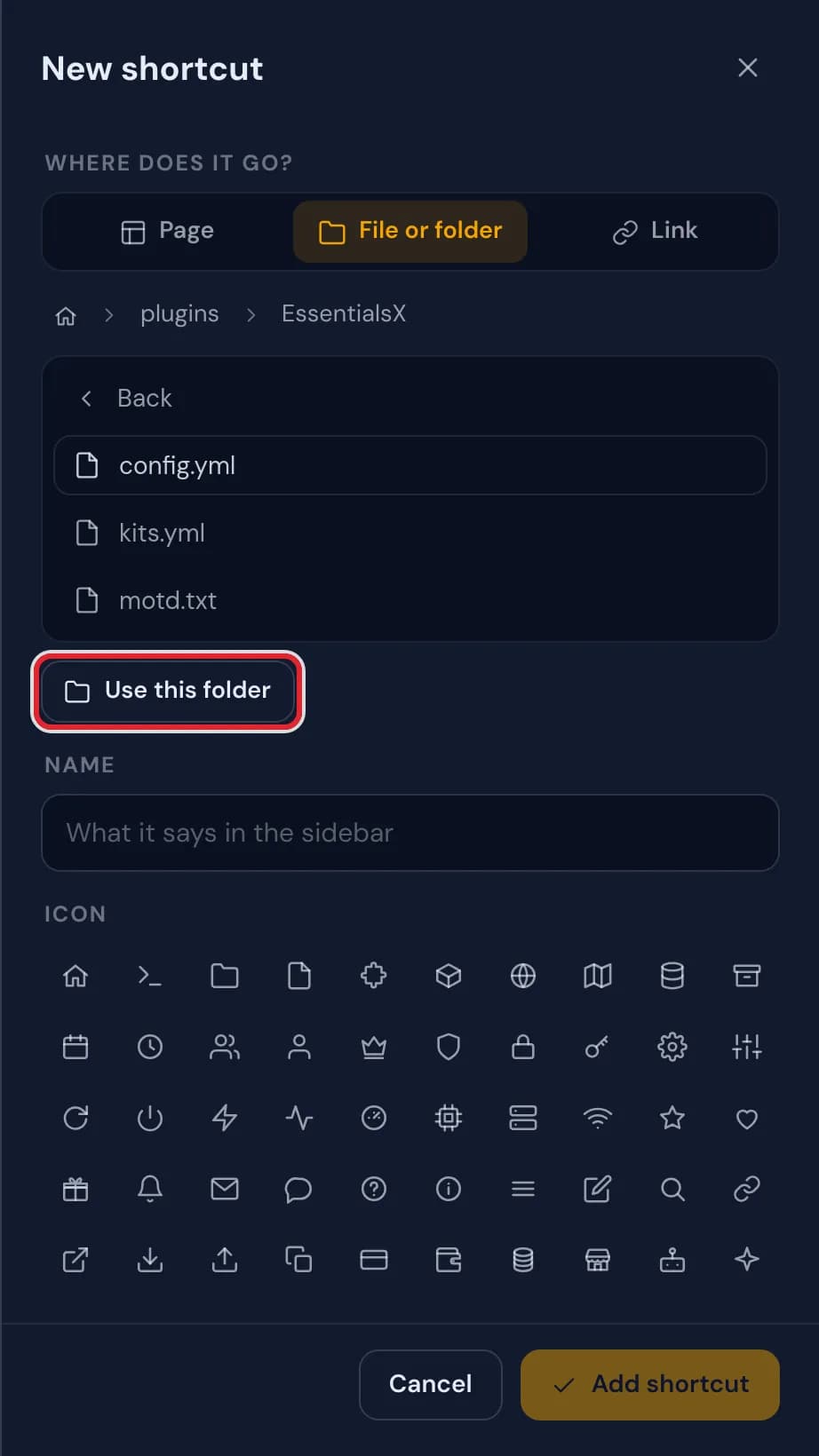
Choosing a folder for a shortcut, with Use this folder marked in red For a link, pick a page under "On this site", such as Billing & plan or Support, or type a full web address or a path that starts with a slash.
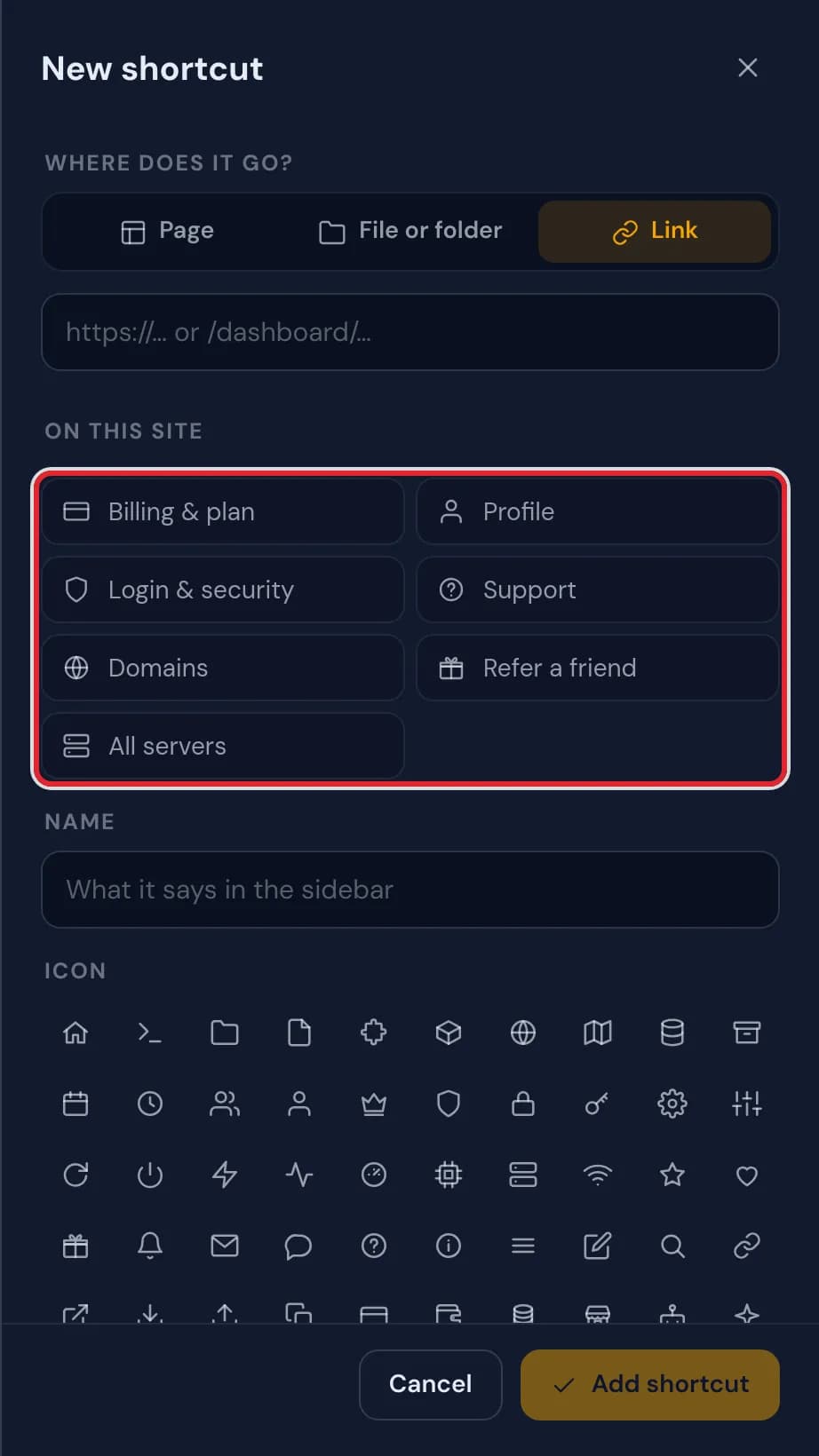
The Link choice with a field for a web address and the On this site options marked in red Check the name, choose an icon if you like and pick the group it goes in. Then press Add shortcut.
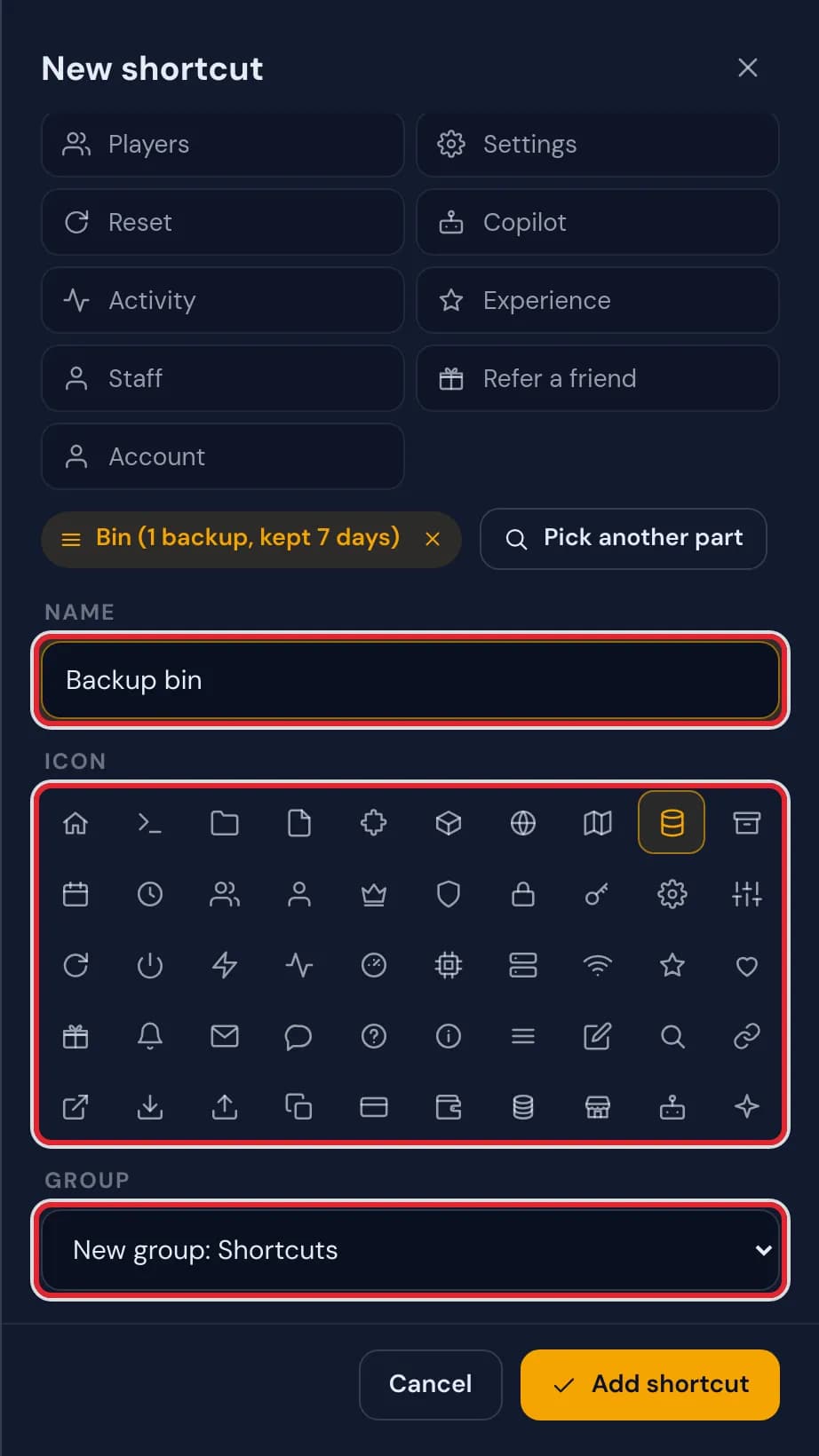
The name Backup bin, a chosen icon and the group New group: Shortcuts, each marked in red The shortcut appears in the sidebar under the group you chose. Press Done to leave edit mode.
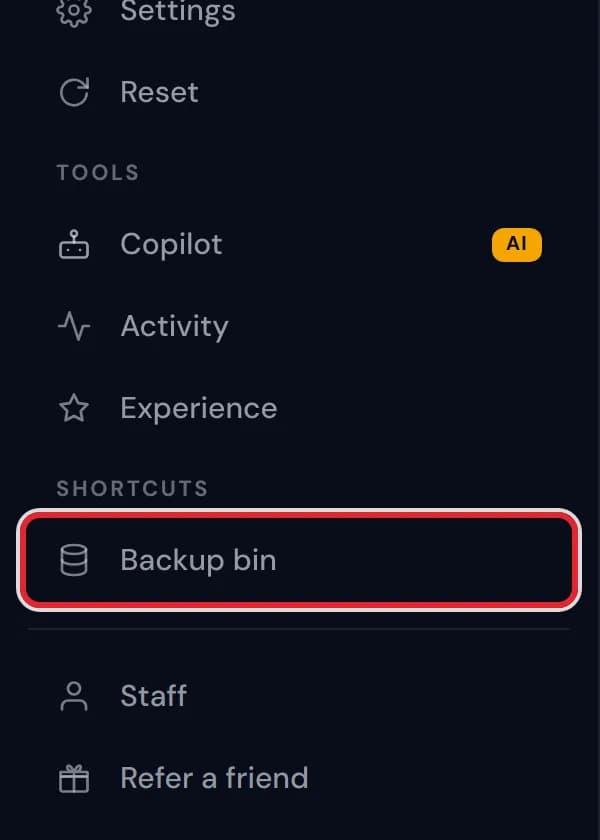
The new Backup bin shortcut in the sidebar under the heading Shortcuts
Messages you might see
| What it says | What it means and what to do |
|---|---|
Opens at the top of the page. | You picked a page but no part of it, which is fine. Press Pick a part of the page if you want one card instead. |
Click a heading or card on this page to link to it. | Pick mode. Move over the page and an outline shows which heading or card you are about to choose. |
This folder is empty. | There is nothing in this folder. Use this folder still works, or go back and open another one. |
Use a full web address (https://…) or a path on this site (/…). | What you typed cannot be used as a link. Start with https:// for a website or with a slash for a page of this site. |
You can have up to 30 shortcuts. | You reached the limit. Remove a shortcut you no longer use to make room for a new one. |
Remove? | Appears after the minus next to a shortcut. Press it to delete the shortcut, or click elsewhere to keep it. |
Which kind of shortcut to use
A page shortcut is the quickest way to a tab you use a lot, under a name that makes sense to you. A shortcut to one part suits long pages better, because it scrolls straight to that card, such as the bin on Backups or one group of settings.
File shortcuts save a lot of clicking when you edit the same configuration again and again, like the config.yml of a plugin. Link shortcuts cover everything outside the server: your invoices, your profile, the support page, or a website such as your Discord or your web map.
Where links open
Pages of your server and other pages of this site open in the same tab. A website somewhere else opens in a new tab, so the panel stays where you left it.
Change or remove a shortcut later
In edit mode every shortcut has a pencil and a minus next to it. The pencil opens the same panel, now called Edit shortcut, where you change whatever you like and press Save. The minus asks "Remove?" before anything is deleted.
Names and groups
The name follows what you pick until you type one yourself, and it can be up to 40 characters long. Without groups of your own, the group list offers "New group: Shortcuts", which creates that heading for you when you add the shortcut.
Questions people also ask
Can a shortcut open one part of a page?
Yes. Choose Page, press Pick a part of the page and click the heading or card you want. The shortcut then scrolls straight to it.
Do my shortcuts work on my other servers?
Shortcuts belong to your account, so they show on every server. Page and file shortcuts open the same place on whichever server you are viewing, which makes a file shortcut most useful for a path that all your servers have.
How many shortcuts can I make?
Up to 30. You can sort them under as many as 12 headings you made yourself.