How to Reduce Lag on Your Minecraft Server
Lag has three different causes that all look the same from a player's chair. This page goes through them in the order that finds the problem fastest, and every number in it is worked out from the settings our own panel actually offers.
The short answer
Measure first
TPS under 20 or a tick over 50 ms means the server is the slow part. The panel or Spark tells you which.
Then the four free fixes
Pre-generate the chunks, lower the view distance, thin the entities, calm the redstone. In that order.
Still slow with memory to spare
One core is out of time. That is a plan question, not a settings question.
Everything below is those three lines worked out, with the numbers behind each step.
Understanding TPS
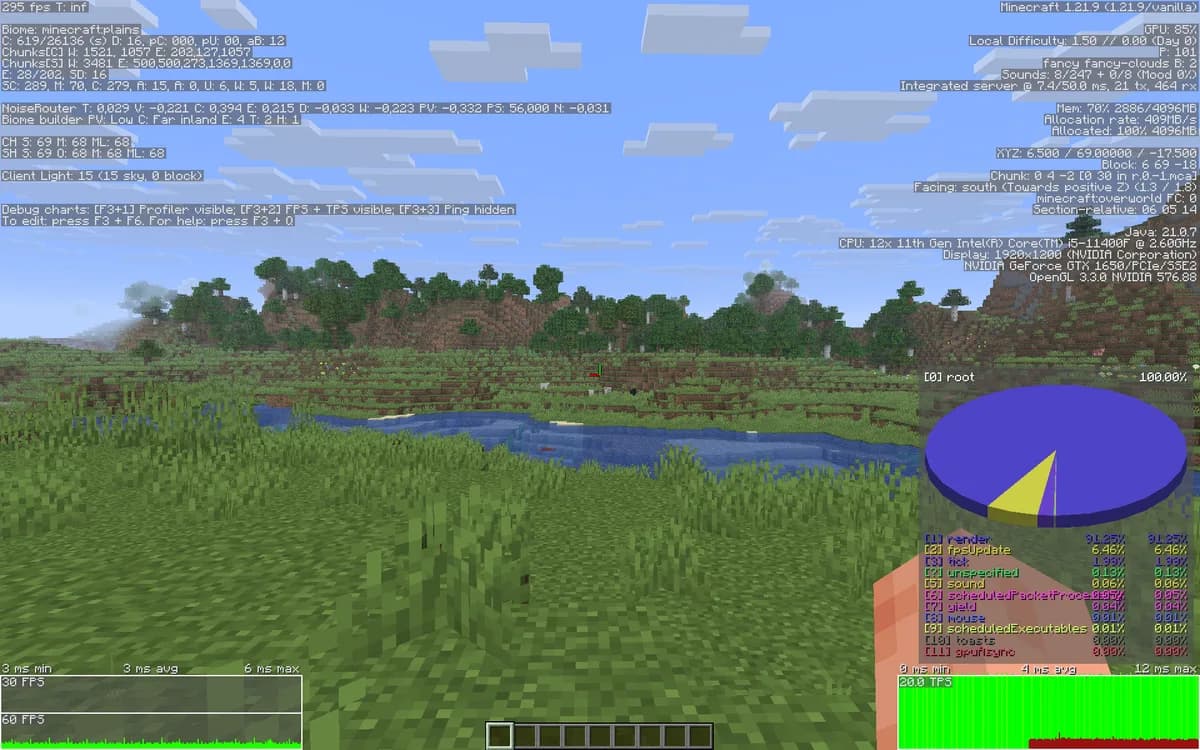
TPS is ticks per second, and it is the heartbeat of the server. Everything the world does, mob movement, block updates, redstone, growth, happens once per tick, and the target is 20 of them a second. That gives each tick 50 milliseconds to finish in. Go over and the next tick starts late, TPS falls, and the whole world slows down together: this is why lag makes furnaces smelt slower rather than making the game look choppy. Type /tps in the console to see it. Paper reports three averages, over one, five and fifteen minutes, and the one-minute figure is the one that answers "is it bad right now".
| TPS | One tick takes | What it feels like |
|---|---|---|
| 20 TPS | 50 ms | Normal. Nothing to fix. |
| 18 TPS | 55.6 ms | Barely visible. Redstone timing starts to drift. |
| 15 TPS | 66.7 ms | Mobs stutter, hoppers fall behind, farms produce less. |
| 10 TPS | 100 ms | Half speed. Furnaces, growth and daylight all take twice as long. |
| 5 TPS | 200 ms | Unplayable. Blocks reappear after you break them. |
What are your own numbers?
Everything below only helps once you know which number is out of line on your server. You do not have to work that out by hand: the AI performance optimizer in your panel measures your own server in about seven seconds, from tick time and tick rate to entities per type, chunks, memory and your plugins, and names the culprit in one sentence with the number behind it.
Three Types of Lag
Three different problems get called lag, and only one of them is yours to fix. Telling them apart first saves you from optimising a server that was never the slow part.
| Kind | Where it happens | What you can do about it |
|---|---|---|
| Server-side | On the machine. This is what TPS measures. | Everything else on this page. Entities, chunk loading, plugins and redstone all land here. |
| Client-side | On the player's own computer. Shows up as low FPS and stuttering, not as slow furnaces. | Nothing directly, but a lower view distance sends fewer chunks and lightens their load too. |
| Network, or ping | Between the two. Distance and routing, not processing. | Pick a region near your players. No amount of CPU fixes an ocean. |
Pre-Generate Your Chunks
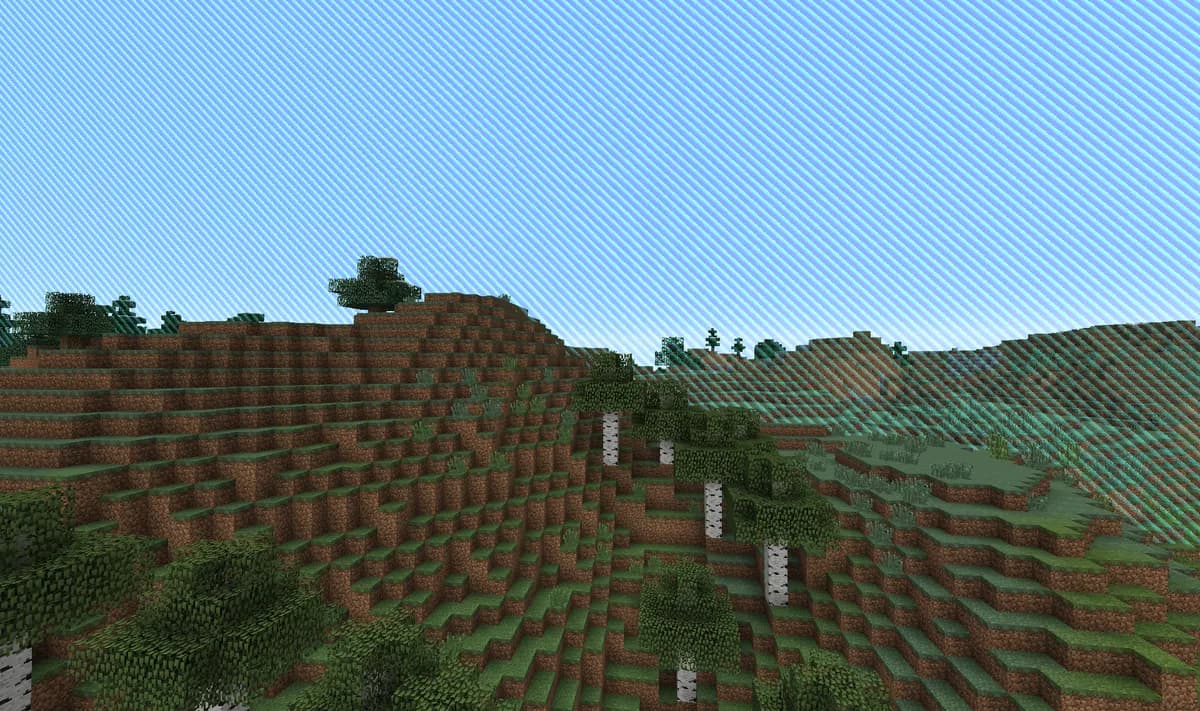
Generating terrain is the most expensive thing a server does. Biomes, caves, structures, ore and lighting all get worked out the first time somebody walks that way, and four players riding horses in four directions can drop a healthy server to single-digit TPS on their own. Doing it in advance, while nobody is on, moves that cost to a moment when it does not matter.
Install Chunky
It is an ordinary plugin jar in the plugins folder, and it works on any of our Bukkit-based server software.
Set the radius you actually want
Pick the same number as your world border, in blocks. Generating far past the border is hours of CPU for terrain nobody will ever stand on.
/chunky radius 5000Start it on an empty server
The generation itself is heavy, so run it overnight or before you hand out the address. It resumes if it gets interrupted.
/chunky start
Lower Your View Distance and Simulation Distance
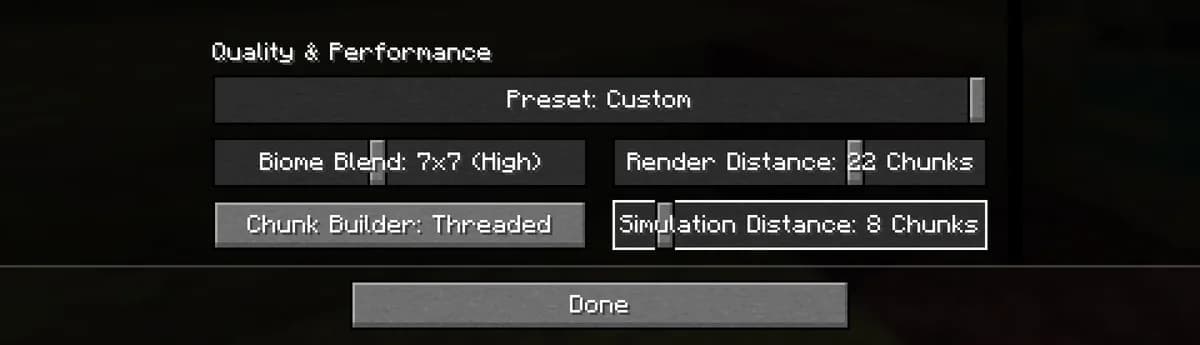
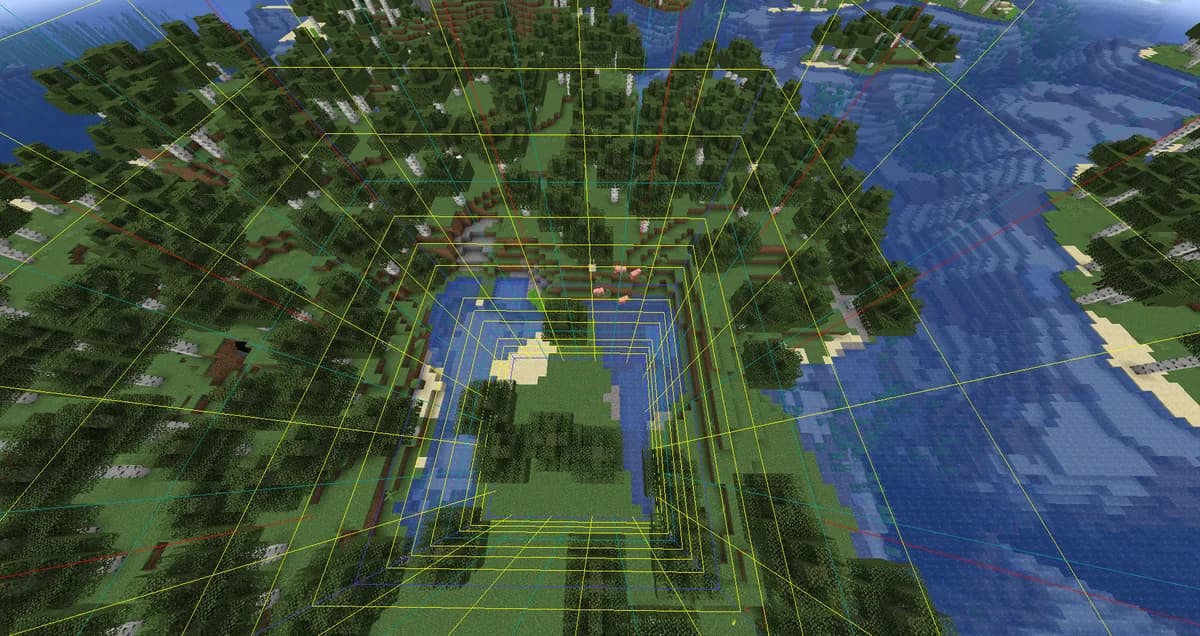
View distance is a radius, so the cost of raising it is square rather than linear. Our own panel takes 2 to 32, and across that range one player goes from 25 chunks to 4,225. Multiply by the number of people online and you can see why this is the first dial to touch. Dropping from 10 to 8 costs almost nothing anyone notices and takes about a third of the chunks off the server.
| View distance | Chunks one player holds | Against 10 |
|---|---|---|
| 2 chunksThe lowest our panel allows | 25 | 6% |
| 4 chunks | 81 | 18% |
| 6 chunks | 169 | 38% |
| 8 chunks | 289 | 66% |
| 10 chunks | 441 | 100% |
| 12 chunks | 625 | 142% |
| 16 chunks | 1,089 | 247% |
| 32 chunksThe highest our panel allows | 4,225 | 958% |
Simulation distance is the one that pays. View distance decides what a player can see; simulation distance decides how far the world keeps running, so it is what actually costs ticks. Setting it a few chunks below view distance is the usual answer. These are the 5 performance settings our own panel exposes, with the text we put next to them.
| Setting | Range | What it does |
|---|---|---|
| View distance (chunks)view-distance | 2 to 32 | How far players can see. Lower is lighter on CPU and memory. |
| Simulation distance (chunks)simulation-distance | 2 to 32 | How far the world keeps ticking. The biggest single performance lever. |
| Entity range (%)entity-broadcast-range-percentage | 10 to 500 | How far entities are sent to clients. Lower reduces network load. |
| Watchdog (ms)max-tick-time | 1000 to 600000 | How long one tick may take before the server considers itself hung. Below 60000 the server may restart itself during heavy lag. |
| Synchronous chunk writessync-chunk-writes | On or off | Turning this off is usually faster on shared storage. |
Clean Up Entities
Every mob, dropped item, item frame, armour stand and minecart is an entity, and the server walks the whole list every tick. Five hundred chickens packed into ten blocks cost more than fifty players walking around. Paper can thin this out without anyone noticing: activation ranges and tick rates in paper-world-defaults.yml make distant entities tick less often, and spawn limits in bukkit.yml cap how many can exist at once. Item frames and armour stands in a build are the sneaky ones, because nothing kills them and they never move.
Optimize Redstone
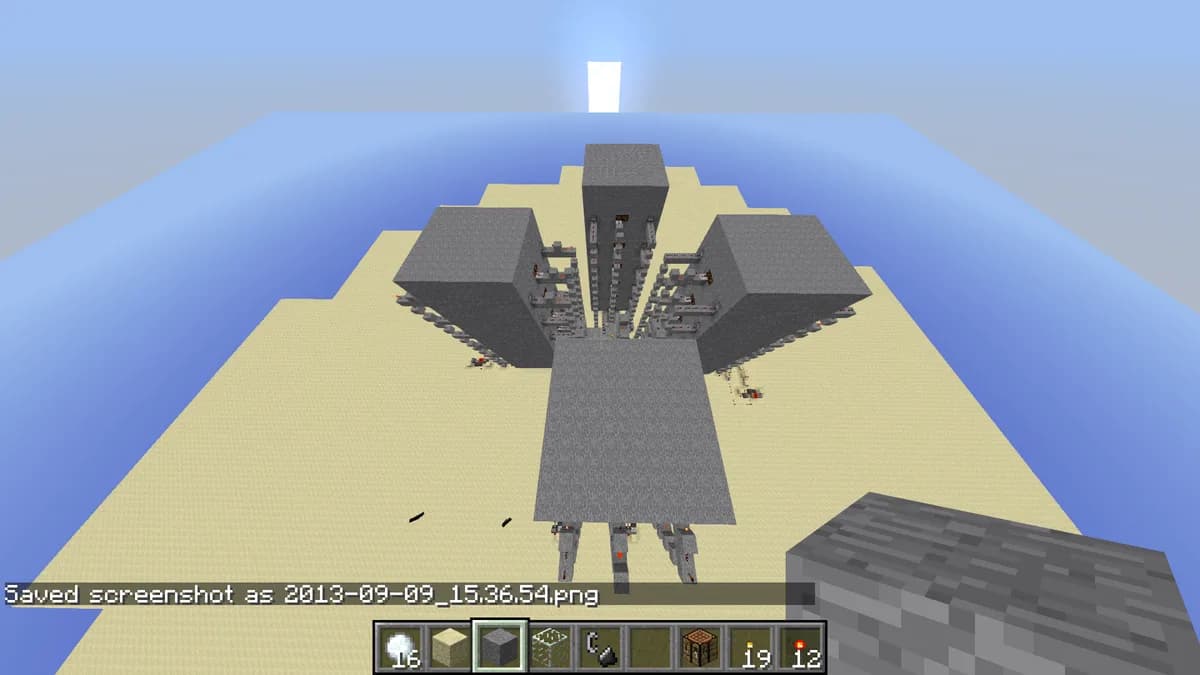
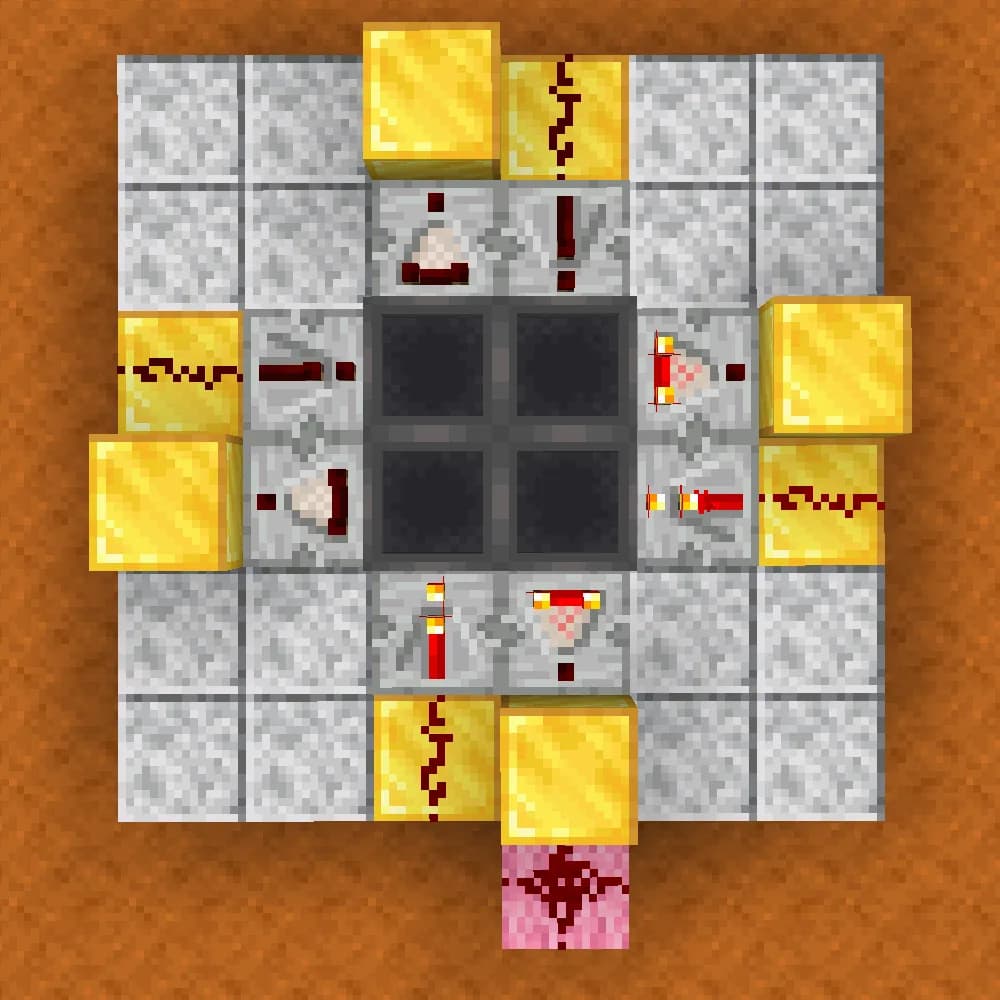
A redstone update cascades: one change fires block updates through everything connected to it, and a fast clock does that hundreds of times a second. Paper ships an alternate redstone implementation that is measurably cheaper for large circuits and is worth turning on before you start banning designs. Hoppers deserve their own rule: each one checks for items every tick whether anything is moving or not, so a two-hundred-hopper sorting system runs all day at full price.
Use Spark to Find the Bottleneck
Everything above is a guess until you measure. Spark is a profiler that tells you where the ticks went: entity ticking, chunk loading, one plugin's event handler, or the garbage collector. Start it while the server is actually struggling, leave it running a few minutes, stop it, and it hands you a link with the breakdown. Paper 1.21 and up ships with it already installed, so on most of our servers there is nothing to install first.
/spark profiler start
/spark profiler stop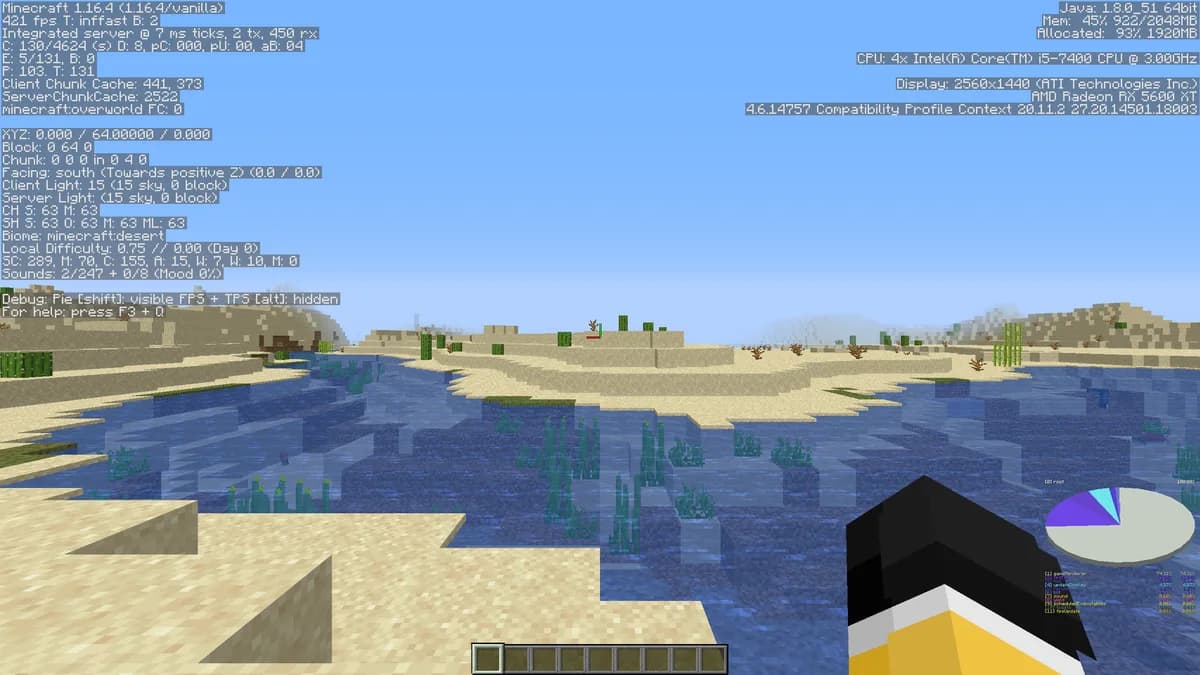
Plugin-Related Lag
Plugin count is not the number that matters. Fifteen well-chosen plugins beat forty where half overlap, but one plugin scanning chunks on the main thread beats them all for damage. If a Spark profile puts a single plugin at the top, look for a newer version, then for a config option that turns off the expensive part, and then for something else that does the job. Going through the list twice a year and deleting what nobody uses costs an hour and pays for itself.
When to Upgrade Your Plan
If you have pre-generated your chunks, cut simulation distance, thinned the entities and profiled with Spark, and the one-minute average still will not hold 20, then the machine is the limit and not the settings. Sitting above eighty percent memory all day, or CPU spikes during ordinary play, is the signal. All 7 of our plans list what they give you, and our memory guide has which of them fits which kind of server.
| Plan | vCPU | Memory | Storage |
|---|---|---|---|
| Mini | 2 vCPU | 4 GB |  60 GB SSD 60 GB SSD |
| Starter | 2 vCPU | 8 GB |  60 GB SSD 60 GB SSD |
| Standard | 3 vCPU | 12 GB |  75 GB SSD 75 GB SSD |
| Premium | 4 vCPU | 24 GB |  150 GB SSD 150 GB SSD |
| Ultimate | 6 vCPU | 48 GB |  300 GB SSD 300 GB SSD |
| Enterprise | 8 vCPU | 64 GB |  375 GB SSD 375 GB SSD |
| Dedicated | 9 vCPU | 96 GB |  450 GB SSD 450 GB SSD |
What comes with every plan, on every tier, is on the full feature list.
Questions people ask when the server drags
Will more RAM fix low TPS?
Only if memory was the problem. TPS is a CPU measure: a server can sit at half its memory and still miss ticks because one plugin is doing too much work per tick. Profile first, then decide what to buy.
What view distance should I run?
Something between 6 and 10 for most servers, with simulation distance a few chunks below it. The table above shows what each step costs, so you can pick a number instead of copying one.
How many players before a server starts to lag?
There is no such number. Twenty players spread over an explored world are cheaper than five building redstone in one chunk. What the players do decides it, not how many there are.
Do scheduled restarts help?
They paper over a leak rather than fixing it, but they do work: a nightly restart clears accumulated entities and returns memory the garbage collector never got back. Worth having, not worth relying on.
Is Spark safe to run on a live server?
Yes, that is what it is for. It samples rather than instruments, so the overhead is small, and you have to run it during real lag for the report to mean anything.
Plans with room to grow into
Mini4 GB€6.9524-month term · €6.95/mo, and the same price every time it renewsStarter8 GB€10.9524-month term · €10.95/mo, and the same price every time it renewsStandard12 GB€14.9524-month term · €14.95/mo, and the same price every time it renewsSee all 21 plans across three editionsAnswer four questions and get the size
The chunk counts on this page are the square of twice the view distance plus one, worked out over the range our own settings screen allows, and the settings table is that screen: the labels, the limits and the help text are read from it when the page is built.
When the tuning is finished and it is still slow
Pre-generate the chunks, drop the view distance, thin out the entities, and measure again. If the tick time still sits near fifty with memory to spare, none of the four steps above is the answer any more: one core is out of time. That is the case the Performance line is for, on an AMD Ryzen 9 5900X in Germany or an AMD Ryzen 9 7950X with DDR5 RAM in Poland, with the same memory you have now.
Configuration files and memory
Much of a server's lag is decided in its configuration files, and Every Paper.yml Setting Explained (2026) explains every option in the biggest of them. When memory is the limit instead, How to Reduce RAM Usage on Your Minecraft Server shows where it goes.
Written and checked by the Astroworld Hosting team. Last reviewed on 6 September 2026.
Delivery: most servers are handed over instantly and run within seconds of payment, the rest follow within 60 minutes during the day and within 12 hours at night.