How do I use edit mode on my phone?
Short answerTap Edit on Overview; on a phone the button sits alone on a line below the server buttons. Hold a widget for a moment so it comes loose, then move it higher or lower in the list. Add widget and Reset work as on a computer, and the pencil in the menu strip opens the sidebar editor.
Edit the overview on a phone
Open your server panel on your phone. On Overview, tap Edit; a small screen gives that button a line to itself.
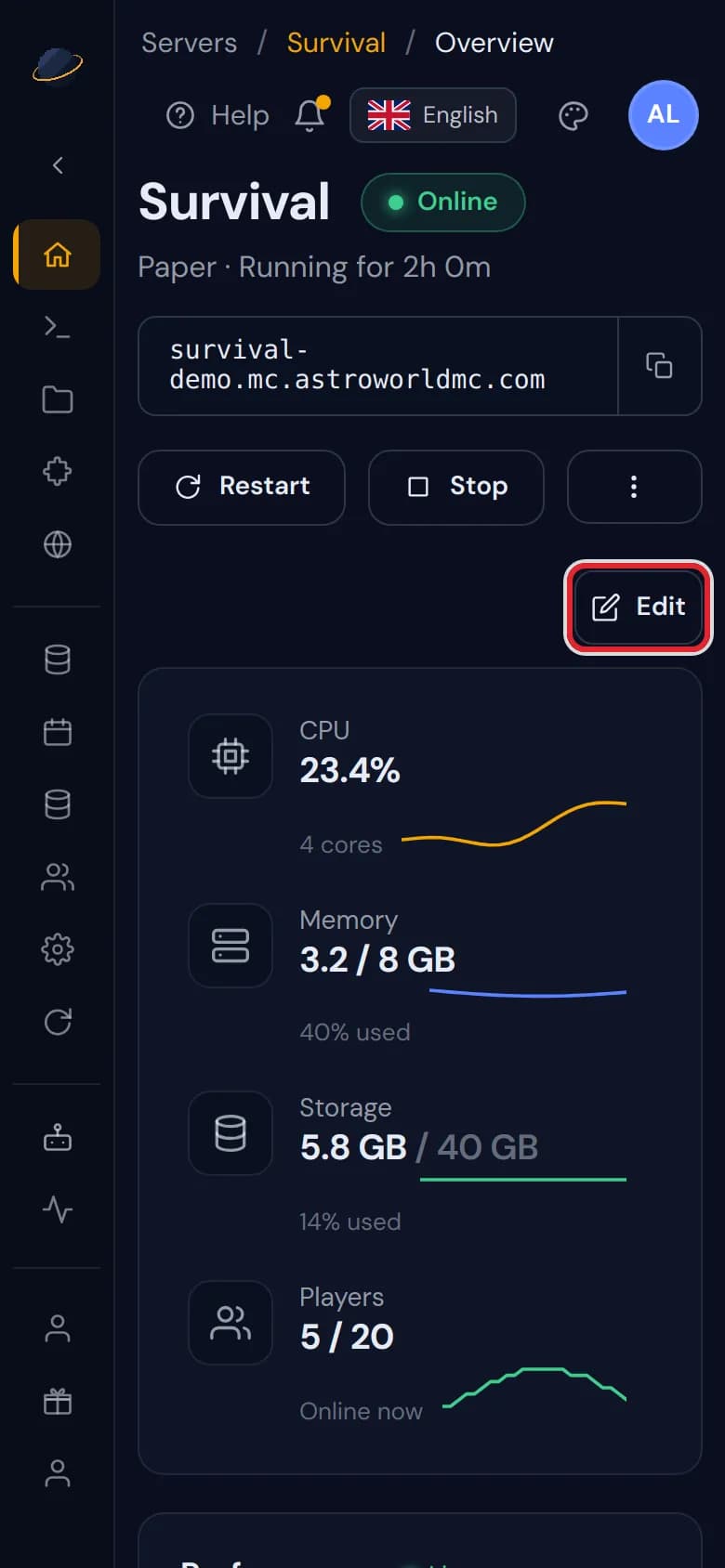
The server panel overview on a phone with the Edit button marked in red The same bar as on a computer appears above the widgets, and each card is outlined, with its minus in the corner.
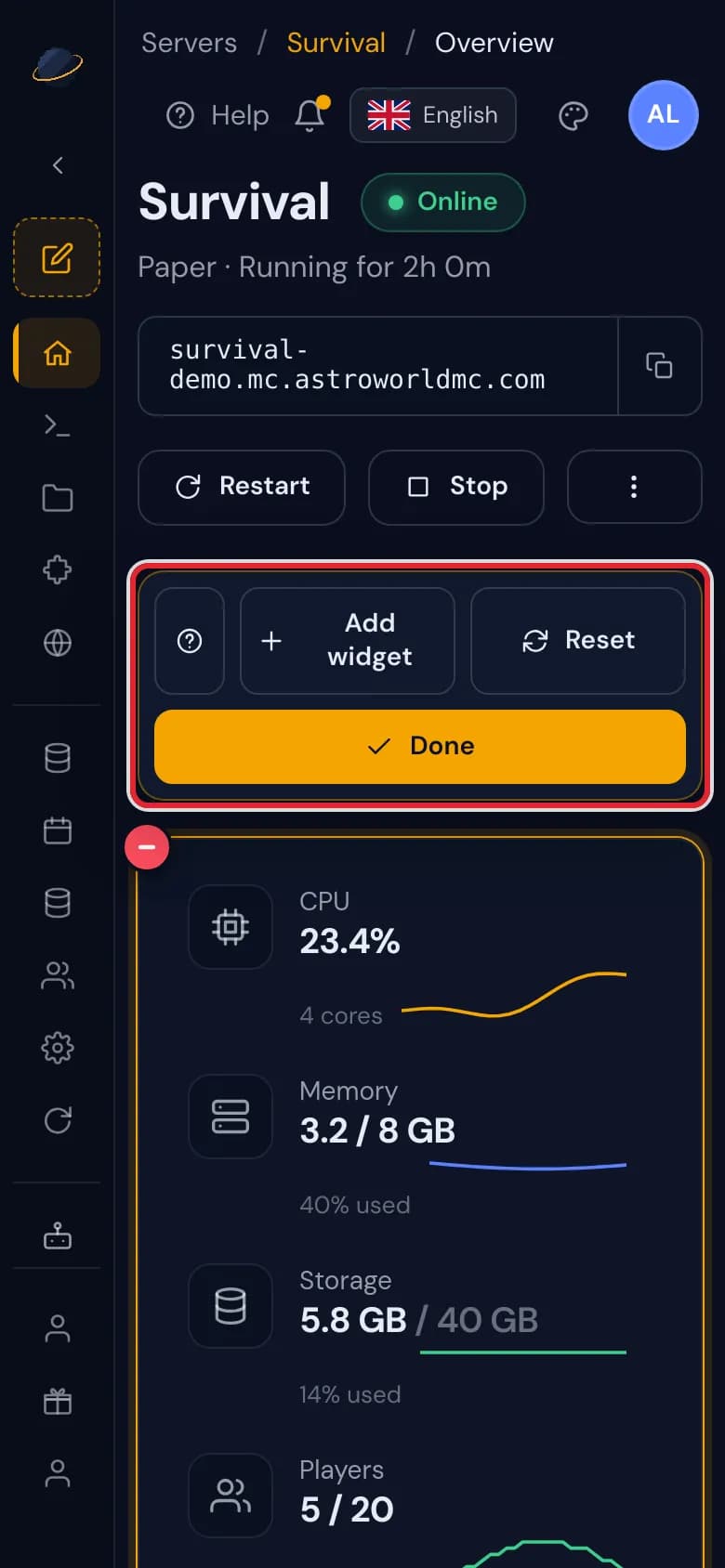
Edit mode on a phone, with the edit bar marked in red above the framed widgets To move a widget, keep your finger on it until it lifts, then drag it up or down. Swiping straight away scrolls the page as usual, so you never move a widget by accident.
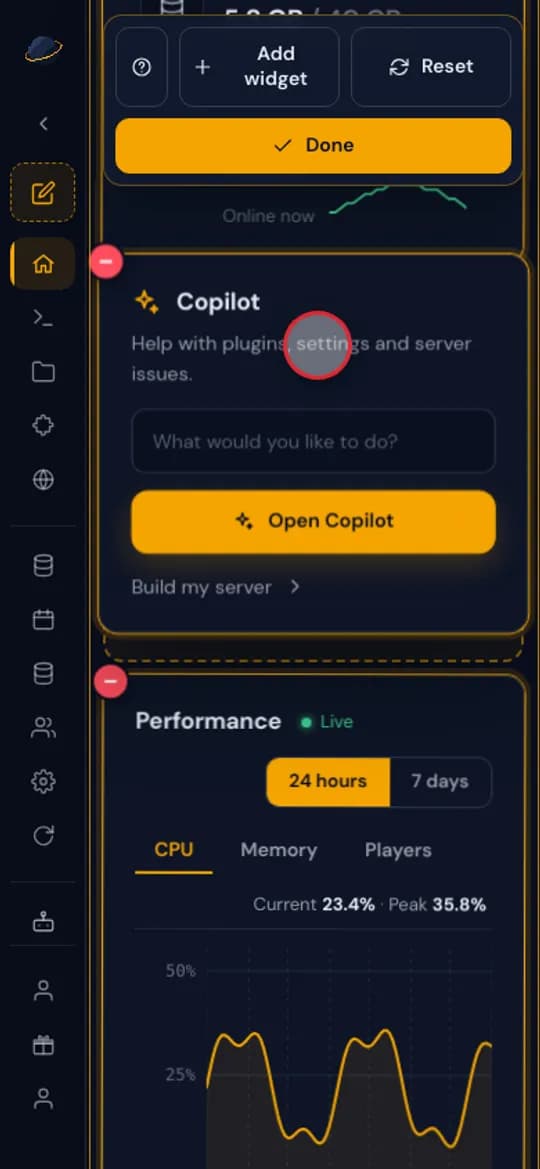
Pressing and holding the Copilot widget on a phone and dragging it above the performance chart Tap Add widget for the list of widgets and tap the plus next to the one you want.
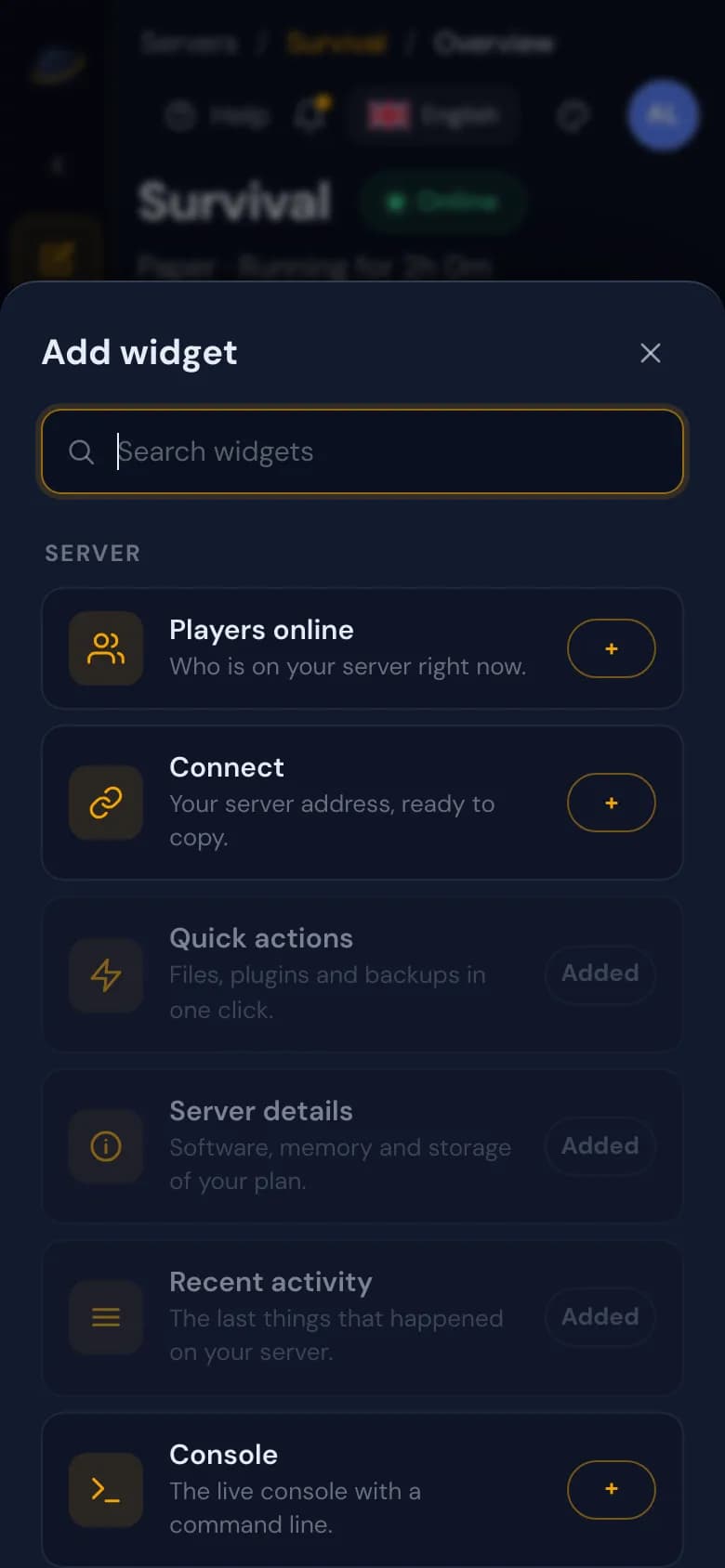
The Add widget list on a phone with the widgets of the Server group For the menu, tap the pencil above the icons in the narrow strip on the left.
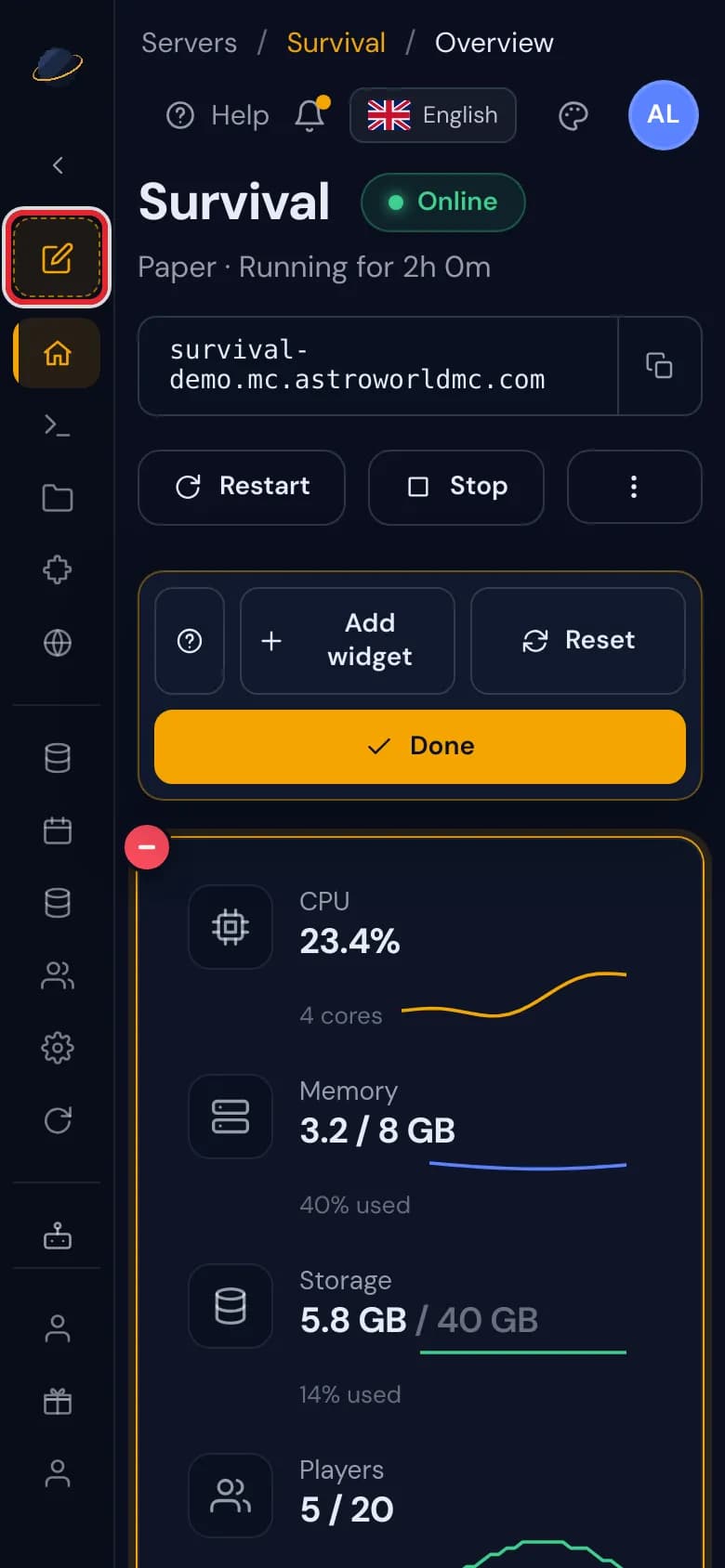
The pencil in the menu strip of the phone panel, marked in red The sidebar editor slides over the page. Change the order, names and icons, then tap its Done to close it; the widgets stay in edit mode until you tap Done in the edit bar as well.
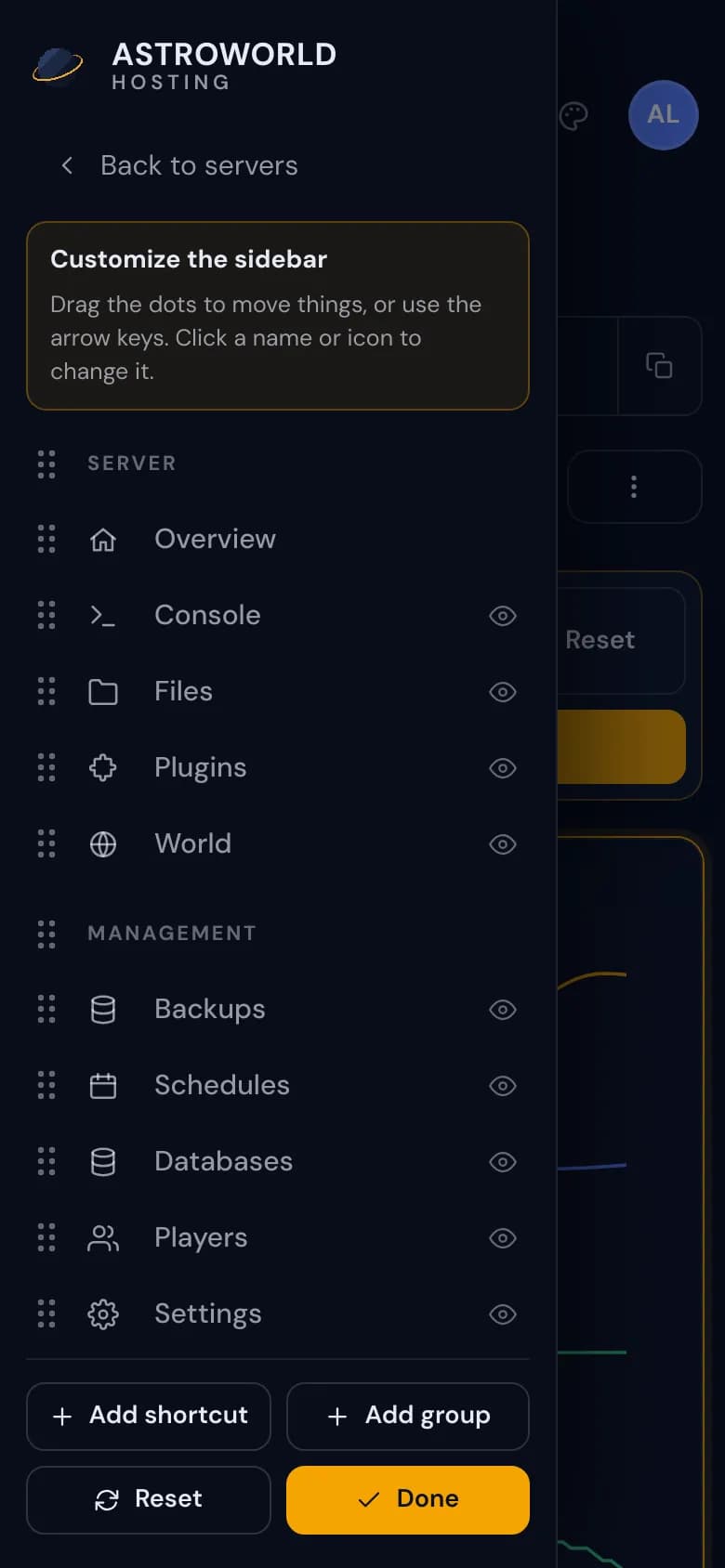
The sidebar editor opened as a drawer over the page on a phone, with Done at the bottom
How long to hold
In edit mode a short hold of about a sixth of a second picks a widget up. Phones that can vibrate give a tiny buzz at that moment, so you know you can start dragging.
Outside edit mode, a longer press of about half a second on a widget opens edit mode at once. That works when you already have a layout of your own; on the standard overview, tap Edit instead.
What is different on a small screen
Widgets stack in one column at full width, so there are no resize corners and nothing sits side by side. The order you set is the order on every device, and the widths you chose on a computer return on a bigger display.
Tablets and narrow browser windows work the same way: below 1000 pixels wide, the panel switches to this phone layout.
Shortcuts on a phone
Add shortcut works the same as on a computer, except that the New shortcut panel comes up from the bottom of the screen instead of in from the side. Picking a part of a page works with a tap.
Questions people also ask
Why does holding a widget do nothing?
On the standard overview nothing can be moved yet. Tap Edit first; once you have made a change, a long press on a widget opens edit mode too.
Do changes on my phone show on my computer?
Yes. There is one layout per account, so whatever you change on your phone shows on your computer as well, and the other way round.
Can I use edit mode on a tablet?
Yes. Under 1000 pixels wide it works as on a phone; on a wider screen the resize corners come back and widgets can share a row.