What does each widget on the panel overview show?
Short answerThere are 22 widgets in five groups. Performance widgets show CPU, memory, storage, network and uptime; Server widgets give you the console, the players, backups, schedules and one-click actions; Help covers the Copilot, crash watch and your last crash; Account shows your next payment and Copilot credits; and Note is a notepad that stays in your browser.
Put a widget on your overview
Open Overview, press Edit and then Add widget.
Look in the group that fits what you need: Server, Performance, Help, Account or Personal. The pictures below show each widget the way it appears on your page.
Press the plus to place it. What you see below is the standard size; you can make any widget wider, narrower, taller or lower afterwards.
Performance widgets
Seven widgets that show how hard your server is working and how reliable it has been.

Live stats
CPU load, memory, storage and players side by side in one strip, each with a small graph of the last hours. It needs at least half the row, more than any other widget.
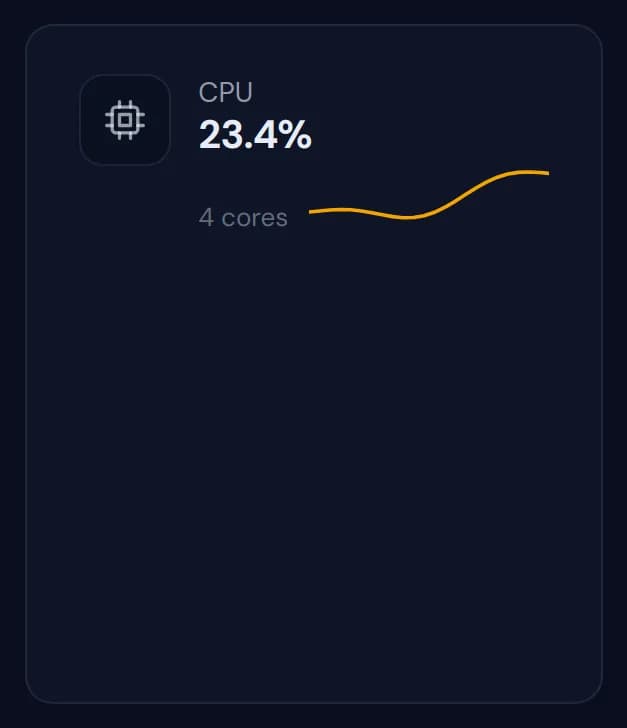
CPU
How busy the processor is right now, the number of cores in your plan and a line of the recent load.
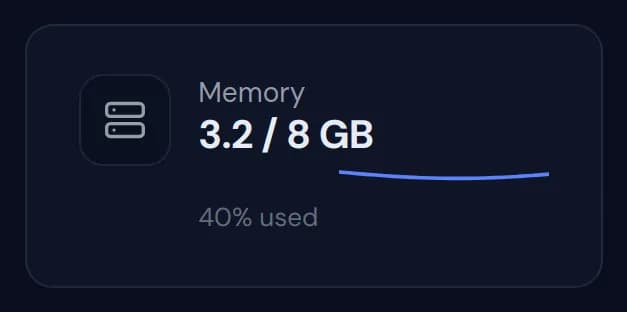
Memory
Memory in use against the memory in your plan, with the percentage underneath. A server that stays near the top for a long time needs more memory or lighter mods.
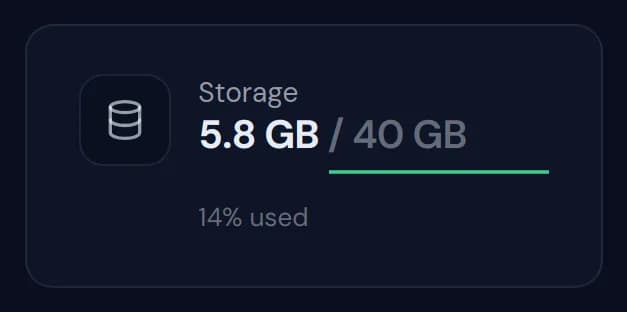
Storage
Disk space in use against the storage of your plan. Worlds, plugins and log files all count toward it.
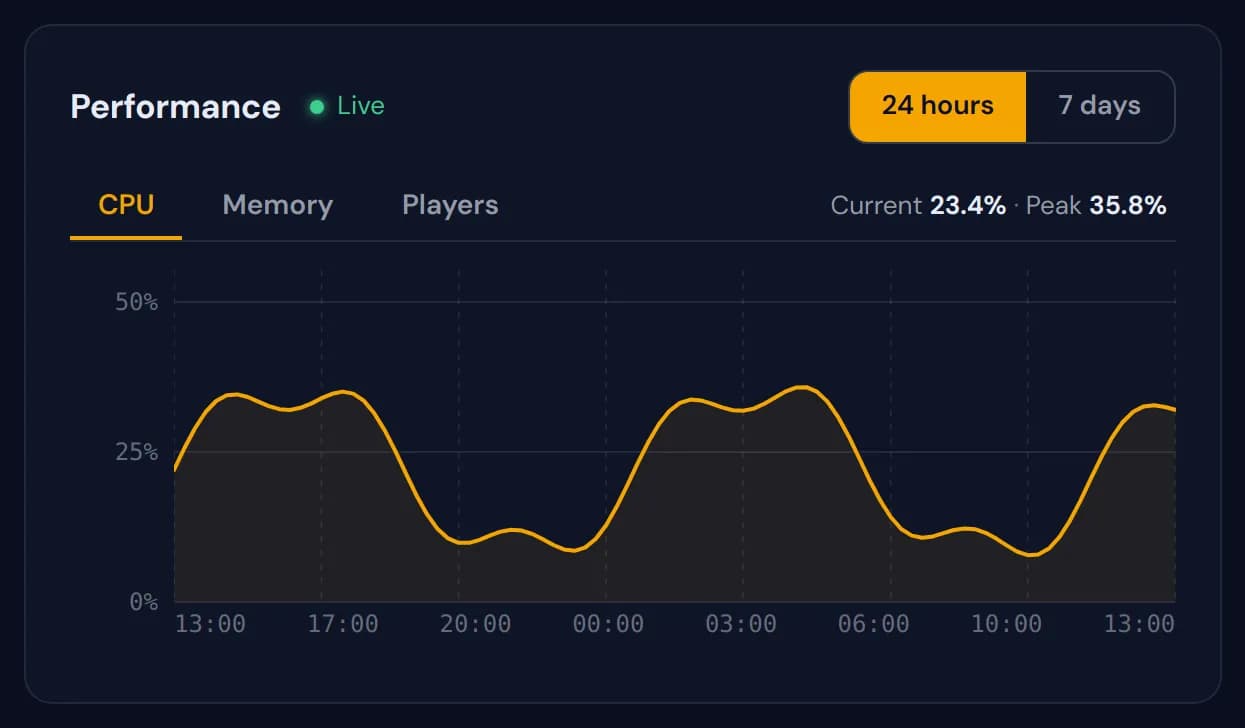
Performance chart
A large graph with tabs for CPU, Memory and Players over 24 hours or 7 days. The current value and the peak of that period are written above it.
Availability
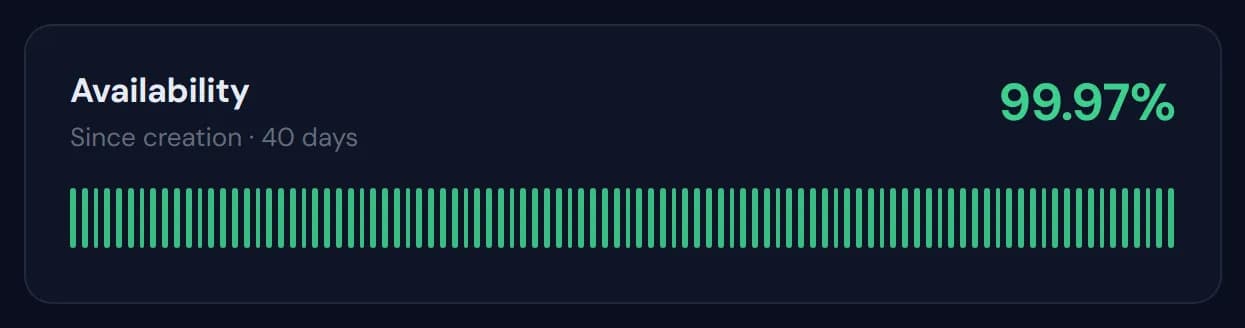
The share of time your server has been reachable since it was created, as a percentage above a long row of bars.
Network
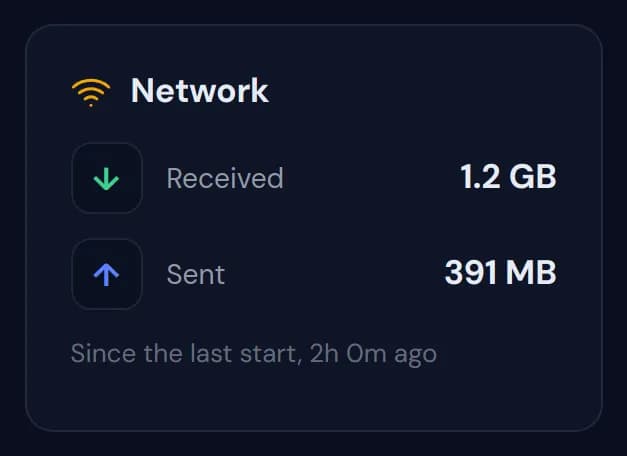
How much data your server received and sent since it last started, and how long ago that start was.
Server widgets
Nine widgets for the things you do on the server itself, from joining it to running commands.
Players online
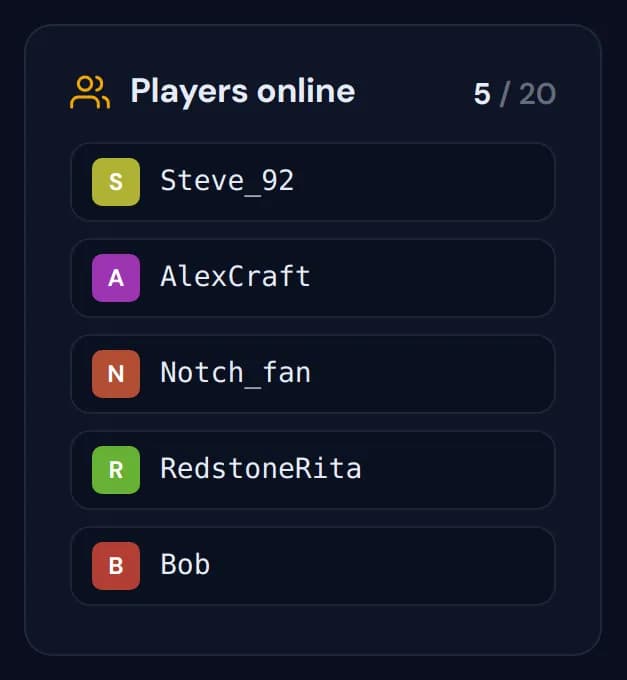
The name of everyone who is on the server, with the count against your player limit. While the server is offline it says the list returns once the server is up again.
Connect
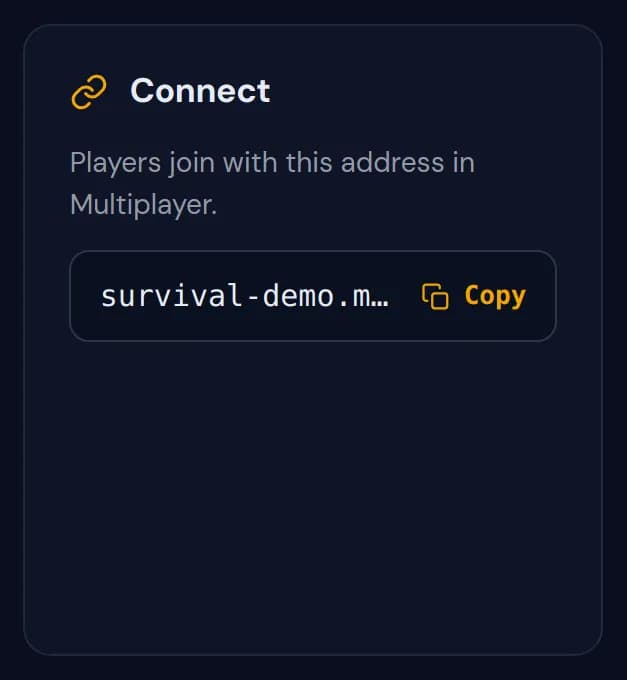
Your server address with a Copy button. Players paste it under Multiplayer in Minecraft to join.
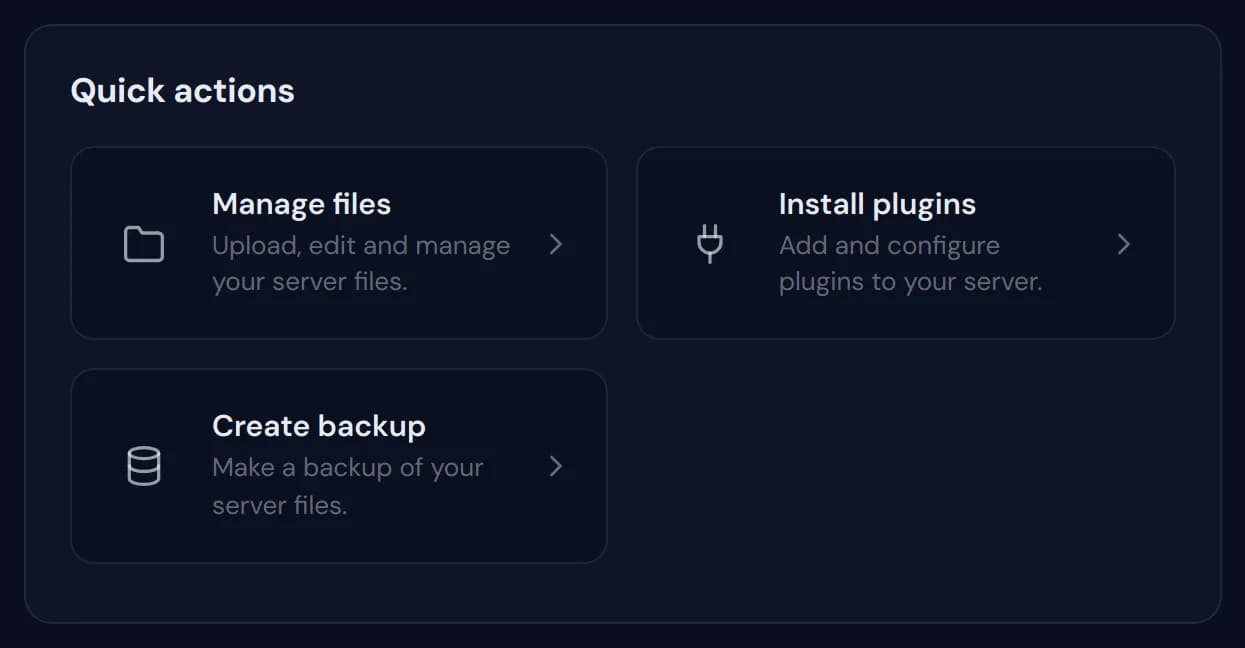
Quick actions
Three large buttons in one card: Manage files, Install plugins and Create backup.
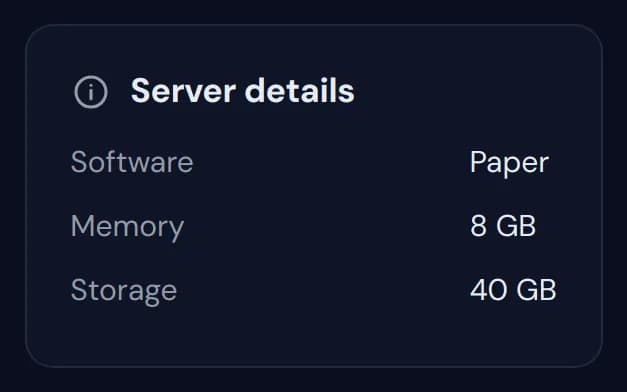
Server details
The server software and the memory and storage of your plan, at a glance.
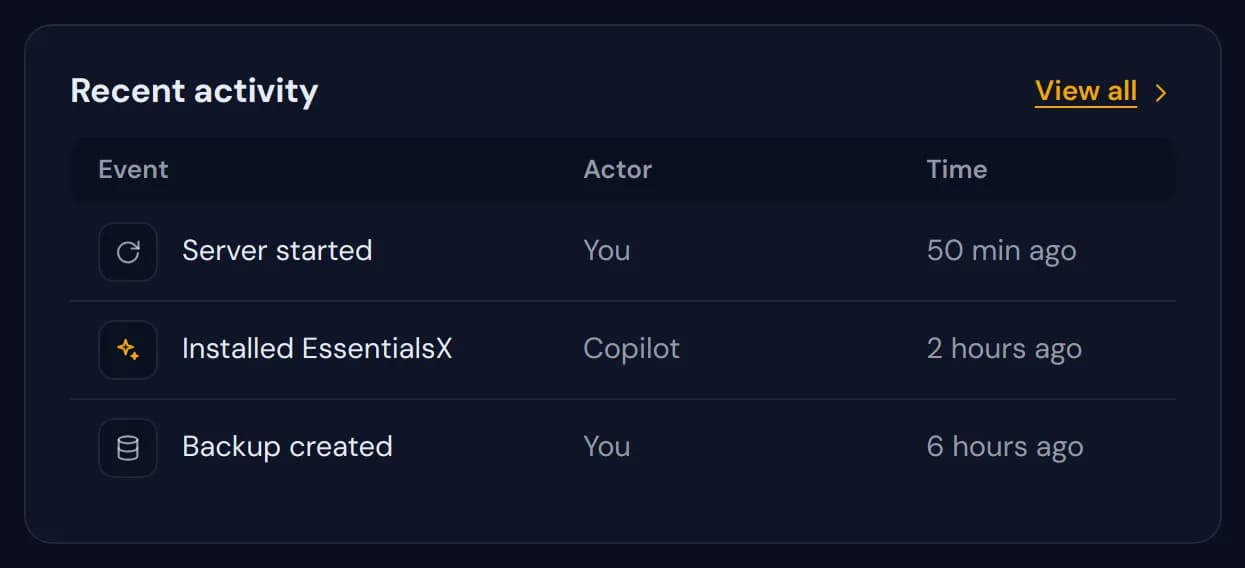
Recent activity
The latest events with who did them and when, such as a start, a backup or a plugin the Copilot installed. View all opens the whole activity log.
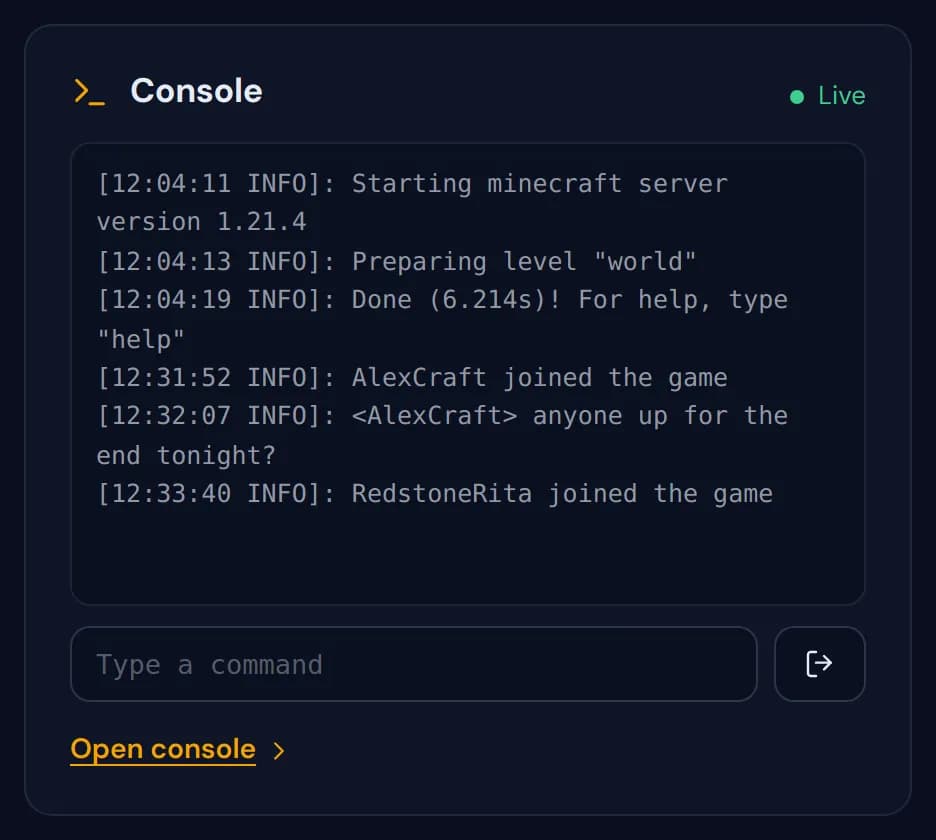
Console
The live server log with a field to type a command, so you can run one without leaving Overview. Open console goes to the full console page.
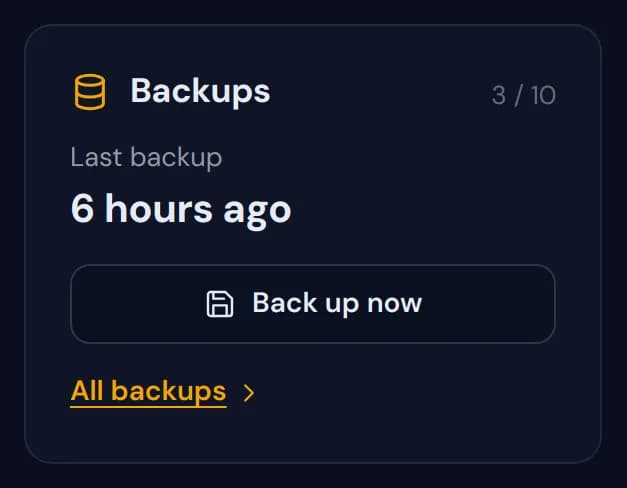
Backups
How long ago the last backup was made, how many backup slots are in use and a Back up now button. All backups opens the Backups page.
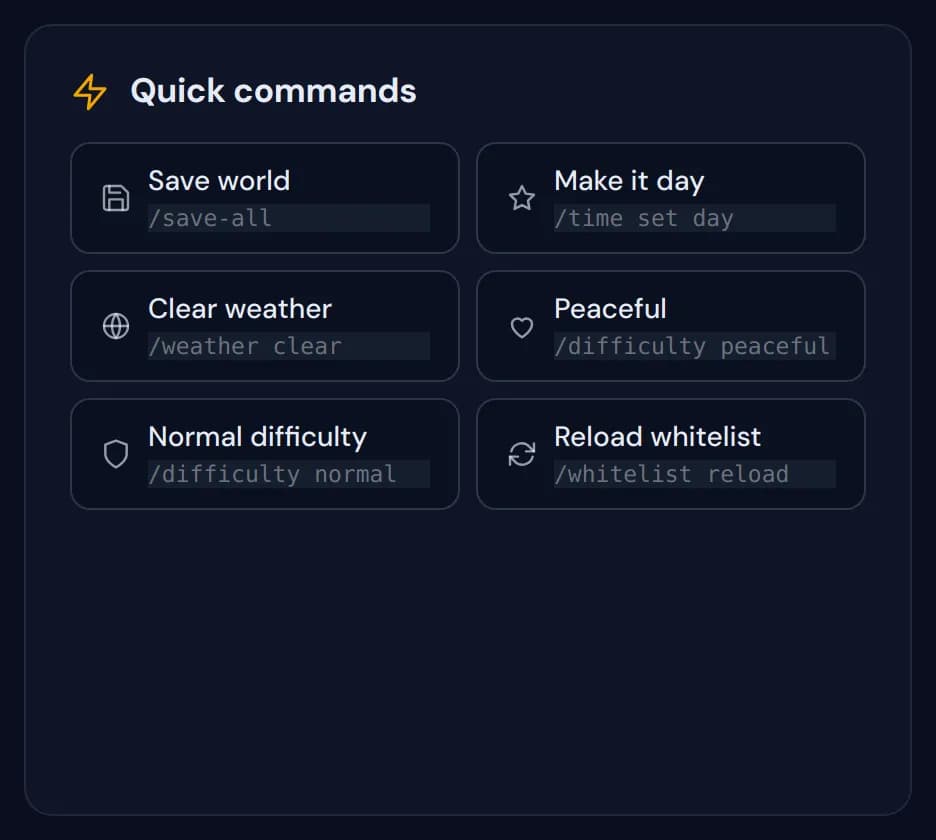
Quick commands
Six buttons that each run a command straight away: Save world, Make it day, Clear weather, Peaceful, Normal difficulty and Reload whitelist. The command itself is printed under its name.
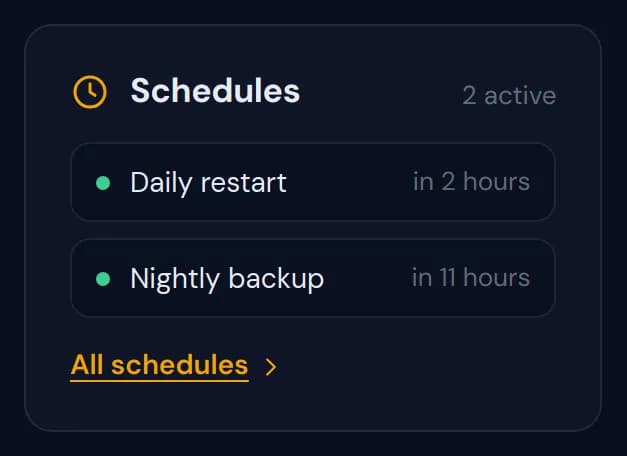
Schedules
How many of your schedules are active and when the next ones run, such as a daily restart or a nightly backup. All schedules opens the Schedules page.
Help widgets
Three widgets that keep an eye on problems and get you an answer quickly.
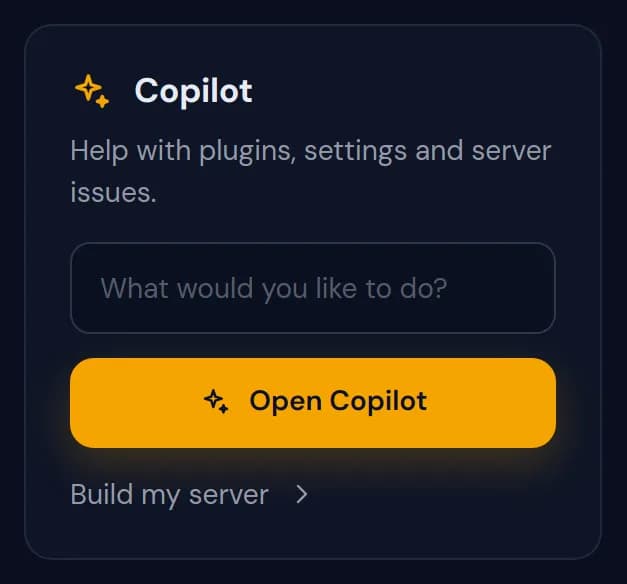
Copilot
Ask the Copilot about plugins, settings or a problem straight from your overview. Open Copilot goes to the full chat, and Build my server sits underneath.
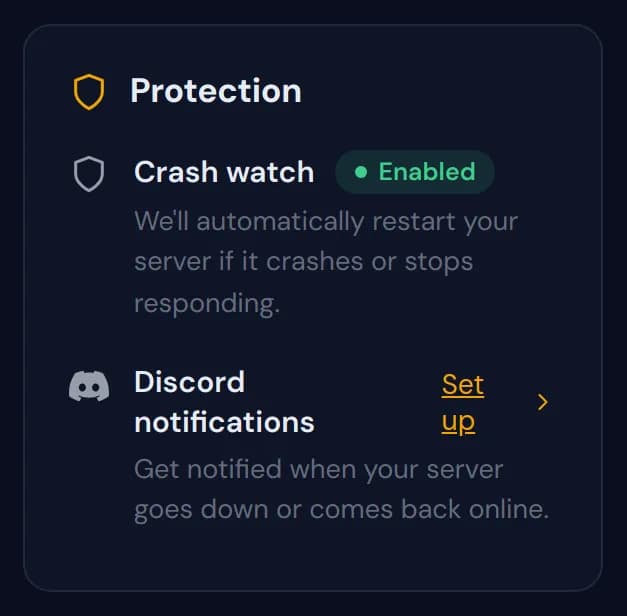
Protection
Whether crash watch is on, which restarts your server when it crashes or stops responding, and whether Discord notifications are set up. Set up connects a channel that hears when the server goes down or comes back.
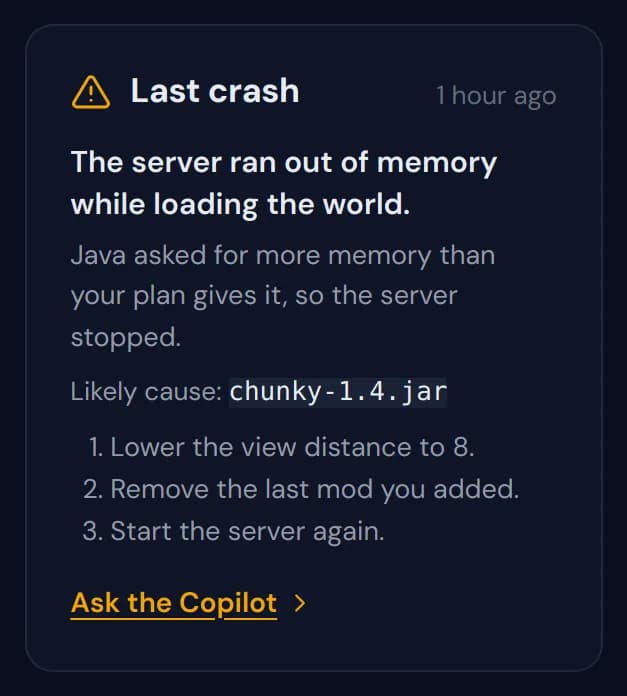
Last crash
Why the server last crashed, in plain words, with the likely cause and the steps to fix it. Ask the Copilot hands the crash over for more help, and a calm server shows "No crashes in the last 48 hours."
Account widgets
Two widgets about your plan and your credits. Staff members see a short notice instead of payment details.
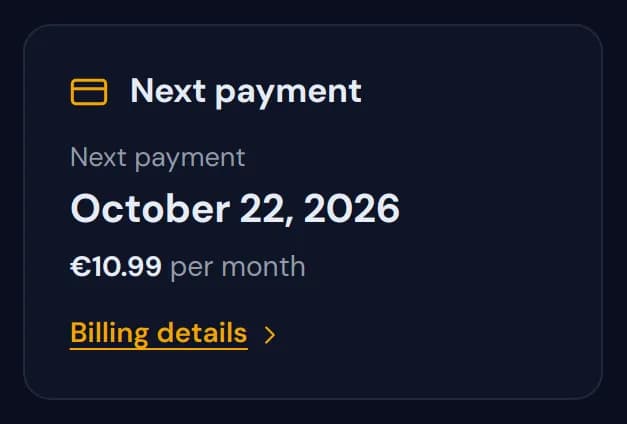
Next payment
The date of your next payment and the amount, with Billing details for your invoices and the way you pay.
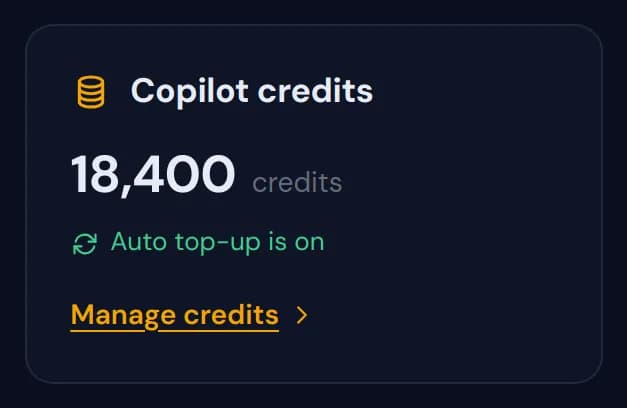
Copilot credits
How many Copilot credits you have left and whether auto top-up is on. Manage credits opens the credits page.
Personal widget
One widget that is only for you.
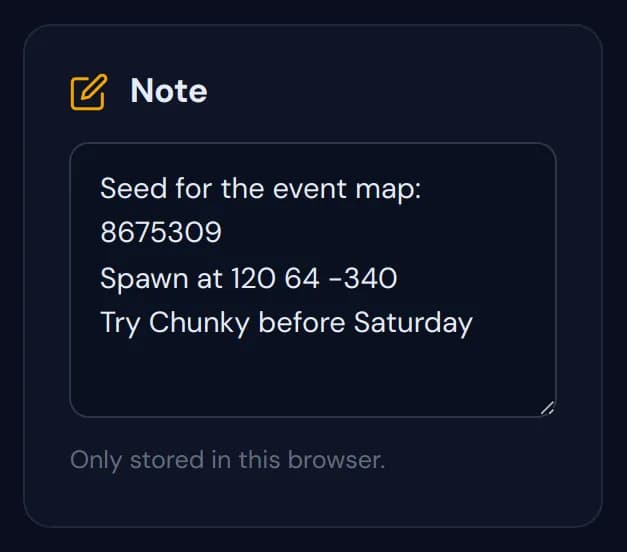
Note
A notepad for a seed, coordinates or a to-do list. The text stays in the browser you typed it in and belongs to that one server, so another device or another server has its own note.
Widgets show the server you are looking at
Your layout is shared by all your servers, but the figures are not. Open another server and every widget fills in with that server's console, players, backups and graphs.
When a widget is smaller than its content
Make a widget lower than what it holds and the size label adds "scrolls" while you drag. Nothing is cut off: the widget keeps all of its content and scrolls inside its own frame. Drag the corner down again to see everything at once.
Questions people also ask
Which widgets are on the overview by default?
Live stats, the Performance chart, Copilot, Availability, Protection, Quick actions, Recent activity and Server details. Reset in edit mode puts exactly these eight back.
Do the quick commands ask for confirmation?
No. They run the moment you press them, just as if you typed them in the console. Peaceful changes the difficulty for everyone on the server, so press it on purpose.
Why is my note missing on my phone?
The Note widget keeps its text in the browser where you typed it. The widget itself follows your account, but the words in it stay on that one device.