How do I move and resize widgets on my panel?
Short answerIn edit mode, grab a widget anywhere and drag it; the others make room and a guide line shows when it lines up. To change its size, drag the corner at the bottom right, or the one at the bottom left to move its left edge. With a keyboard, Tab to a widget and use the arrow keys, holding Shift to resize.
Move or resize a widget
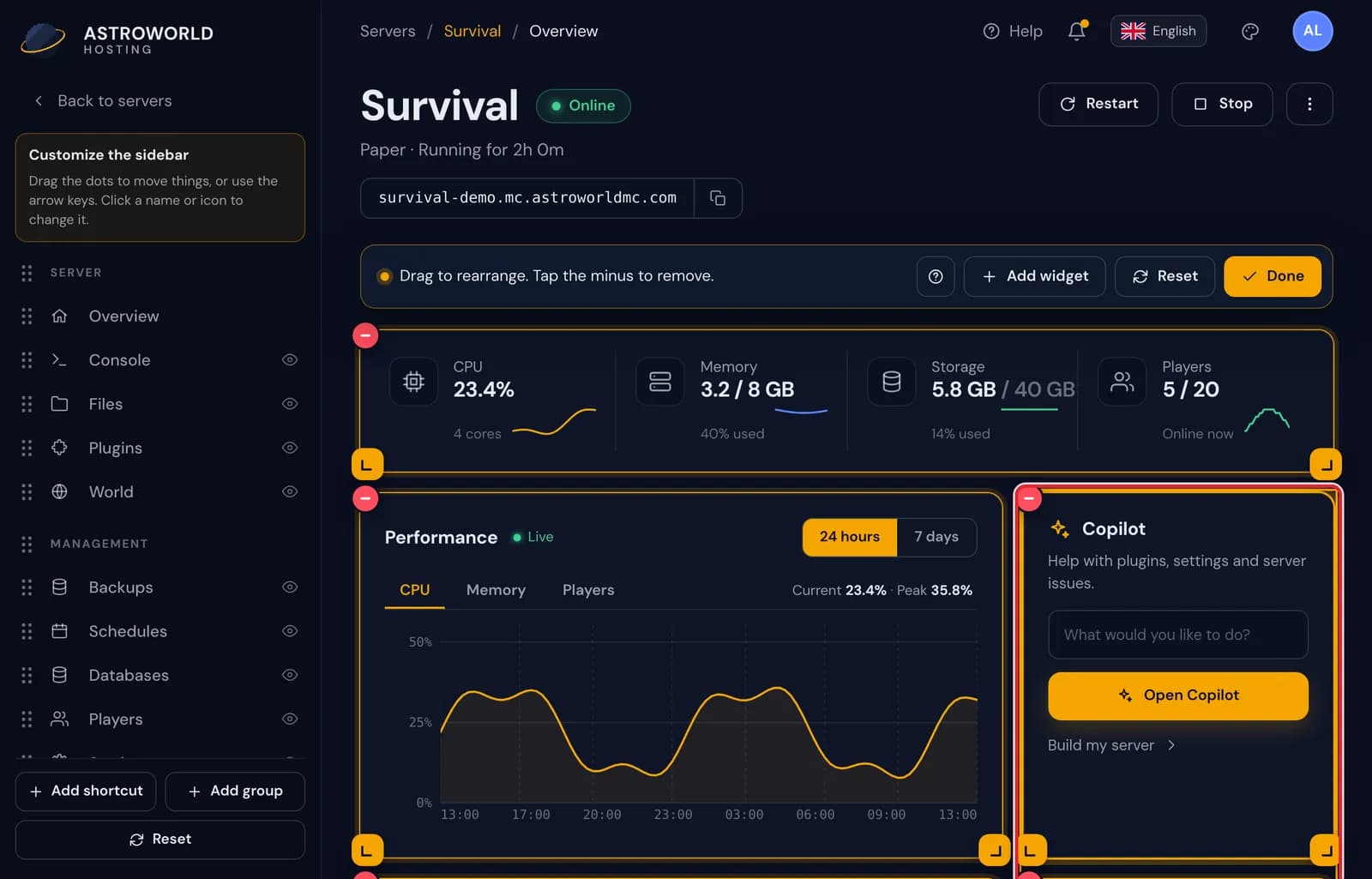
On Overview, press Edit so the widgets get their frames.
To move a widget, press anywhere on it and drag. The other widgets slide out of the way, and a thin guide line appears when its edge or middle lines up with a neighbour.

Dragging the Copilot widget across the overview while the other widgets make room 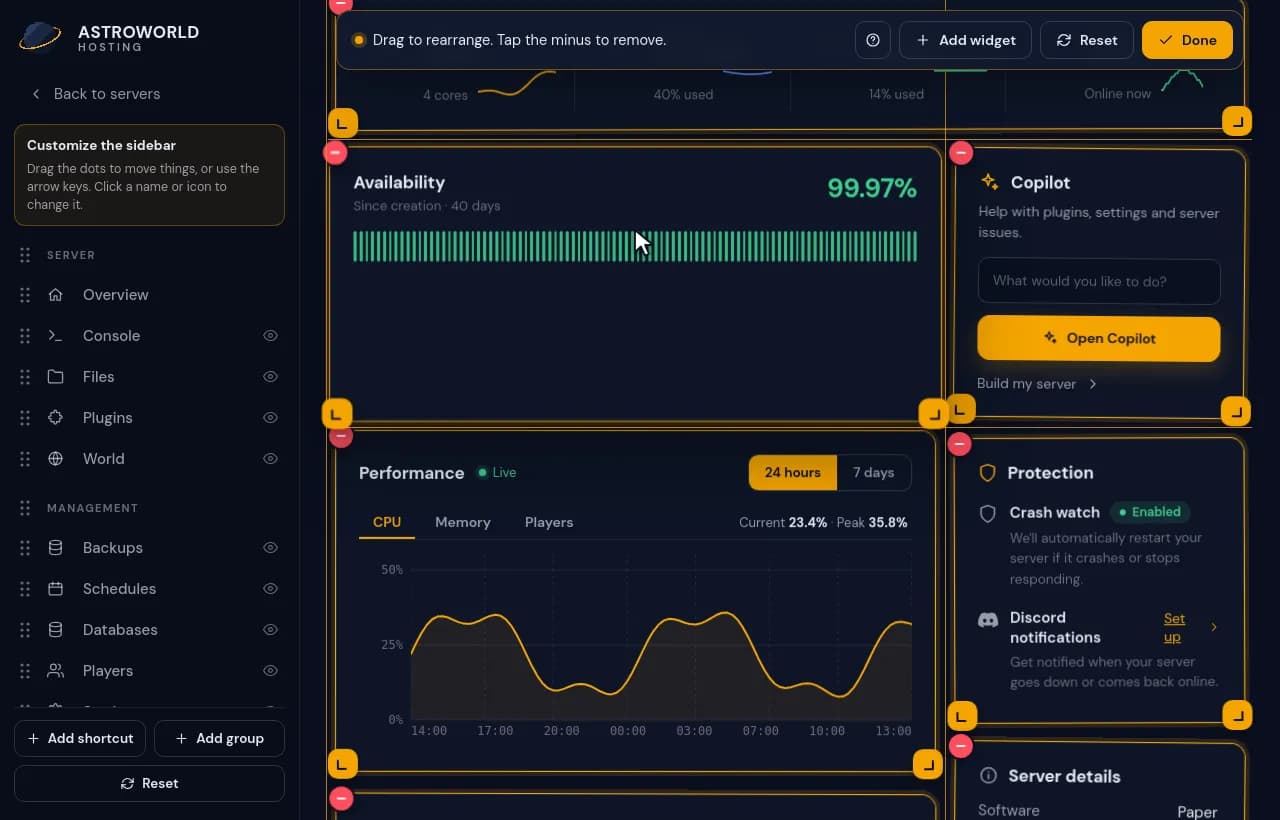
Dragging the Availability widget above the performance chart while the other widgets move aside Let go to drop it. Widgets always slide up into free space above them, so the page never ends up with empty rows; a gap to the side of a widget can stay.
To resize, drag the corner at the bottom right. A label at the corner shows the width while you drag, for example Half width, Two thirds or 5 of 12 columns.
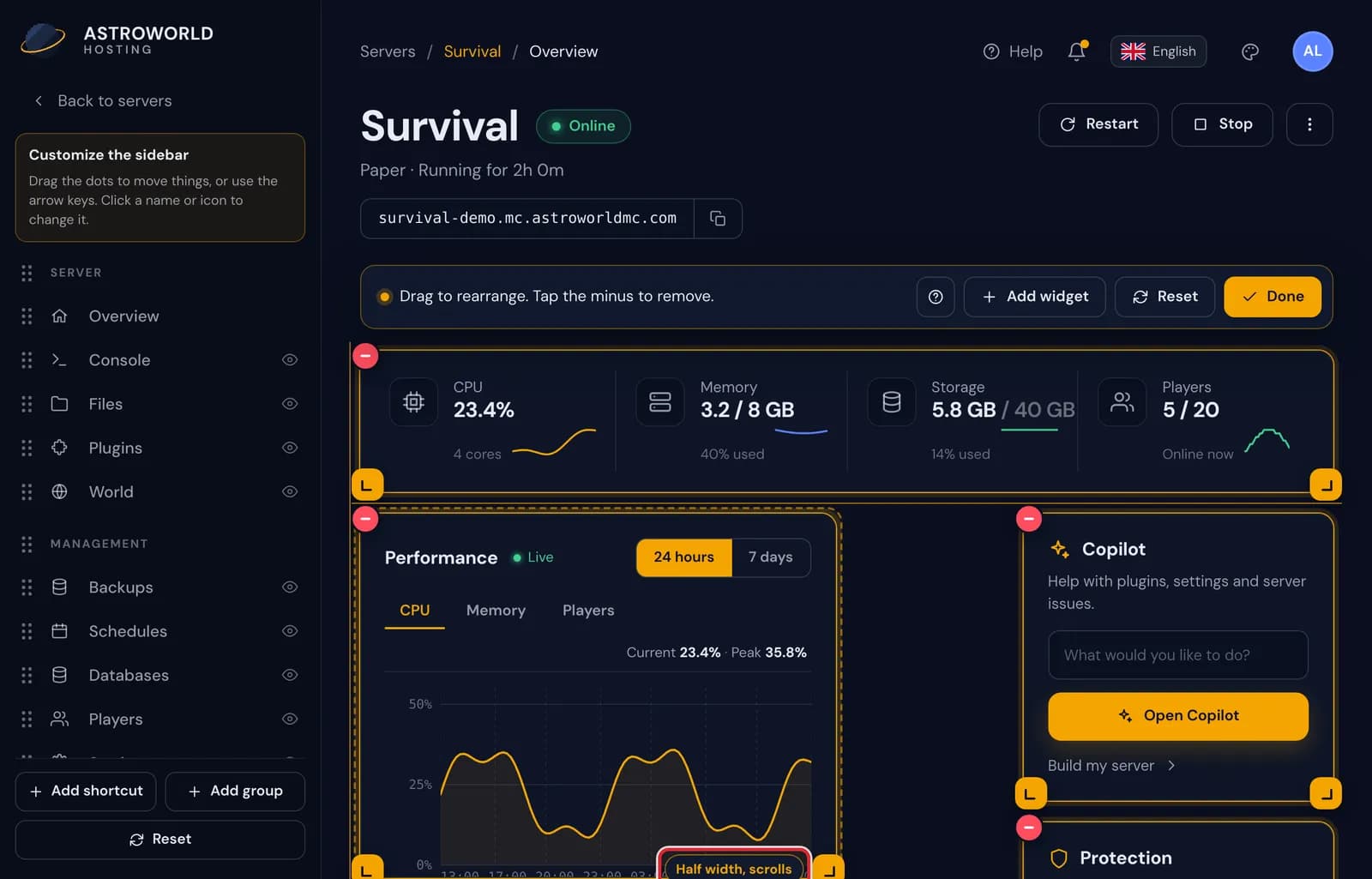
Resizing the performance chart, with the size label at its corner 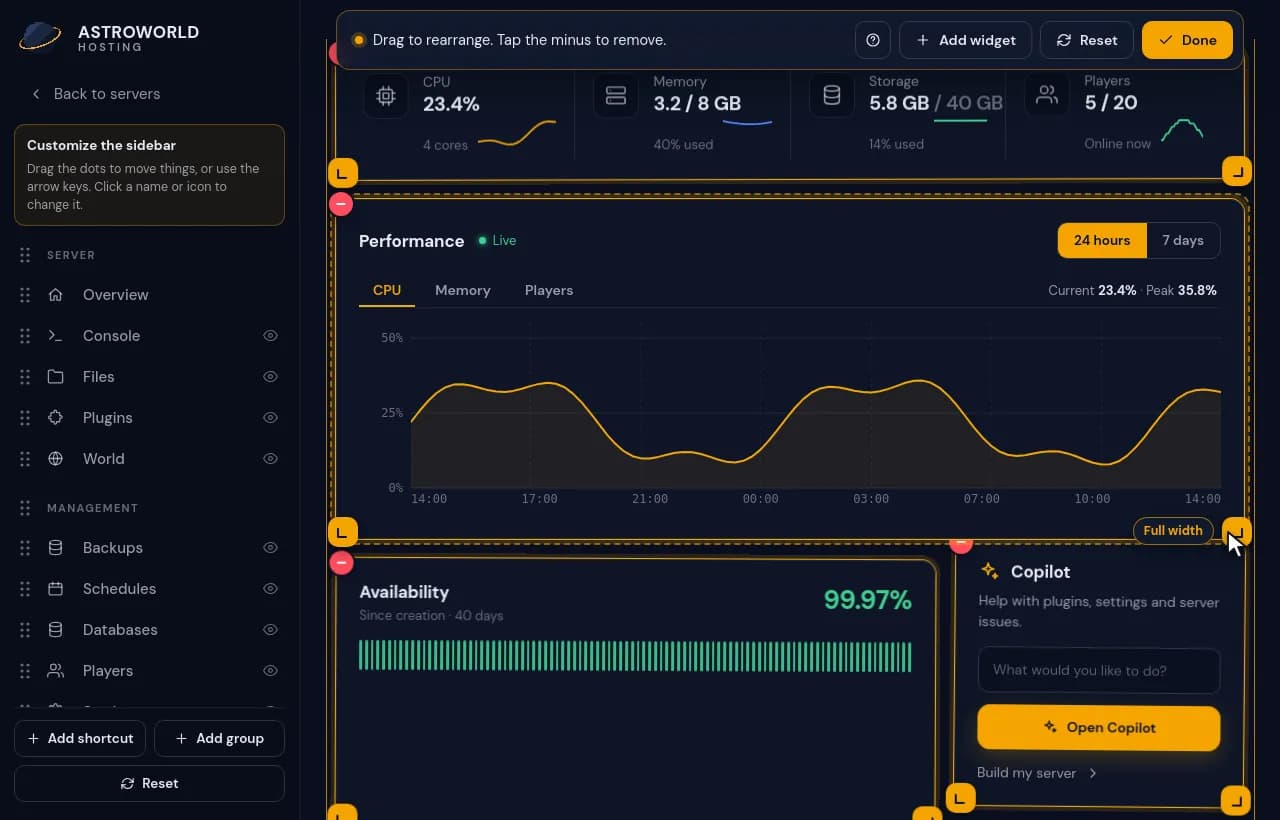
Dragging the corner of the performance chart until it spans the full width, with Copilot moving underneath The corner at the bottom left moves the left side instead: the widget grows or shrinks toward the left while its right edge stays where it is.

A widget in edit mode: the minus in its upper left corner, and a resize handle in both lower corners 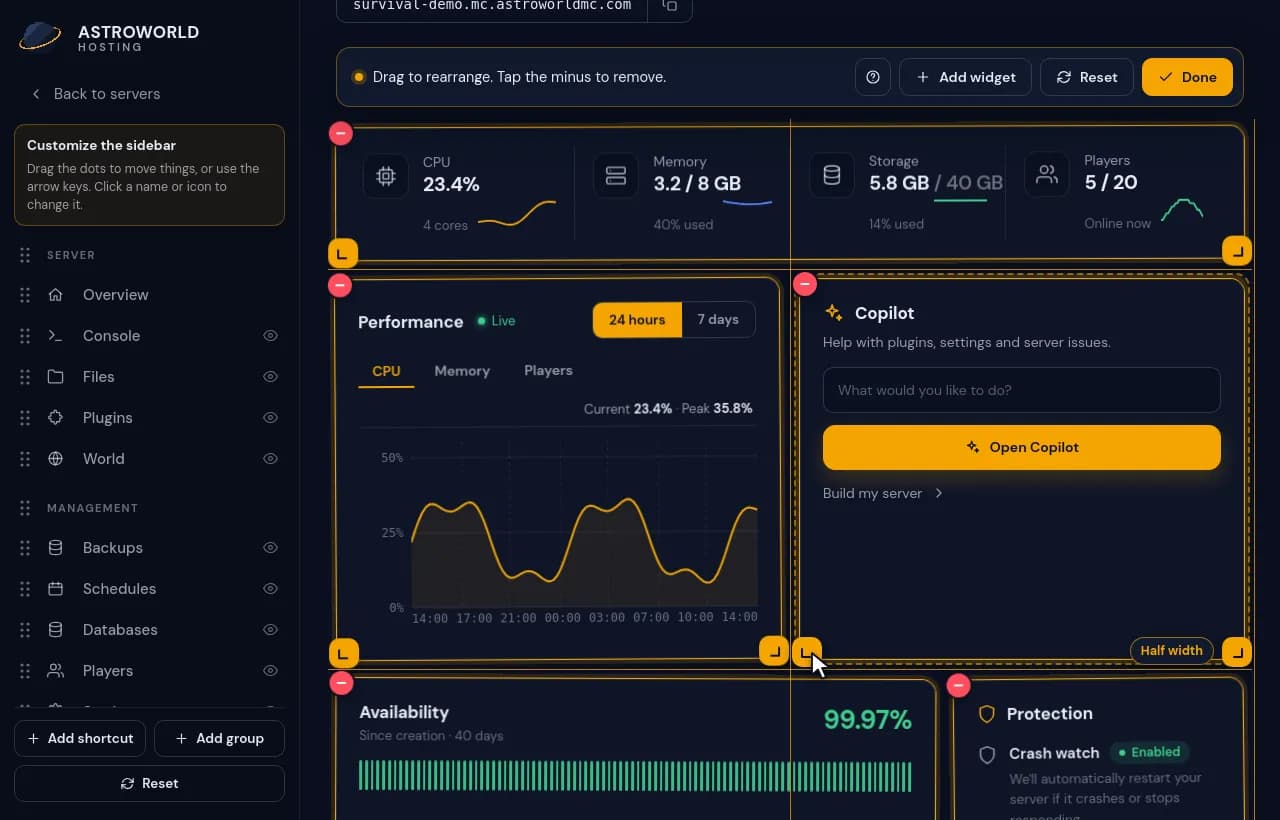
Widening the Copilot widget to the left by dragging its left corner into the free space Prefer the keyboard? Press Tab until a widget is selected, then move it with the arrow keys and resize it with Shift and the arrows.
A widget selected with the keyboard, shown with a bright focus frame
Size labels and what they mean
| What it says | What it means and what to do |
|---|---|
Full width | The widget spans all 12 columns of the row. |
Two thirds | 8 of the 12 columns. Recent activity and the Performance chart start at this width. |
Half width | 6 columns, so two of these fit next to each other. |
One third | 4 columns, the standard for small widgets such as CPU or Connect. |
One quarter | 3 columns, enough for a single figure. |
5 of 12 columns | A width without a common name is shown as a number of columns. Widths change in steps of half a column. |
scrolls | Added to the label when the widget is lower than its content. Nothing is hidden for good; it scrolls inside the widget. |
How the grid works
The overview is a grid of 12 columns. Widths move in steps of half a column and heights in rows of 8 pixels. No widget can be narrower than 2 columns or lower than 12 rows, and Live stats needs at least 6 columns to fit its four figures.
Widgets snap to the edges and the middle of the widgets around them, which keeps the page tidy even when you drag freely. When you drag close to the top or bottom of the screen, the page scrolls along with you.
Keyboard shortcuts
Tab selects the next widget. The left and right arrows move it half a column, and the up and down arrows move it earlier or later in the order.
Shift with left or right makes it narrower or wider by half a column. Shift with up or down makes it lower or taller by 32 pixels.
S jumps through the common widths of 2, 3, 4, 6, 8, 9 and 12 columns, and Delete or Backspace removes the selected widget. A screen reader announces each widget with its place, such as "Copilot, 3 of 8", followed by these keys.
On smaller screens
Below 1000 pixels wide every widget takes the full width and the resize corners are hidden, because there is no room for widgets next to each other. You can still change the order there, with your finger on a phone.
Questions people also ask
Why did my widget jump up after I dropped it?
Widgets always fill free space above them. If the columns it covers are empty higher up, the widget moves into that space so the page has no empty rows.
Why does my widget scroll now?
You made it shorter than its content; the label said so while you dragged. Pull the corner down again and everything fits without scrolling.
Does my arrangement survive on a phone?
The order does. On a narrow screen every widget is full width, one under the other, and your widths come back as soon as the screen is wide enough.