How do I order a Minecraft server?
Short answerPick a plan and press "Order". On the order form you choose how long, where it runs, the disk, a server name and free address, and you log in or create an account. The summary on the right shows what you pay today, and "Continue to payment" takes you to the checkout.
Order your server in six steps
Open the plans and press "Order" on the size you want. Not sure which one? The plan finder asks four questions and picks one for you.
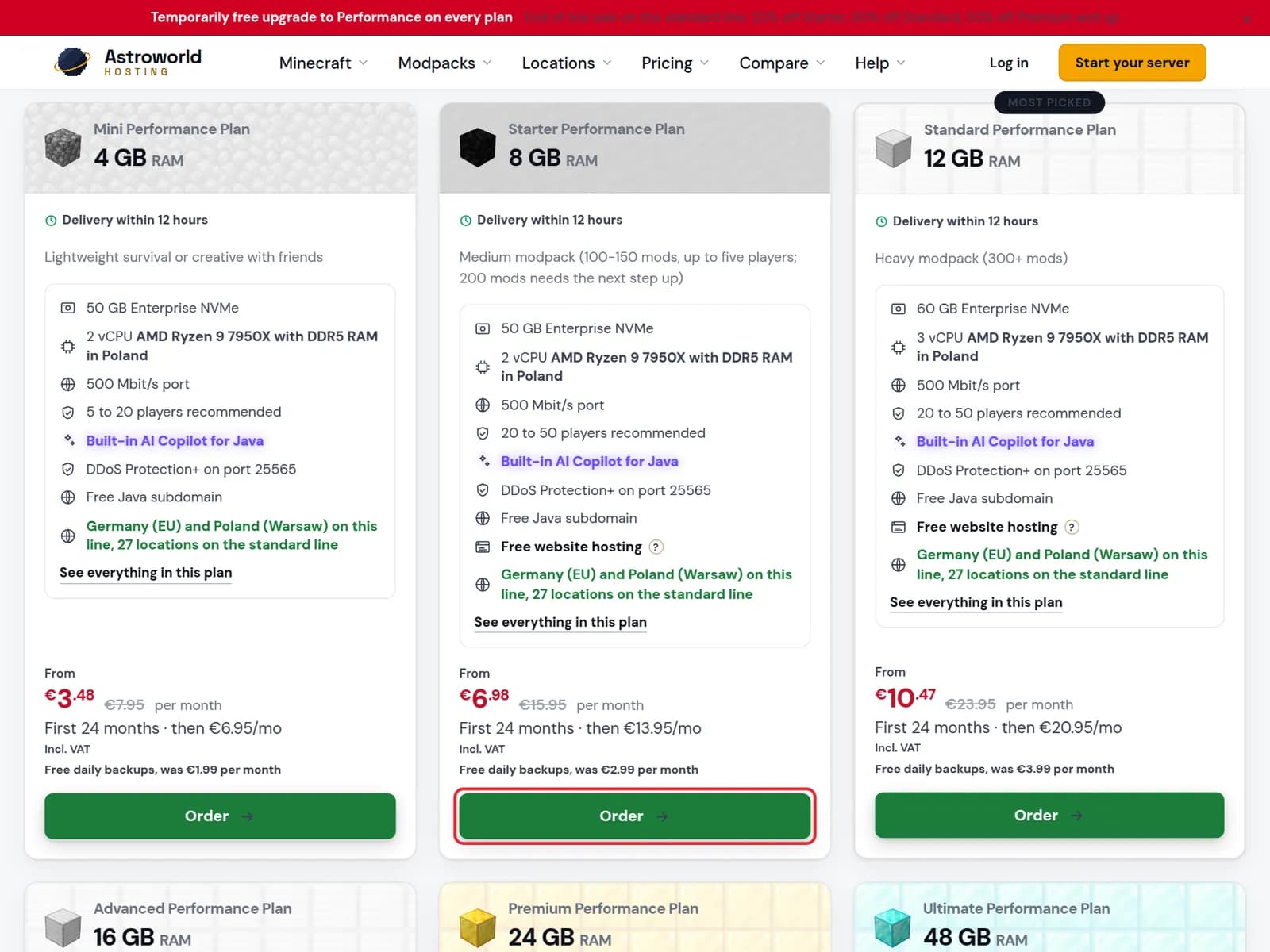
The plan cards with the Order button of the Starter Performance plan marked in red Under "1 How long" pick a term. Each card shows the price for that first term and what it costs after it.
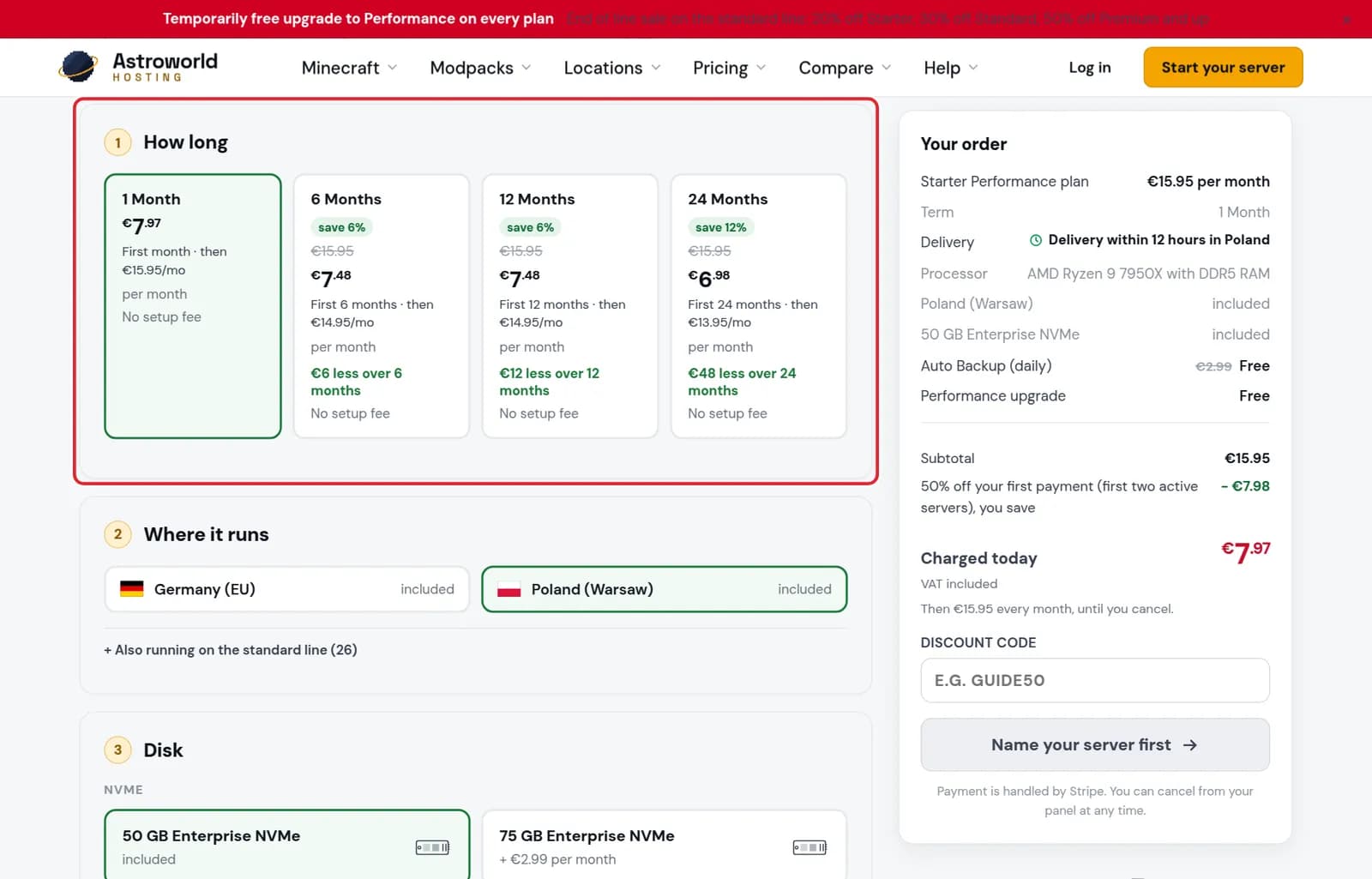
The How long step of the order form with the four terms marked in red Under "2 Where it runs" pick the location closest to your players. "Included" means it adds nothing to the price.
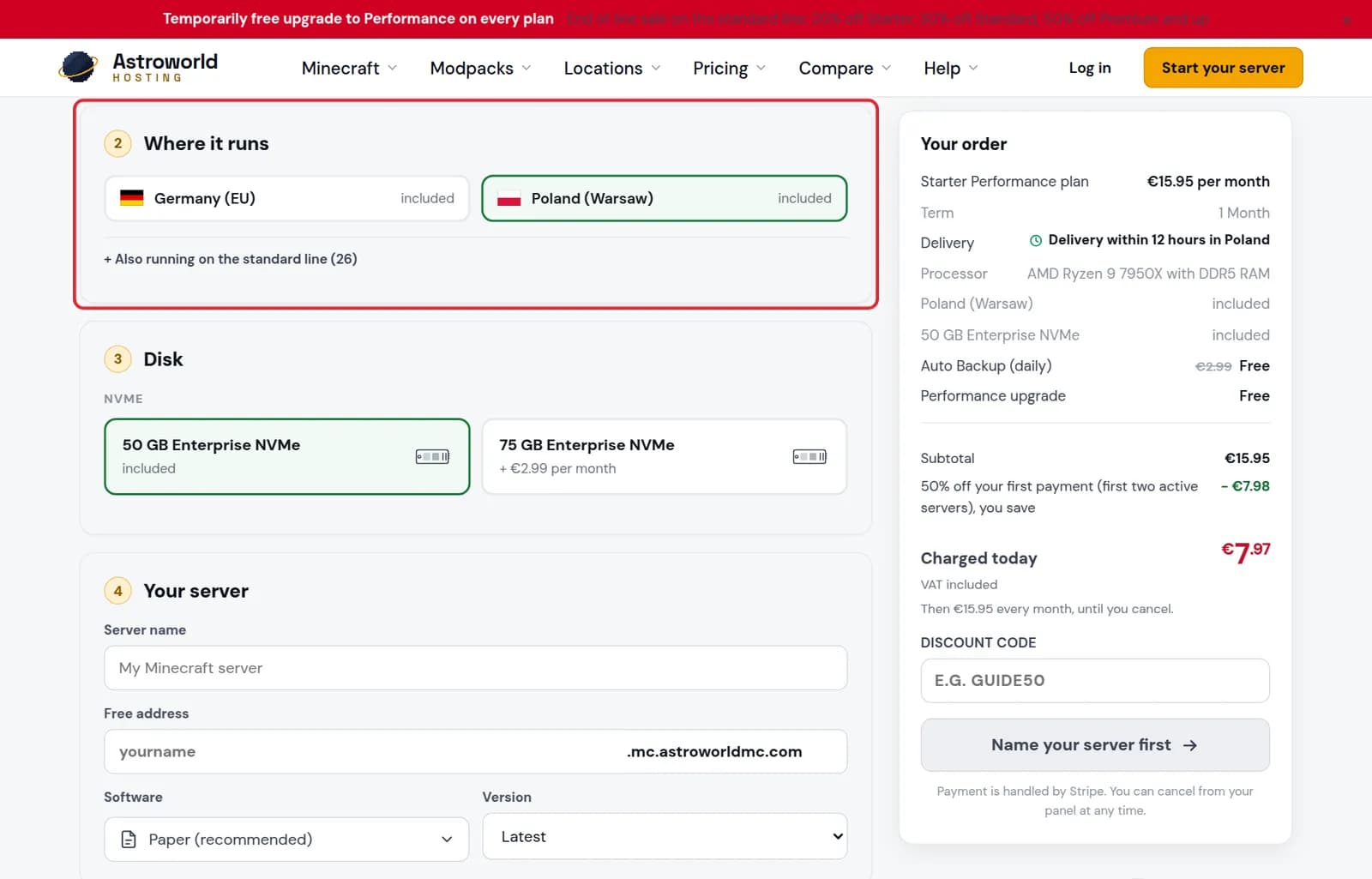
The Where it runs step with the location choices marked in red Under "4 Your server" give the server a name and choose its free address. That address is what your players type to join, and you can change it later from your panel.
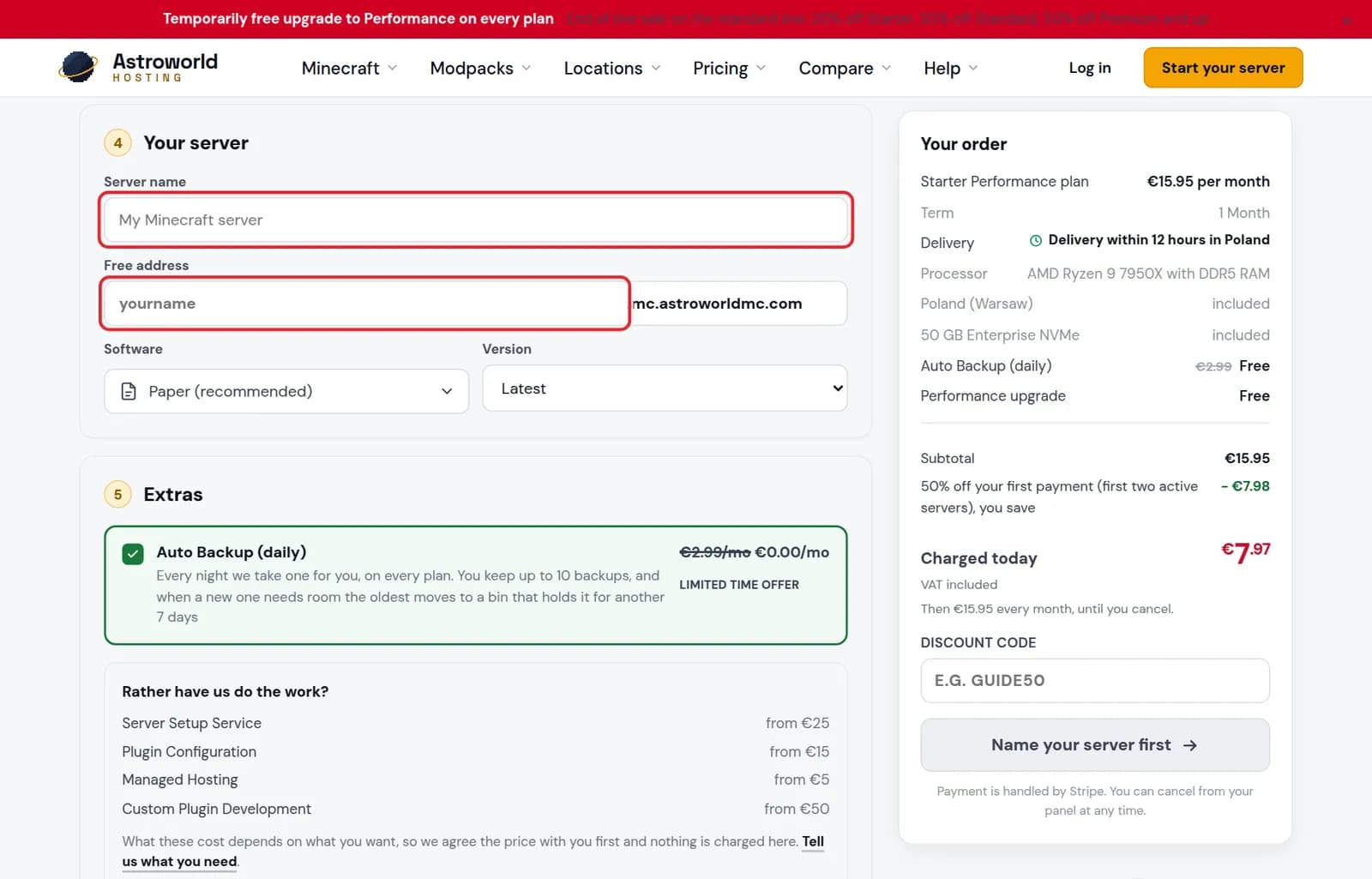
The Your server step with the Server name and Free address fields marked in red Under "6 Your account" continue with Google, or choose "I am new here" or "I have an account". The server lands in this account.
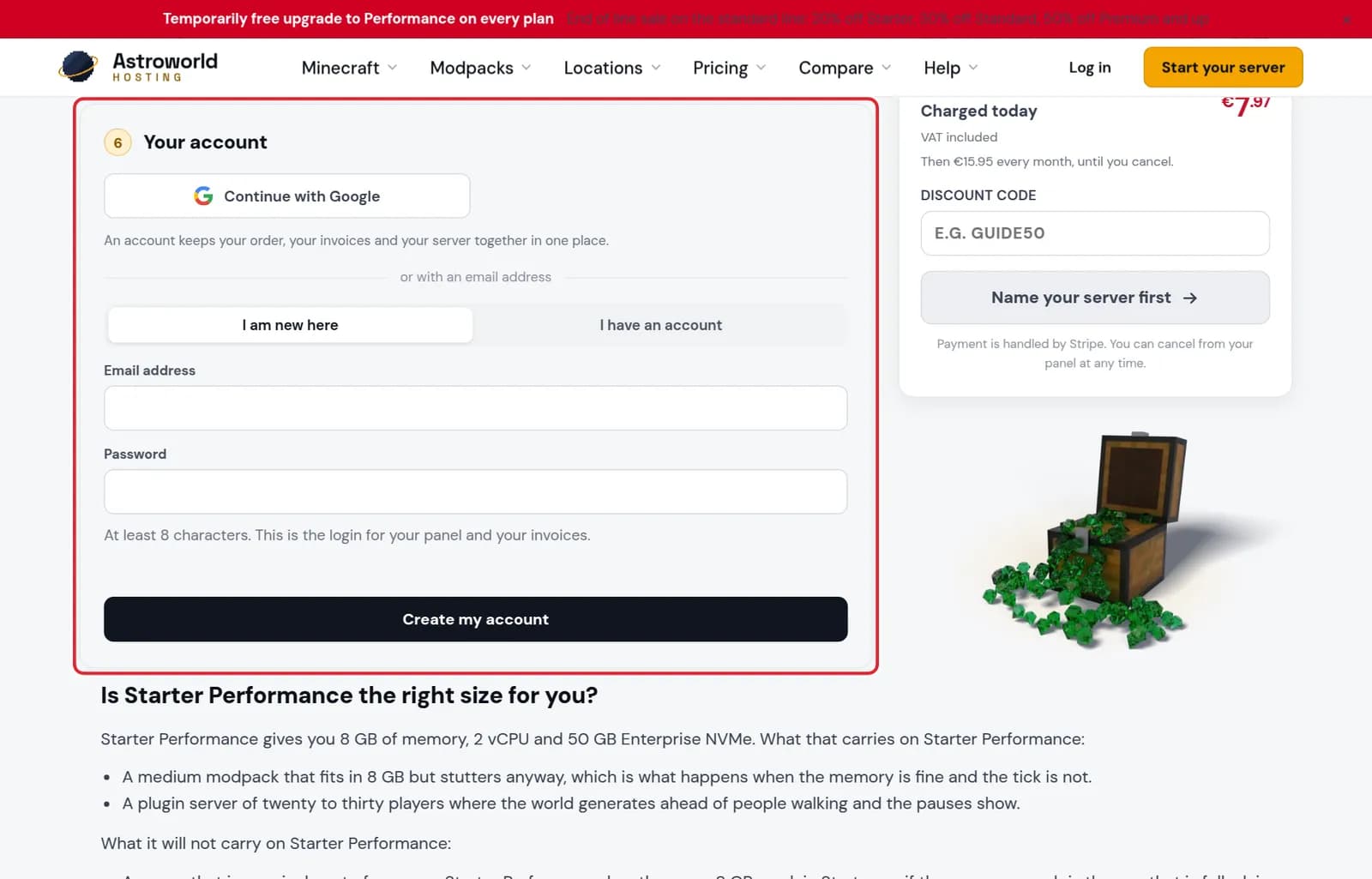
The Your account step with Continue with Google and the email form marked in red Check "Your order" on the right. It lists every choice, the discounts and what is "Charged today". Press "Continue to payment" to pay, and your server is set up for you.
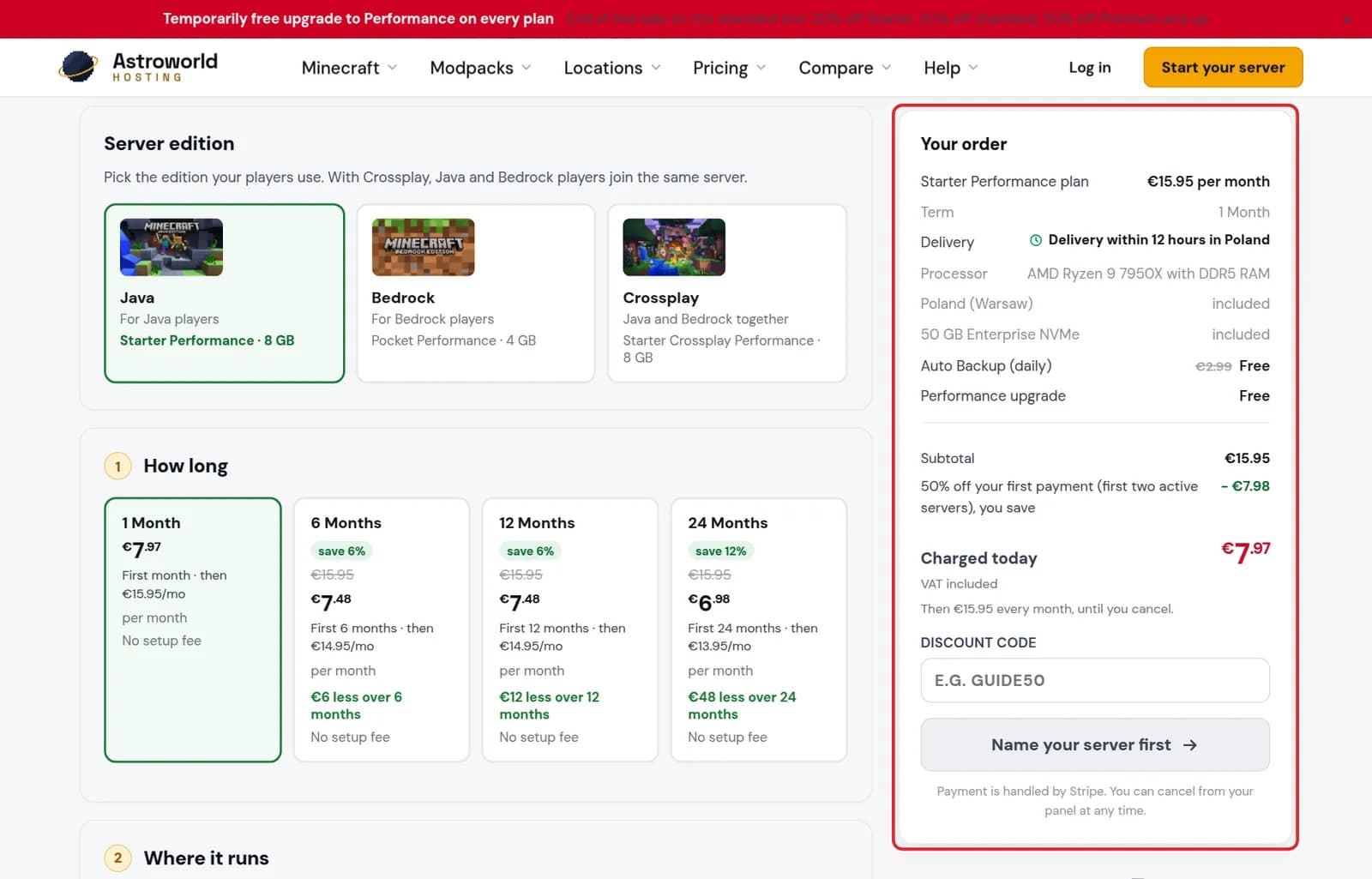
The Your order summary with the price, the discounts and the charged today amount marked in red
Messages on the order form
| What it says | What it means and what to do |
|---|---|
Name your server first | The button in the summary until the server has a name. Clicking it takes you to step 4, "Your server". |
First create your account | The server has a name, but you are not logged in yet. Finish step 6, "Your account", and the button turns into "Continue to payment". |
That address is taken. Try another. | Somebody already has that free address. Add a word or a number; the check next to the field says "Free, this one is yours" once it is available. |
Check your e-mail | You created your account inside the order form. Open the link we sent; the order page notices it by itself and goes straight on to payment. |
Why the button says "Name your server first"
The button in the summary only turns into "Continue to payment" when the server has a name and you are logged in. Until then it tells you what is still missing, and a click takes you to that step.
What happens after you pay
We install the software and version you picked, so the server is ready to join when you get it. The line "Delivery" in the summary says how quickly that is for your location, and most servers are handed over within seconds.
You find it on the dashboard under your account, with a button to open the panel.
What you cannot change later, and what you can
The location is chosen on the order form, so think about where your players are before you pay; moving a server later means asking us. Almost everything else you can change yourself afterwards: the software and the Minecraft version from the panel, the free address from the panel, and extra addresses next to it. A server name is only for you and never shown to players, so it does not need to be perfect.
Extras on the form
Step 5 lists what you can add. The daily backup is included on every plan while the offer runs: every night we copy the whole server and you keep up to ten of them. Under "Rather have us do the work?" are the services, such as setting the server up for you, configuring plugins, managed hosting and custom plugins; those are priced with you first and nothing is charged for them on this form.
Delivery
Most servers are handed over within seconds of payment. The summary line "Delivery" states the promise for your location; the standard is within 60 minutes during the day and within 12 hours at night. When it is ready, it appears on your dashboard with its panel and address, and you get an email.
Questions people also ask
Can I change the software or version later?
Yes. What you pick on the order form is what we install first. You can switch software or version any time from your panel.
Can I pay for more than one month at a time?
Yes. The first step offers 1, 6, 12 and 24 months. Longer terms cost less per month, and the card shows how much you save.
Do I need an account before I order?
You need one before you pay, but you can make it inside the order form under "Your account". There is no need to sign up separately first.
Can I order for a friend?
Yes. Order it on your own account and invite your friend as staff in the panel, with the rights you choose. The subscription and the invoices stay with you.
Which payment methods can I use?
The checkout after "Continue to payment" shows the payment methods available for your country. Card details go straight to our payment processor and are never stored on our own servers.