How do I upgrade or downgrade my server plan?
Short answerOpen Settings in your server panel and use the Change plan card. Pick a bigger plan, check the amount the panel shows, confirm, and restart the server when nobody is playing. Your world, files and address stay the same. For any other change to your plan, open a support case.
Change your plan
Open Settings in the sidebar of your server panel. The Change plan card is at the top right. It shows your current plan with its memory, disk and monthly price, and a row for every bigger plan.
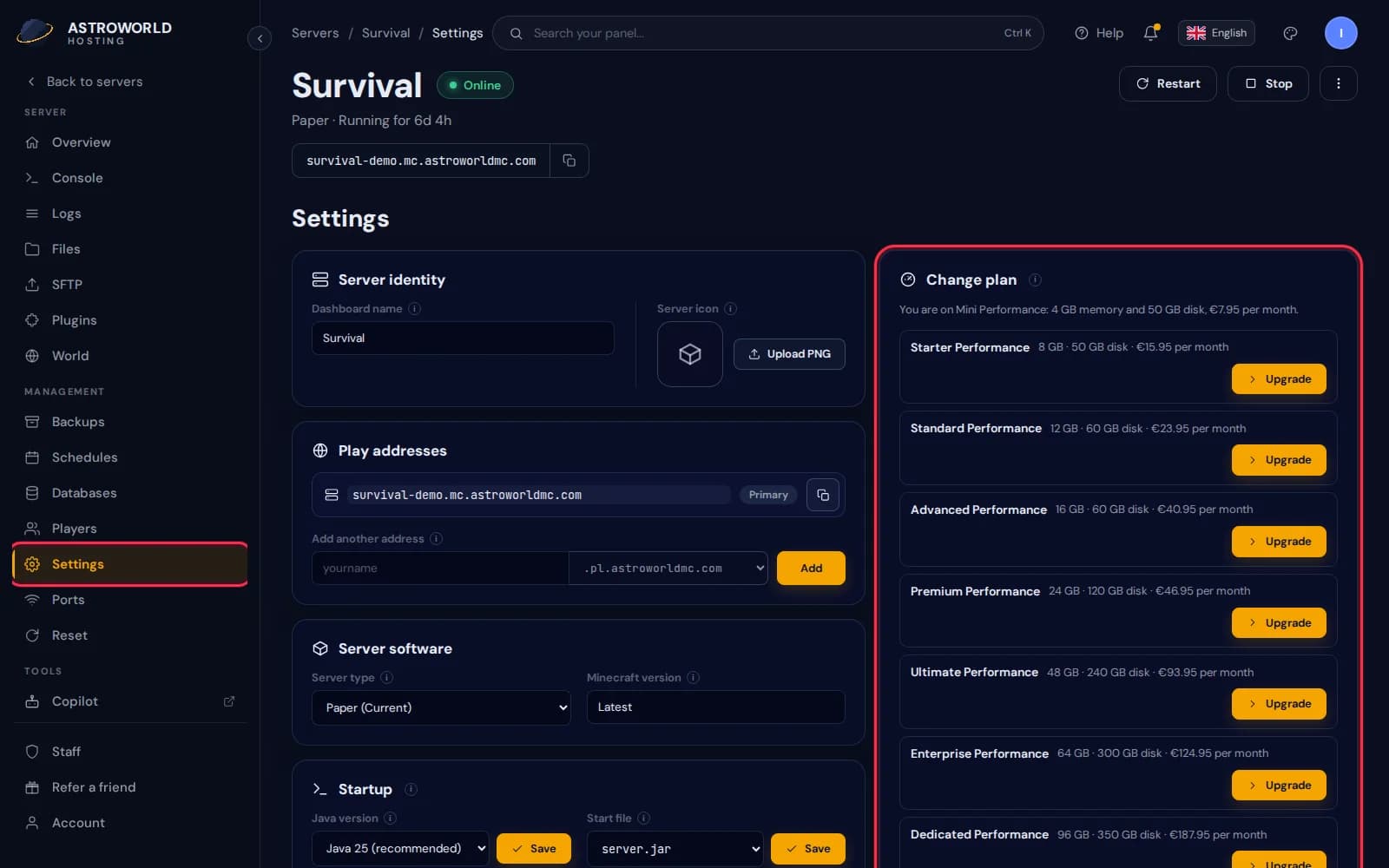
The Settings page of the server panel with Settings in the sidebar and the Change plan card marked in red Press Upgrade next to the plan you want. The panel asks the payment system what the change costs and shows it under the plan, before anything is charged.
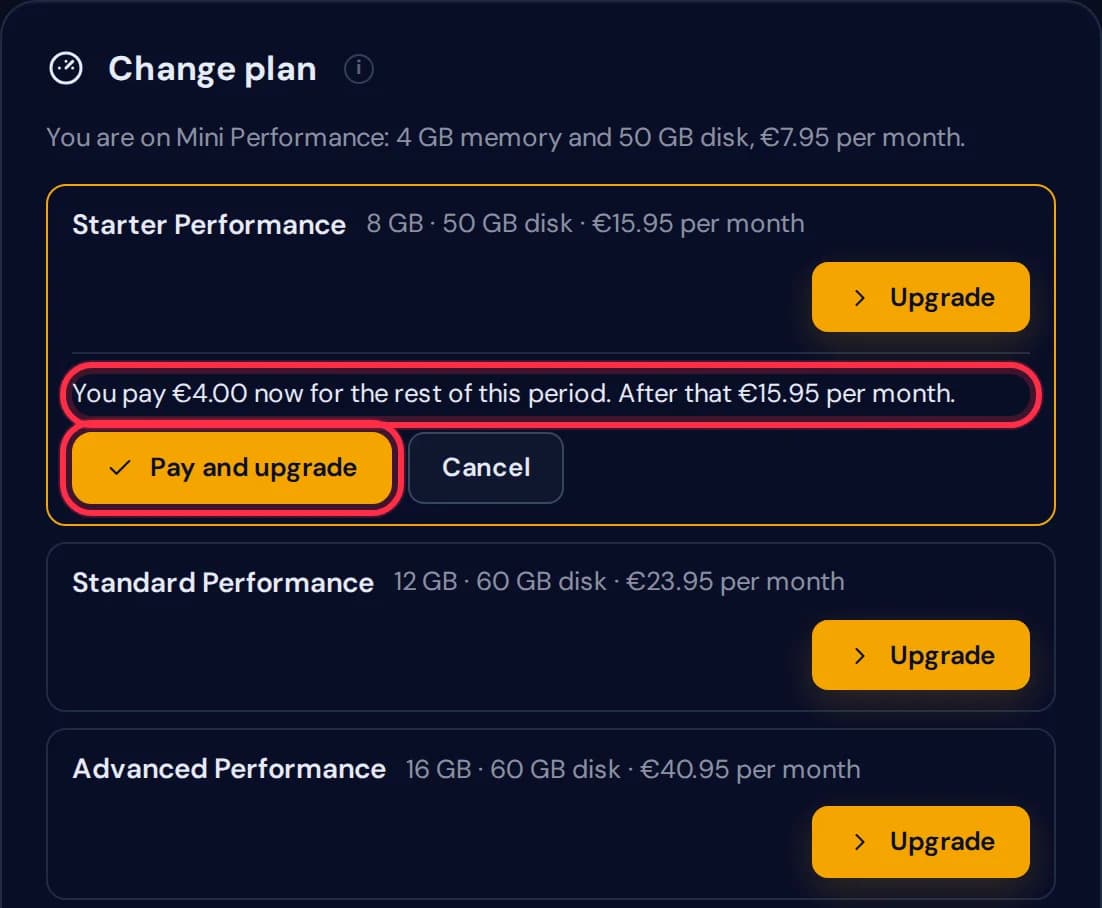
The Starter Performance plan selected, with the line You pay €4.00 now for the rest of this period and the Pay and upgrade button marked in red 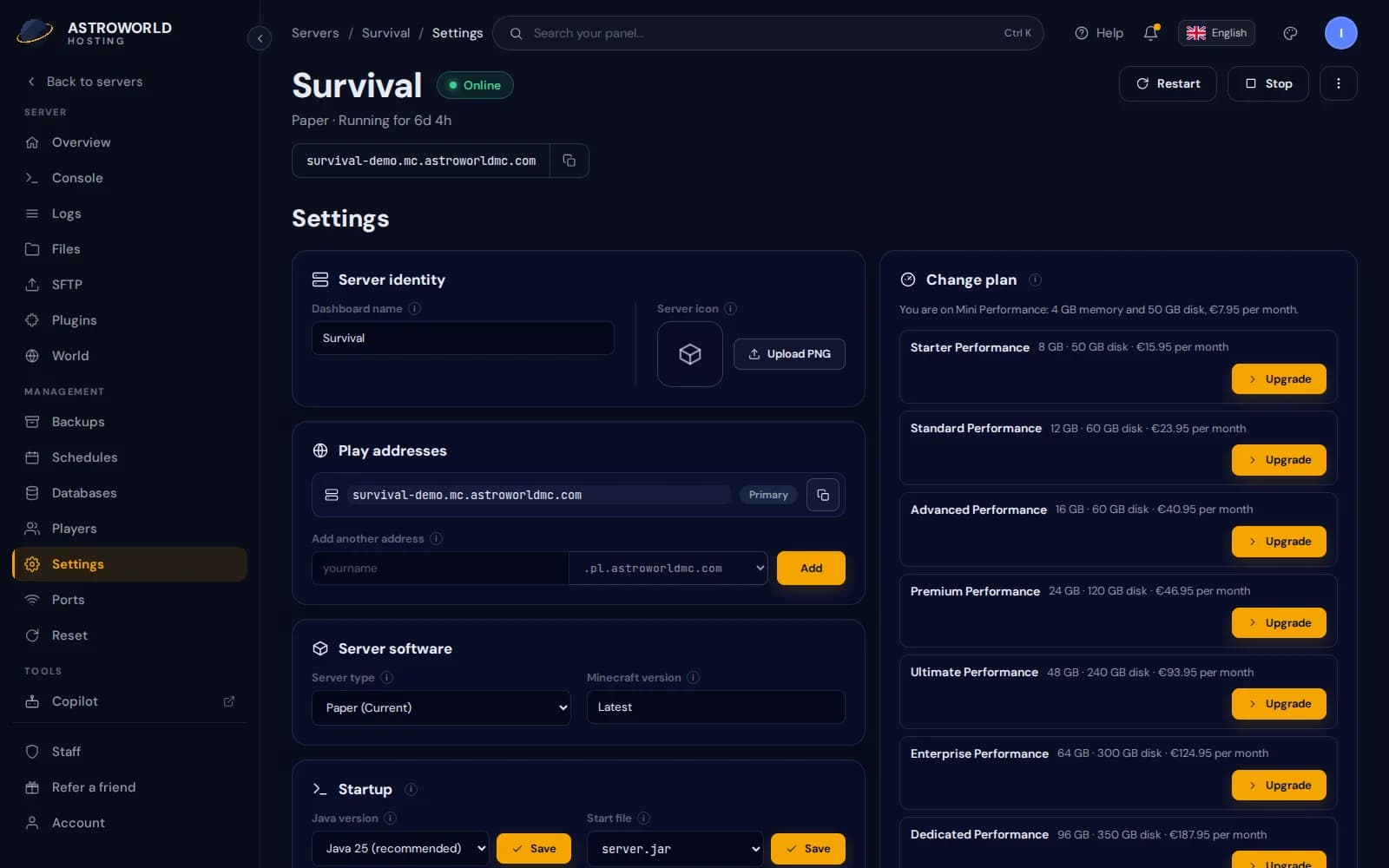
Moving a server from Mini Performance to Starter Performance on the Change plan card Press Pay and upgrade. The top line of the card now shows the new plan, and a green line tells you what to do next. Press Cancel instead if you do not want to pay that amount.
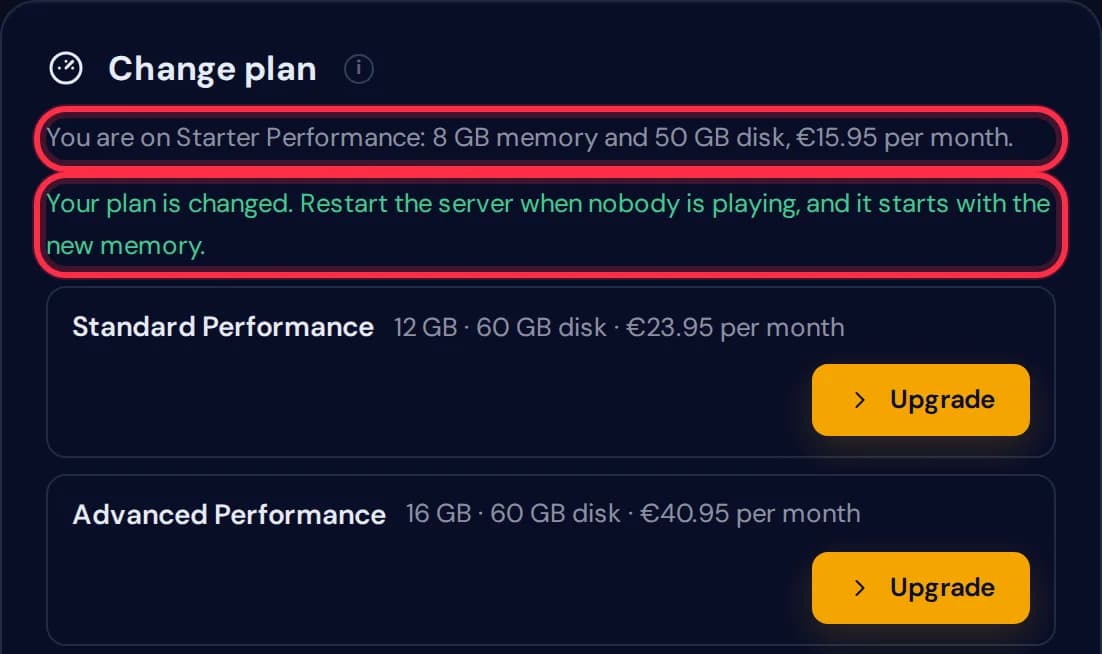
The Change plan card after the upgrade, with You are on Starter Performance and the line Your plan is changed marked in red Restart the server when nobody is playing. The new memory and disk apply from that restart. You can restart from the top of any page in the panel.
Upgrades we arrange for you
For some bigger plans we make the change for you. The button is the same: press Upgrade and the panel opens a support case with your server and the plan you picked.
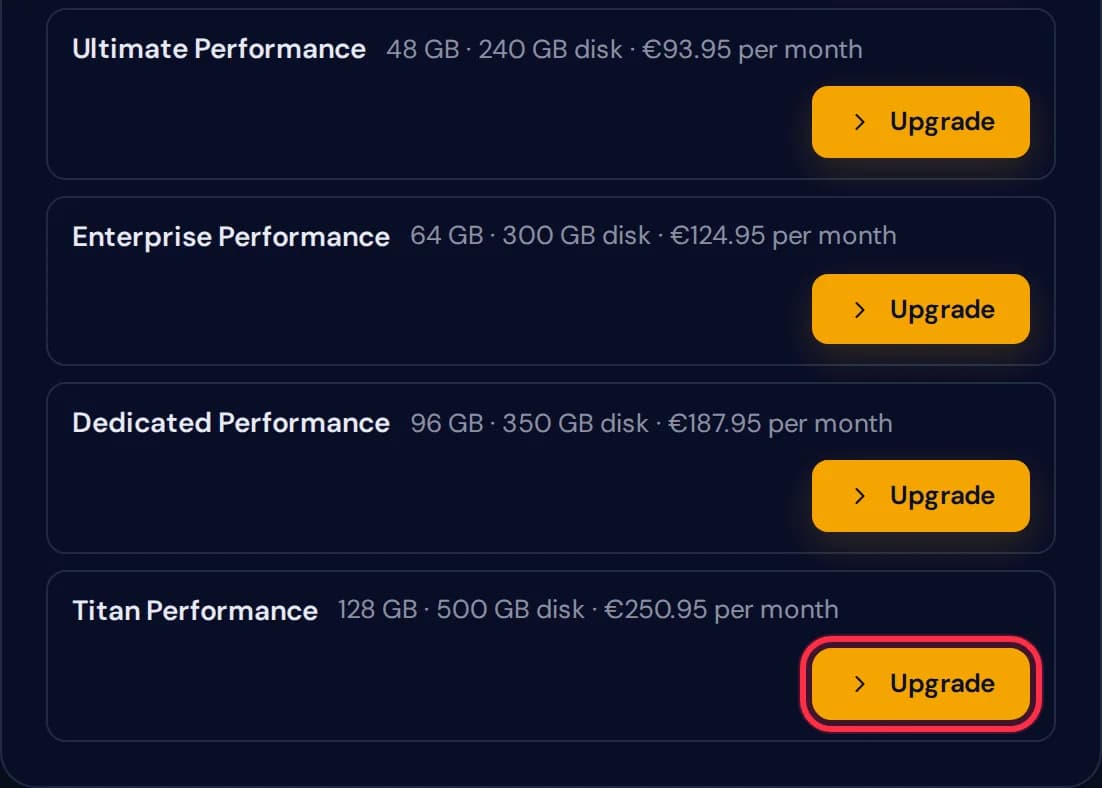
Upgrade through a support case
Titan Performance has the same Upgrade button as every other plan. One press sends the request, so you do not have to write anything.
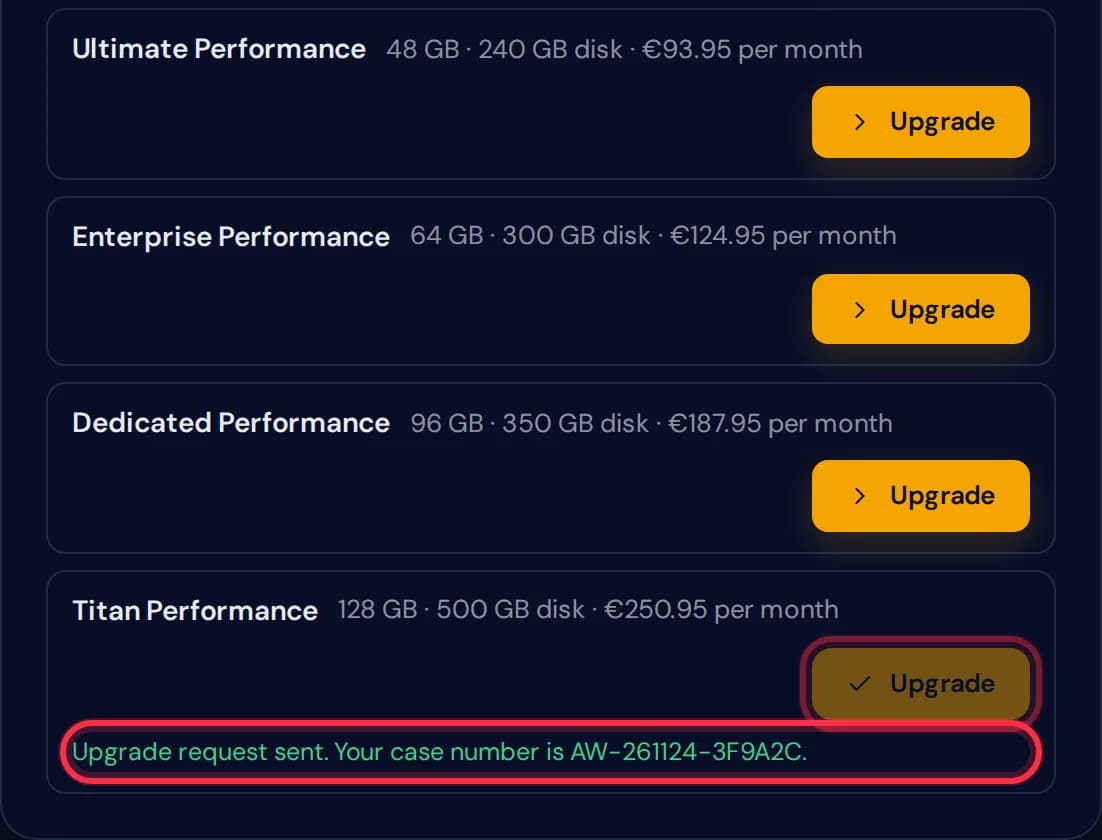
Request sent
Under the plan the card now says Upgrade request sent, with your case number. We make the change and reply in that case.
Messages on the Change plan card
| What it says | What it means and what to do |
|---|---|
Your plan is changed. Restart the server when nobody is playing, and it starts with the new memory. | The upgrade is paid and the server has its new limits. Restart once to use them. |
Your plan is changed and paid. We are finishing the change on the server by hand and let you know when it is done. | The payment went through but the server could not be updated by itself. We finish it and send you a message. |
Upgrade request sent. Your case number is AW-261124-3F9A2C. | For this plan we make the change for you. A support case is open with your server and the plan you picked, and we reply in that case. The card of your own server shows your own case number. |
The payment for the difference did not go through, so nothing changed. Check your payment method under Billing and try again. | Your card or payment method was declined. Your plan and server stayed as they were. |
Your server has to be running normally to change its plan. Ask us in a support case and we change it for you. | The server is suspended, being installed or being moved. Try again when it is back to normal. |
What you pay
Upgrade: you pay the difference between the two plans for the days left in your current period, right away. From the next period you pay the new monthly price.
Example: the bigger plan costs €8.00 more per month and half of your period is left. You pay €4.00 now, and the new monthly price from the next period. The card shows the exact amount for your server before you confirm.
The price per month on the card is the price for your billing term. On a 12 month term you see the 12 month prices.
Upgrades through a support case
For some bigger plans we make the change for you. Those plans have the same Upgrade button as the others. Press it and the panel opens a support case with the name of your server, the plan you are on and the plan you want. You do not have to write anything.
Under the plan you then see Upgrade request sent, with your case number. Nothing is charged when you press the button. We make the change and reply in the case, and you get that reply by email.
For any other change to your plan, open a support case from your dashboard. Write the name of the server and what you want changed, and we reply in the case.
After the upgrade
The first line of the Change plan card shows your new plan with its memory, disk and monthly price. Nothing restarts by itself: the server keeps running on the old limits until you restart it.
Your invoice for the next period shows the new monthly price. You can see each invoice under Billing in your dashboard.
When a bigger plan helps
A bigger plan gives the server more memory and more disk. More memory helps when more players join, when you add a bigger modpack or more plugins, or when the server slows down because its memory is full. More disk helps when your worlds and backups grow.
You do not have to guess the size. Each row on the Change plan card shows the memory, disk and monthly price of that plan, so you can compare it with the plan you are on. The guide on how much RAM a Minecraft server needs, linked under this article, gives the numbers per kind of server.
You can upgrade again later in the same way. Each time you pay only the difference for the days left in the period.
What stays the same
Your world, plugins, files, backups and server address do not change. Only the memory and disk limits of the server change.
Who can change the plan
Only the owner of the server. Staff members you invited do not see the Change plan card, because they do not manage the subscription.
Questions people also ask
Do I lose my world when I upgrade?
No. The plan change only sets new memory and disk limits. Your world and files stay where they are.
When do I get the extra RAM?
After the next restart. Restart the server yourself when nobody is playing.
Can I skip a plan and go straight to a bigger one?
Yes. Every bigger plan has its own Upgrade button, so you pick the plan you want and pay the difference once.
Does the server restart by itself after an upgrade?
No. Nothing restarts by itself. Restart the server yourself when nobody is playing, and it starts with the new memory.
Do I pay as soon as I press Upgrade?
No. The panel first shows what the change costs. You pay when you press Pay and upgrade, and Cancel leaves everything as it is.
Why does Upgrade open a support case for some plans?
For some plans we make the change for you. The button works the same: press Upgrade once and the request is sent with your server and the plan you picked. We reply in the case.
Can I change my plan in another way?
Yes. For any other change to your plan, open a support case from your dashboard with the name of the server and what you want changed. We reply in the case.
Why is there no Change plan card on my Settings page?
You are not the owner of this server, or the card is still loading. A staff member does not see it.