How do I schedule an automatic restart or backup?
Short answerOpen Schedules in your server panel, give the schedule a name and a time, press Create and add what it should do: a power action, a console command or a backup. For a plain nightly restart, the Automatic restart switch on the Settings page sets one up for you.
Create a schedule
Open Schedules in the sidebar. A new server has none yet, and the form at the top of the page makes the first one.
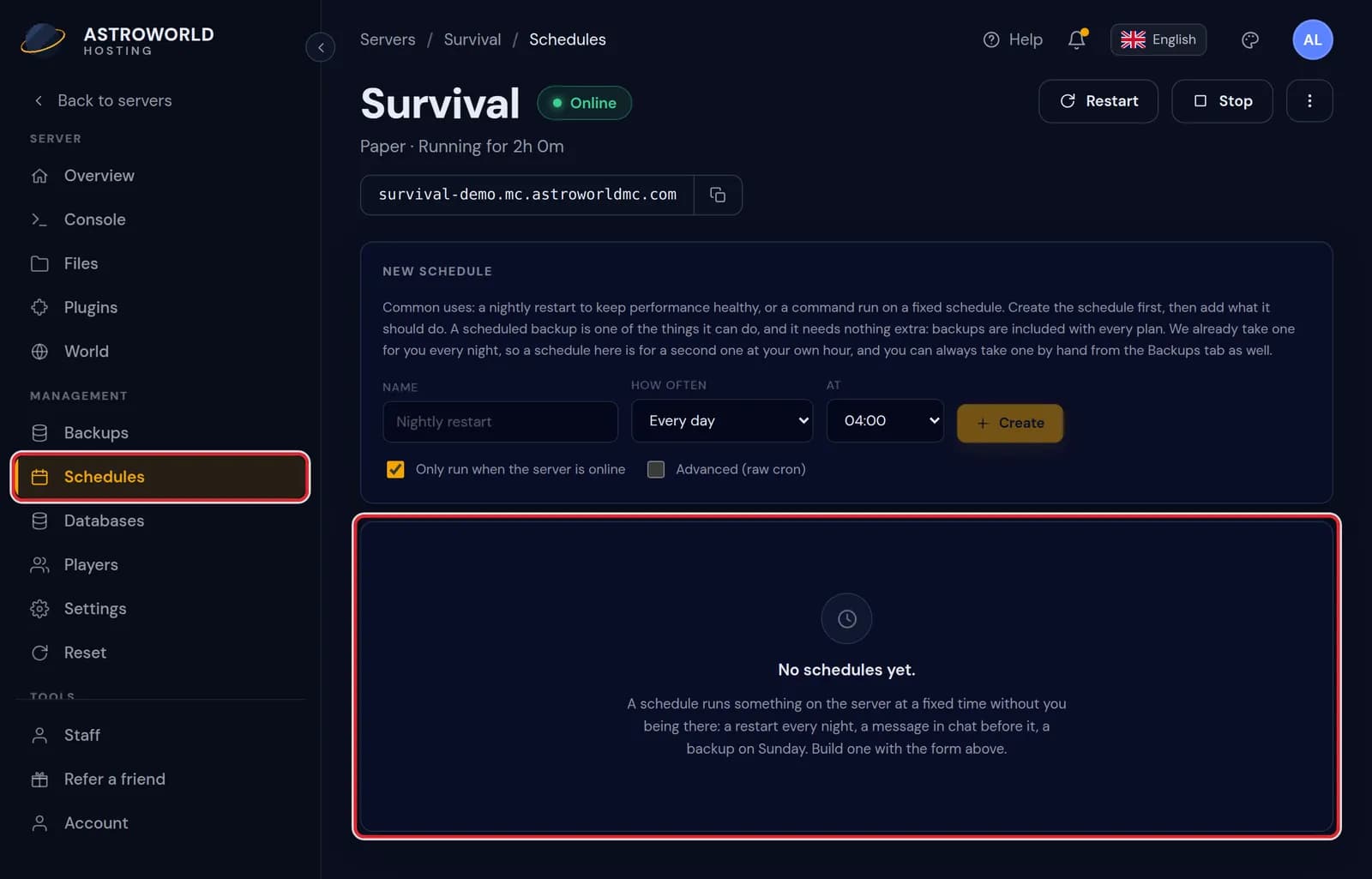
The Schedules page with Schedules in the sidebar and the line No schedules yet marked in red Type a name, choose How often and set the time. Every day asks for an hour and Every week for a day as well; Every 6 hours and Every hour run on the hour. Press Create.
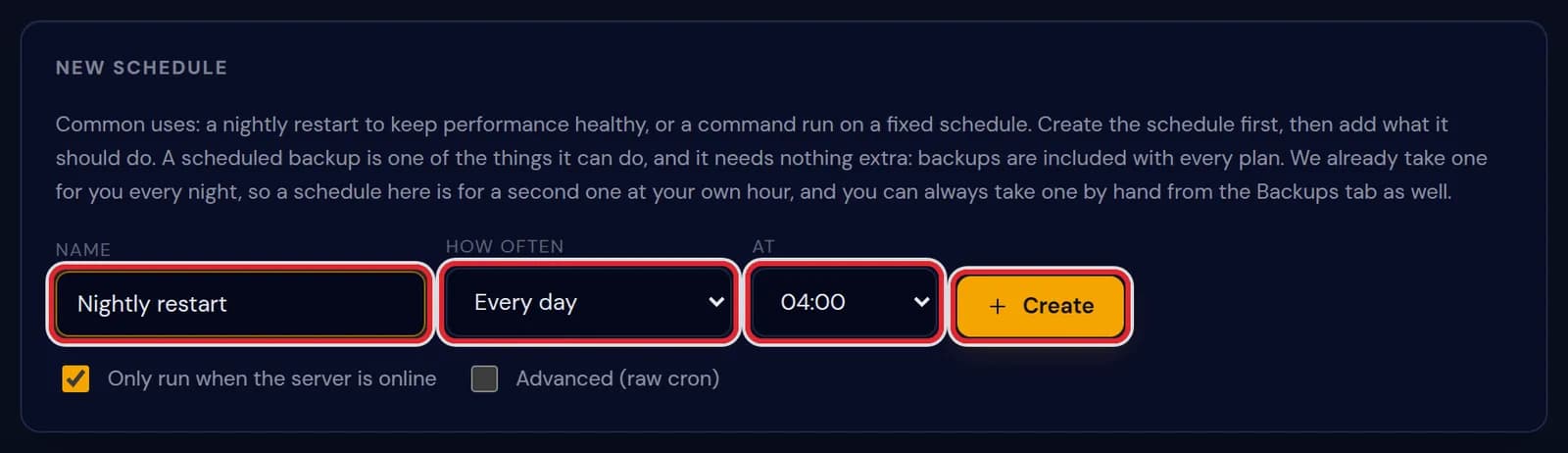
The New schedule form with the name Nightly restart, Every day at 04:00 and the Create button, marked in red The schedule is saved, but a line under it warns that it has no tasks, so it would run and do nothing. Press Add a task.
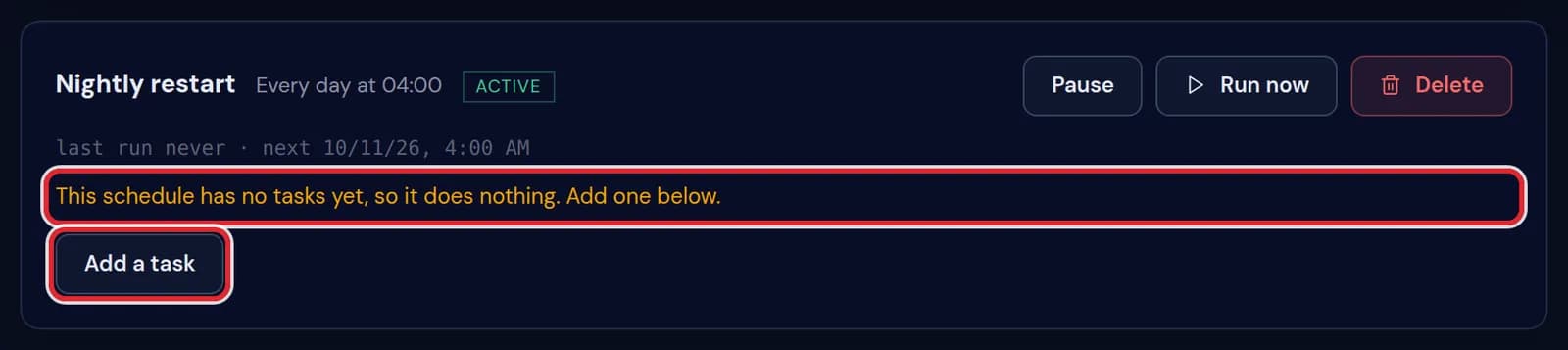
The schedule Nightly restart with the line about having no tasks and the Add a task button, marked in red Under Do what, choose Power action, Console command or Create a backup and fill in the action or the command. Wait first is the number of seconds after the previous step, from 0 to 900. Press Add task.
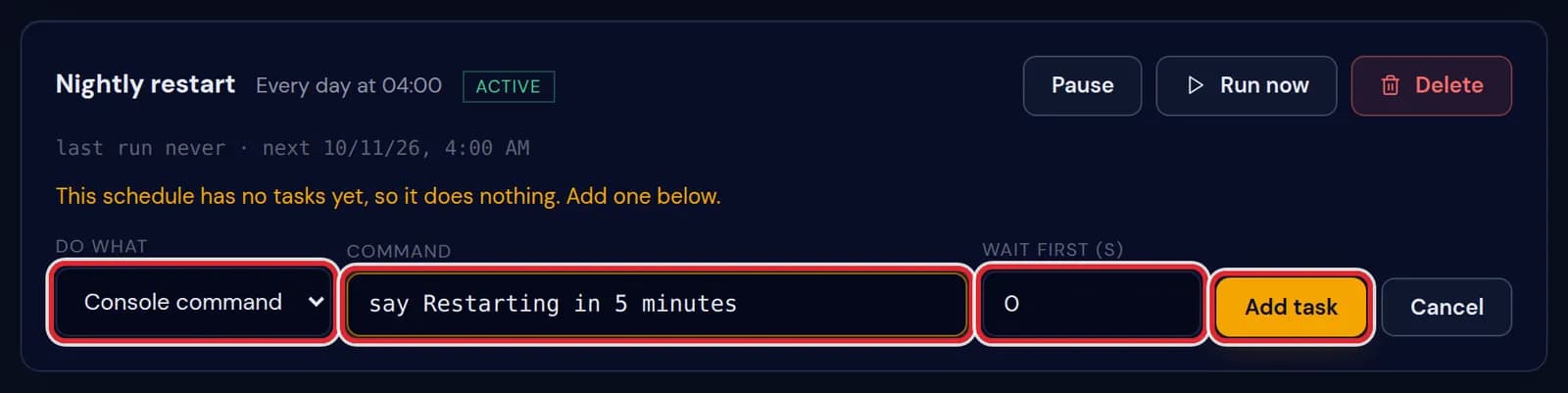
Console command chosen with say Restarting in 5 minutes as the command, Wait first set to 0 and the Add task button, marked in red 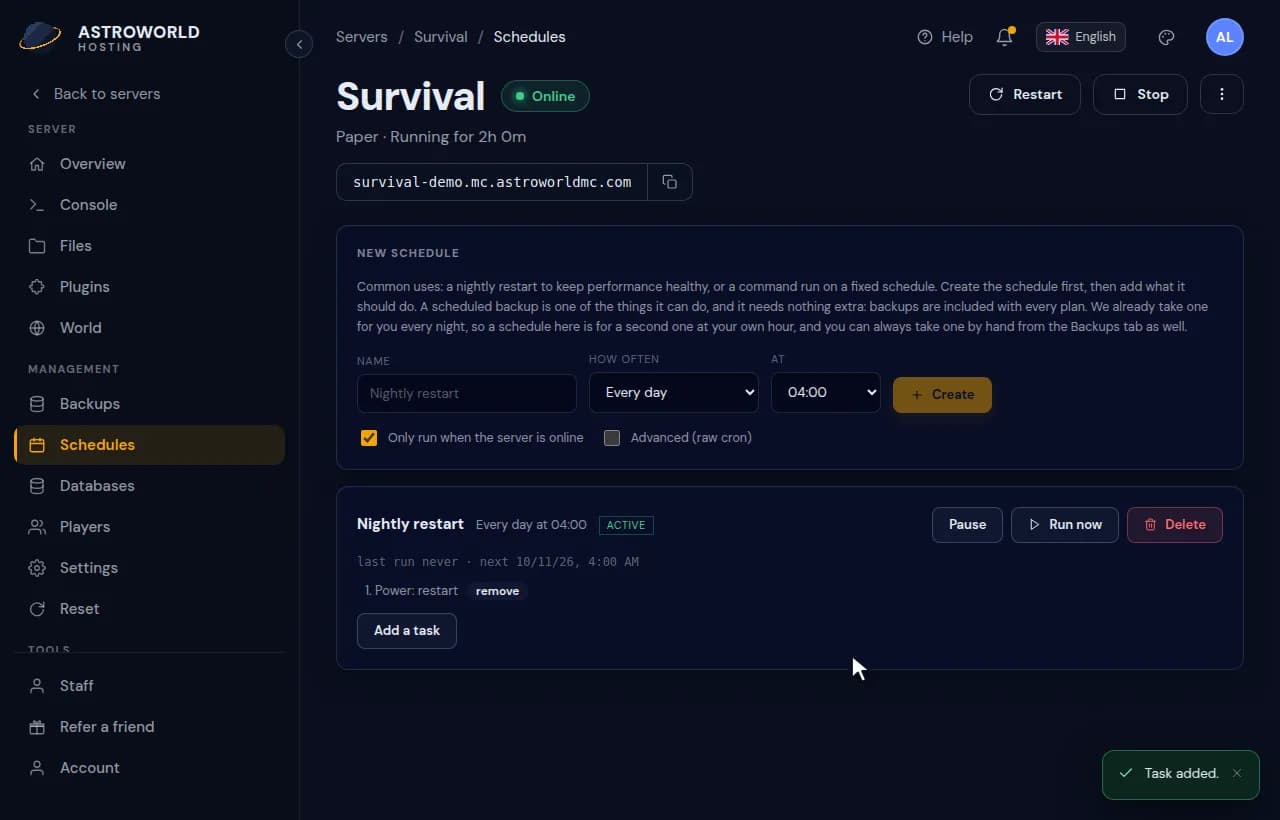
Making a daily schedule at 04:00 on the Schedules page and giving it a restart task Add more tasks the same way; they run from top to bottom. The picture shows two warnings and a restart: a message at 04:00, a second one 240 seconds later and the restart 60 seconds after that, at 04:05.
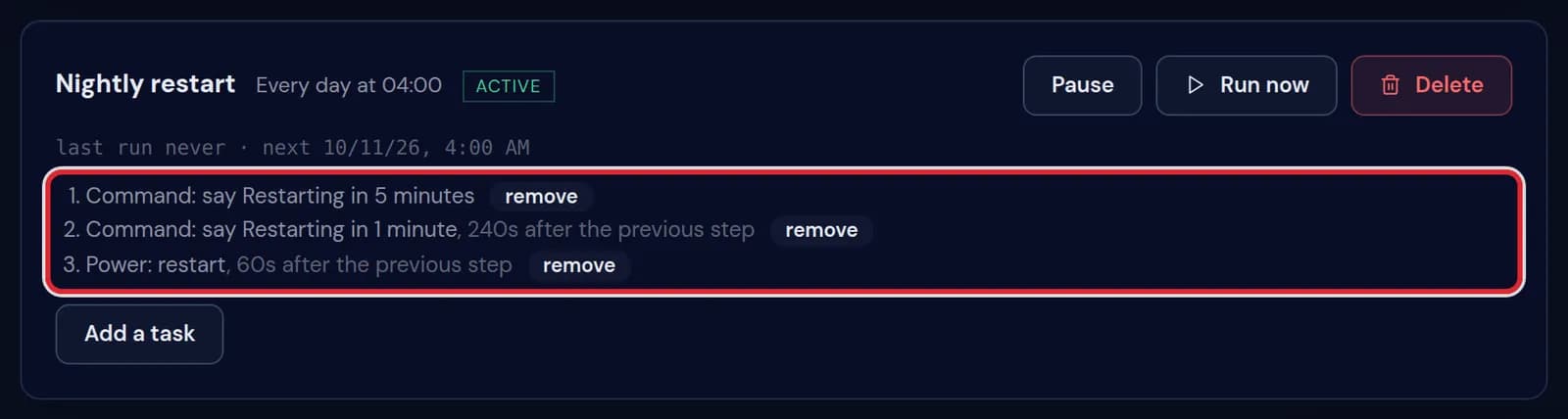
A schedule with three tasks: say Restarting in 5 minutes, say Restarting in 1 minute after 240 seconds and Power: restart after 60 more seconds For a restart without warnings, use the Settings page instead. Under Automatic saves and restarts, switch Automatic restart on, choose Daily or Mondays and the hour, and save the change. The panel makes the schedule for you and lists it on the Schedules page.
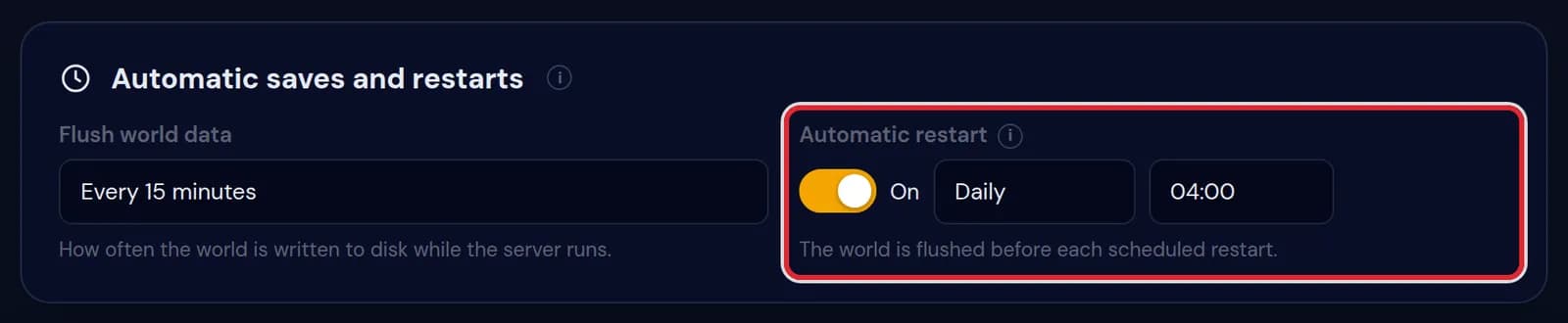
The Automatic saves and restarts card on Settings with Flush world data every 15 minutes and Automatic restart on, daily at 04:00, marked in red
Messages on the Schedules page
| What it says | What it means and what to do |
|---|---|
Schedule created, now add what it should do. | The schedule exists without tasks. Add at least one, or it does nothing when its time comes. |
Task added. | The new task sits at the bottom and runs after the ones above it. |
Running now. | You pressed Run now. Open the console to watch the tasks go by, waits included. |
Paused. | The schedule stays on the page with its tasks but does not run until you press Activate. |
Activated. | The schedule runs again from its next moment on. |
Schedule deleted. | The schedule and its tasks are gone. Whatever they did before stays as it is. |
Give the schedule a name. | The name field was empty. Any name works; it only helps you recognise the schedule later. |
That schedule timing is not valid. | One of the fields under Advanced (raw cron) holds something cron cannot read. Look for a typo or a space. |
Type the command to run. | A Console command task needs the command itself, for example say Back in five minutes. |
Pause, Run now and Delete
Every schedule has its own buttons. Pause keeps it with all its tasks but stops it from running, and Activate turns it back on. Run now goes through every task straight away, waits included, which makes it the quickest test of a new schedule.
Delete asks you to confirm and then removes the schedule and its tasks. The timing of a saved schedule cannot be edited; to move it to another hour, create a new one with the same tasks and delete the old one.
Check when it runs next
Under each schedule a line says when it last ran and when it runs next, shown in the time of the device you are using. Look at it once after you create a schedule: it is the surest way to see that the moment is the one you meant.
Only run when the server is online is ticked by default. Leave it ticked for commands and restarts, so a server you stopped on purpose is not brought back by a schedule in the night.
Extra backups at your own time
A Create a backup task makes a backup the moment it runs, in addition to the nightly backup, and it appears on the Backups tab next to the others. A weekly backup on Sunday morning, before the busy afternoon, is a common choice.
Schedules are kept by the panel, outside the server folder. Restoring a backup leaves your schedules exactly as they are, and an old schedule never comes back with a backup.
What the Automatic restart switch does
The switch creates a schedule called Astroworld automatic restart. It writes the world to disk with save-all flush and restarts the server one second later, without sending a message in chat first. If your players should get a warning, build your own schedule as in the steps above and leave the switch off; with both, the server would restart twice.
Flush world data on the same card works the same way. It creates Astroworld automatic save, which writes the world to disk at the interval you choose, so a crash loses at most those minutes.
Advanced timing with cron
Advanced (raw cron) under the form gives you the five cron fields: minute, hour, day/mo, month and day/wk. A star means every value, so 0 4 1 * * runs at 04:00 on the first day of every month.
Questions people also ask
Does a scheduled restart lose any of the world?
No. A restart stops Minecraft normally, and Minecraft saves the world when it stops. The Automatic restart switch adds an extra save before that.
Can a schedule run more than one command?
Yes. Add a task for each command; they run in order, each after its own wait.
Who can create and change schedules?
The owner, and staff who were given the Schedules permission.