How do I move my server from another host?
Short answerMake a .zip or .tar.gz of the whole server folder at your old host. Open Files in your Astroworld panel, press Start moving a server under the file list and give a download link or pick the archive you uploaded: the panel fetches it, makes a backup, shows what goes in and only then puts your old server in place.
Move your server
At your old host, make one archive of the whole server folder: a .zip or .tar.gz with the worlds, the plugins or mods, the configs and server.properties inside. The backup button of most hosts gives you exactly that. Download it, or copy a direct download link to it.
Open Files in your Astroworld panel. Under the file list is the card Move a server from another host; press Start moving a server.
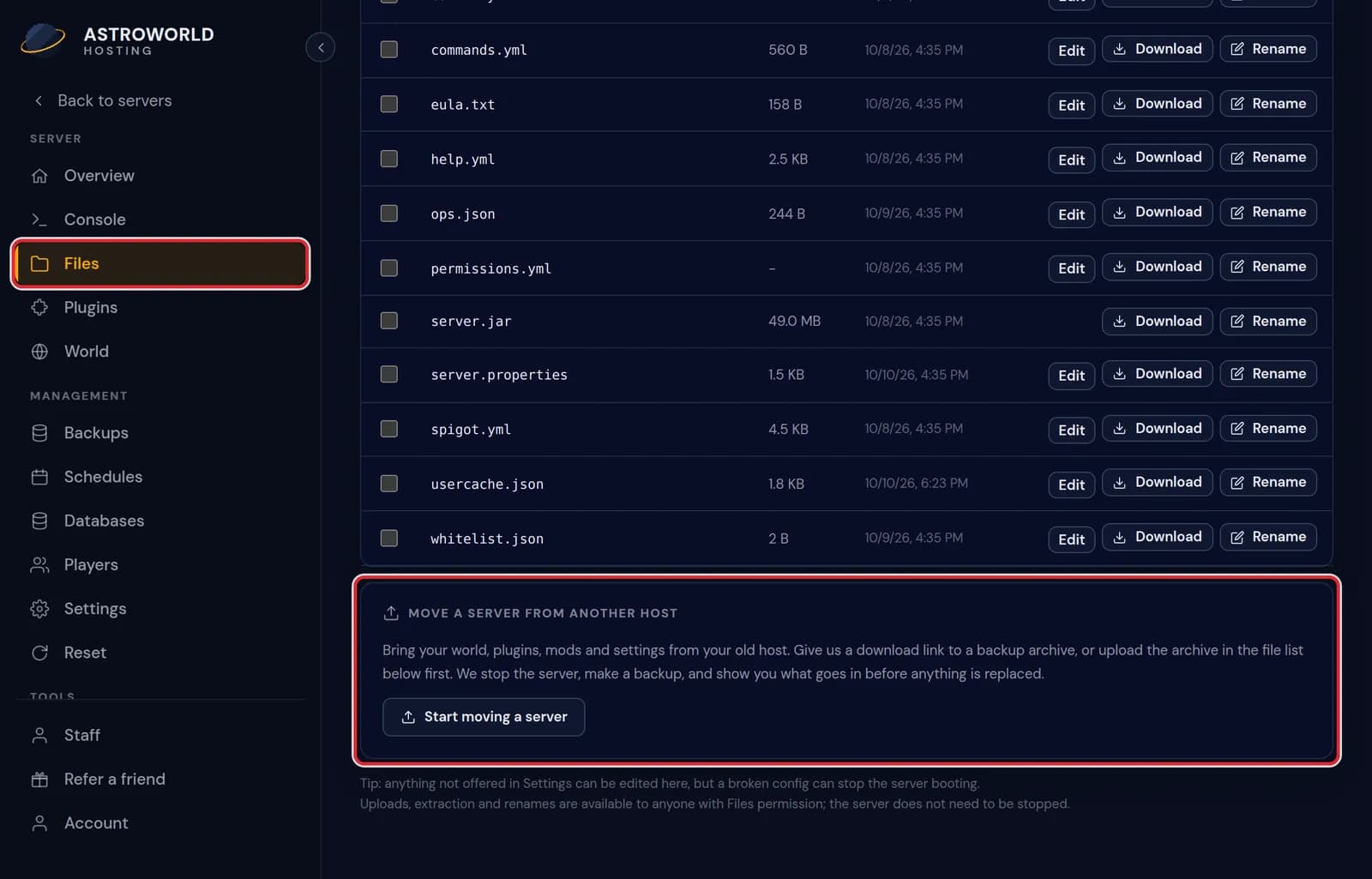
The Files page with the Move a server from another host card under the file list and the Start moving a server button marked in red Paste the link under Download link to the archive and press Fetch the archive. The link has to start with https and download the file itself, not a page about it. Google Drive and Dropbox links work once the file is shared with anyone who has the link.
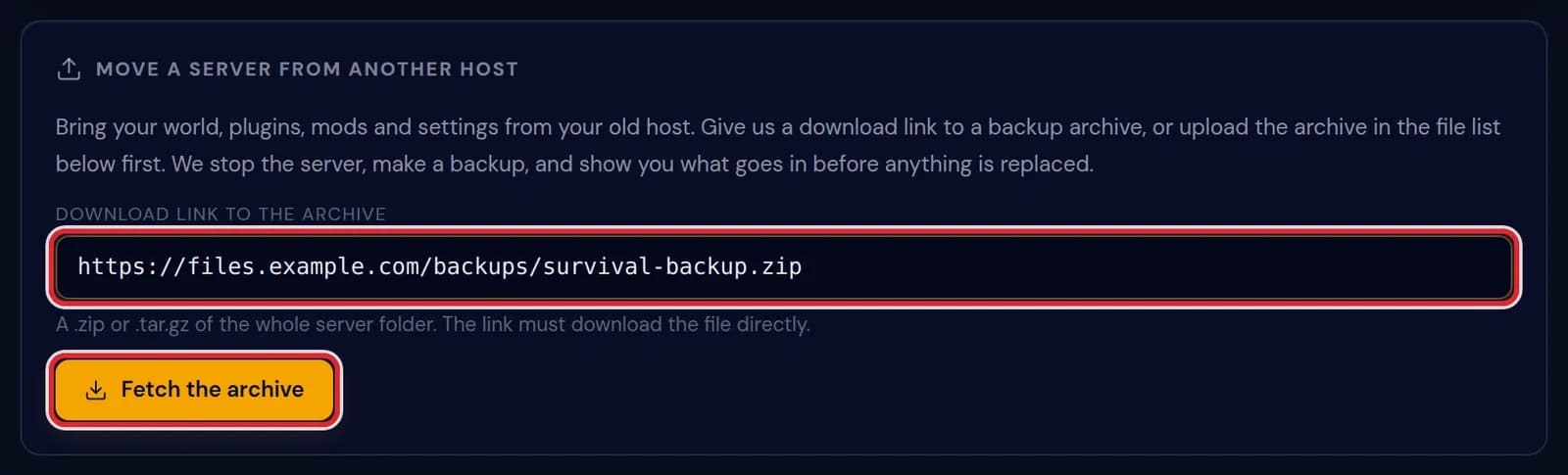
A link to survival-backup.zip in the Download link to the archive field, with Fetch the archive marked in red Without a link, upload the archive with Upload in the file list, up to 1 GB, and choose it on the card under Or use an archive you already uploaded.
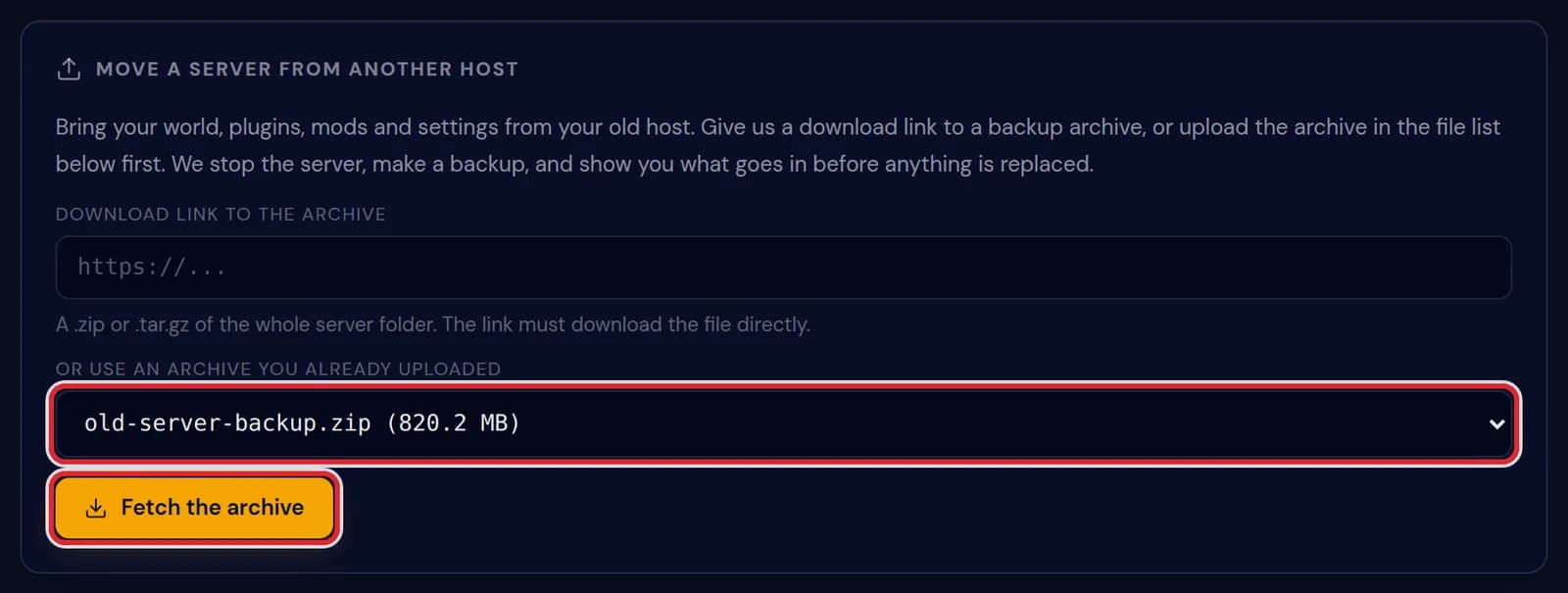
old-server-backup.zip of 820.2 MB chosen under Or use an archive you already uploaded, marked in red While the archive comes in, the card counts up under Downloaded so far. Keep the page open until the card says the archive is here.

The line Downloaded so far: 925.1 MB on the card while the archive is fetched, marked in red Press Stop, back up and unpack. Nothing on your server is replaced in this step.
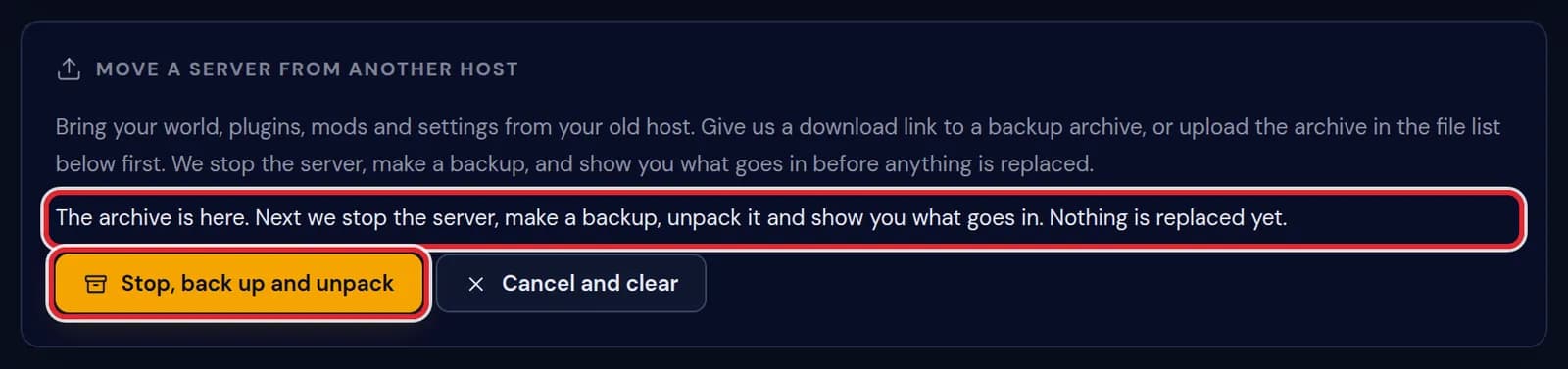
The line saying the archive is here, with the Stop, back up and unpack button marked in red The panel stops the server, makes a backup of it as it is now and then unpacks the archive in a folder of its own. A large archive takes a few minutes.
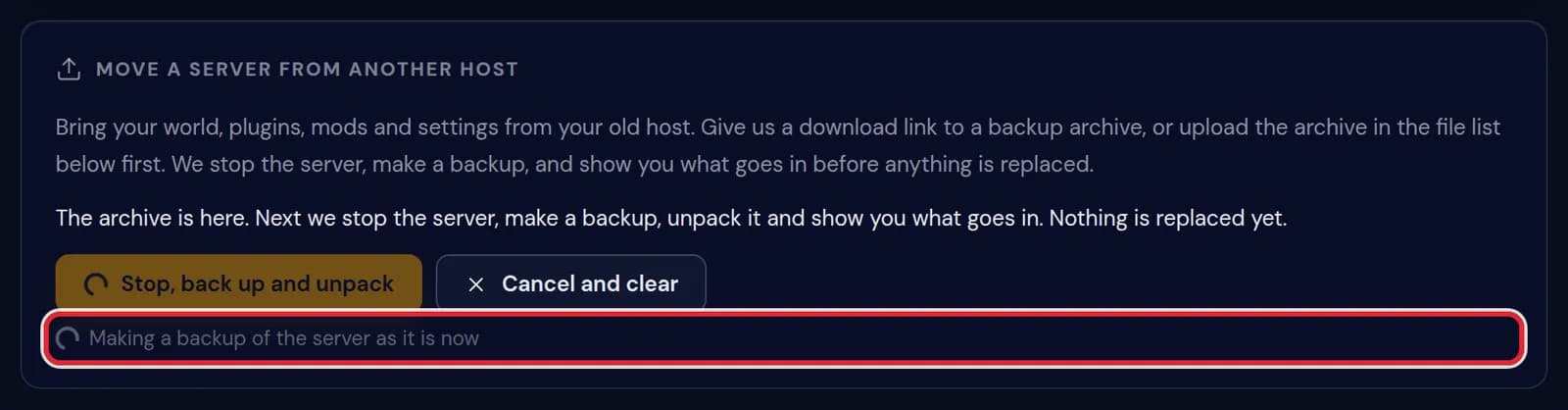
The step Making a backup of the server as it is now in progress on the card Read the two lists. Under This goes in, and replaces anything with the same name you find your worlds, plugins and configs; under Left out on purpose the old server software, logs and caches. Tick the box and press Put it in place.
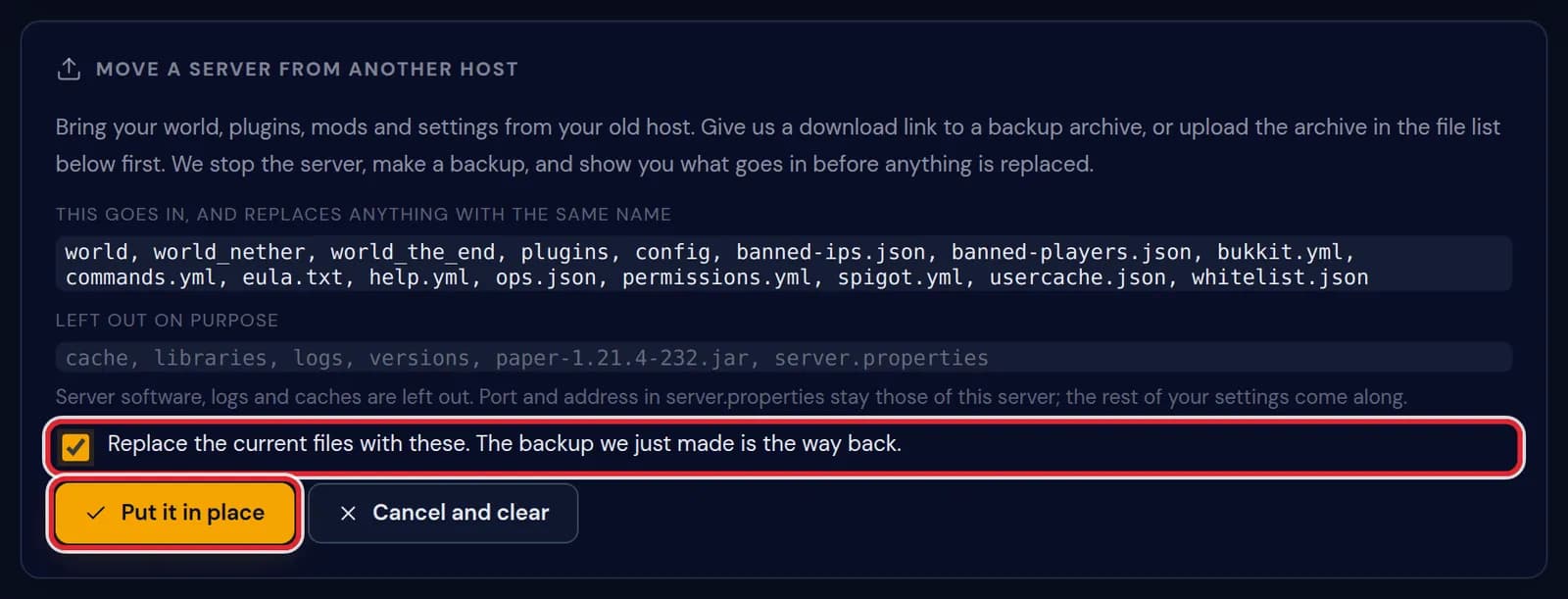
The list of what goes in with world, world_nether, world_the_end, plugins and config, the list of what is left out, the ticked box and Put it in place, marked in red When the card says your old server is in place, open Settings and check that the server type and the Minecraft version are the ones you ran before. Then start the server.
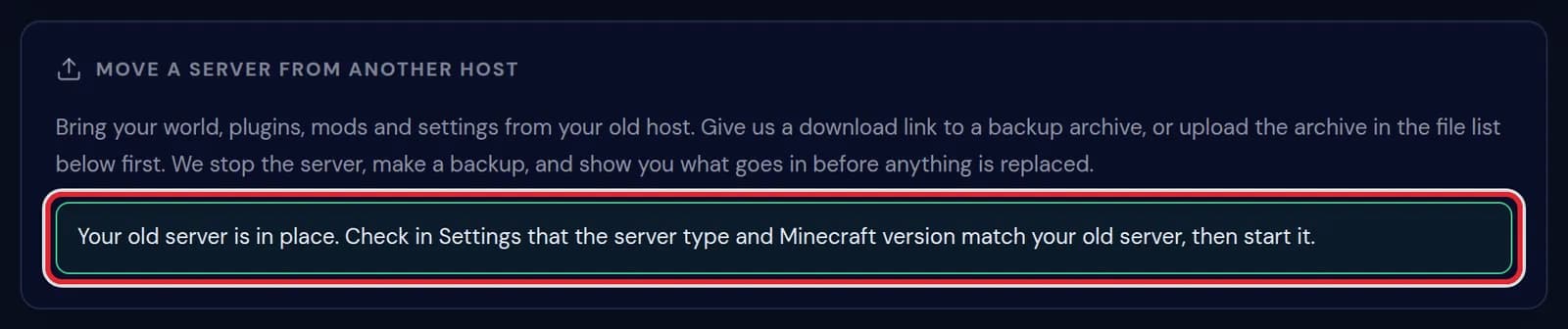
The line saying the old server is in place, marked in red on the card
Messages while moving a server
| What it says | What it means and what to do |
|---|---|
The link has to start with https. | Plain http links are refused. File hosts nearly always offer an https link to the same file. |
Links with a username or password are refused. | Share the file with an ordinary link that has no login in it, or upload the archive instead. |
That link opens a web page, not the file. Share it with anyone who has the link, or upload the archive in the Files tab and pick it below. | The link leads to a download page. Copy the direct download link of the file itself. |
That file is not shared publicly. Share it with anyone who has the link, or upload it in the Files tab. | The file host asks for a login. Change the sharing so the link works without one. |
That link does not say how big the file is, so it cannot be fetched from here. Upload the archive in the Files tab and pick it below. | Some file hosts do not tell the size of a file. Download it to your computer and upload it. |
That link did not answer. Check that it is shared with anyone who has the link. | The address could not be reached. Open it in a private browser window to test it. |
An earlier import is still here. Finish it or clear it first. | A move you started before was never finished. Complete it, or press Cancel and clear to begin again. |
No server files were found in the archive. | There is no world, server.properties, plugins or mods folder in the archive, not even one or two folders deep. Check that you packed the server folder itself. |
Make a fresh backup first. It is the way back if the old server does not fit. | The backup of this step is missing or failed, and without it the panel replaces nothing. Run the step again. |
This server is part of a network. Take the network apart first, or ask support to move it for you. | Servers behind a proxy are moved by support, so the network keeps working. |
This server runs crossplay. Ask support to move your old server here, so Bedrock players keep working. | Crossplay has settings an archive from elsewhere would overwrite. Support moves these servers by hand. |
Moving a server here needs the files, delete, power and backup permissions. | A staff member needs all four on the Staff tab. As the owner you always have them. |
What stays behind, and why
The jar files in the main folder stay behind: they are the server software of the old host, and this server already runs its own. The folders logs, cache, libraries, versions and crash-reports stay behind too, and so do archives lying in the main folder.
server.properties comes along with one exception. The port, the IP address and the query and RCON settings stay those of this server, because the old values only worked on the old machine. Settings such as difficulty, game mode and the motd are taken over.
Archives with a folder inside
Many hosts pack the server inside a folder of its own, sometimes two. The panel looks one and two folders deep for a world, server.properties, plugins or mods, and takes the server from where it finds them, so you do not need to repack anything.
The backup is your way back
Before anything is replaced, the panel backs up the server as it was. If your old server does not run here, restore that backup from the Backups tab and you are back where you started.
Only files and folders with the same name as something in the archive are replaced; everything else on the server stays. On a plan without backup slots no backup can be made, and the card asks you to confirm with a box that you accept there is no way back.
Moving only the world
To move only the world, without plugins or settings, upload the world folder on its own. The guide Upload your own world, linked below, has the steps.
Questions people also ask
What gets deleted on my Astroworld server?
Only what the archive replaces, as listed under This goes in. A new server has little to lose, but on a server you already played on, read that list before you tick the box.
My archive is bigger than 1 GB. What now?
The upload in Files stops at 1 GB, so give a download link to the archive instead.
Does this work with every host?
Yes. Any host works as long as you can download an archive of the server folder.
What does Cancel and clear do?
It stops the move and deletes the import folder, including an archive you uploaded for it. The server stays stopped, so start it again from the top of the panel.
Can I move a network or a crossplay server myself?
No. Support moves those for you, so the proxy and the Bedrock side keep working. Send support a message with a link to your archive.