Minecraft hosting guide
Bring your own world, however big it turned out
The world you have been playing in for two years is rarely a small file: most are several gigabytes, and a browser upload stops at 100 MB. So there is a second way in: paste a link and the machine goes and fetches the file itself, with your browser nowhere in the path. Unpacking, renaming and pointing the server at it are all buttons, and nothing here needs a command line.
The short answer
Zip the folder, not the files
The folder with level.dat in it. Under 100 MB it goes through the browser; bigger, paste a link and the machine fetches it.
Or start fresh
The panel resets in steps that refuse rather than hope: server stopped first, backup taken, then the world goes.
Then generate the terrain
Before anybody walks into it, because new terrain is the most expensive thing the game does.
The three ways in, the fetch rules, the reset steps and the autosave interval are below.
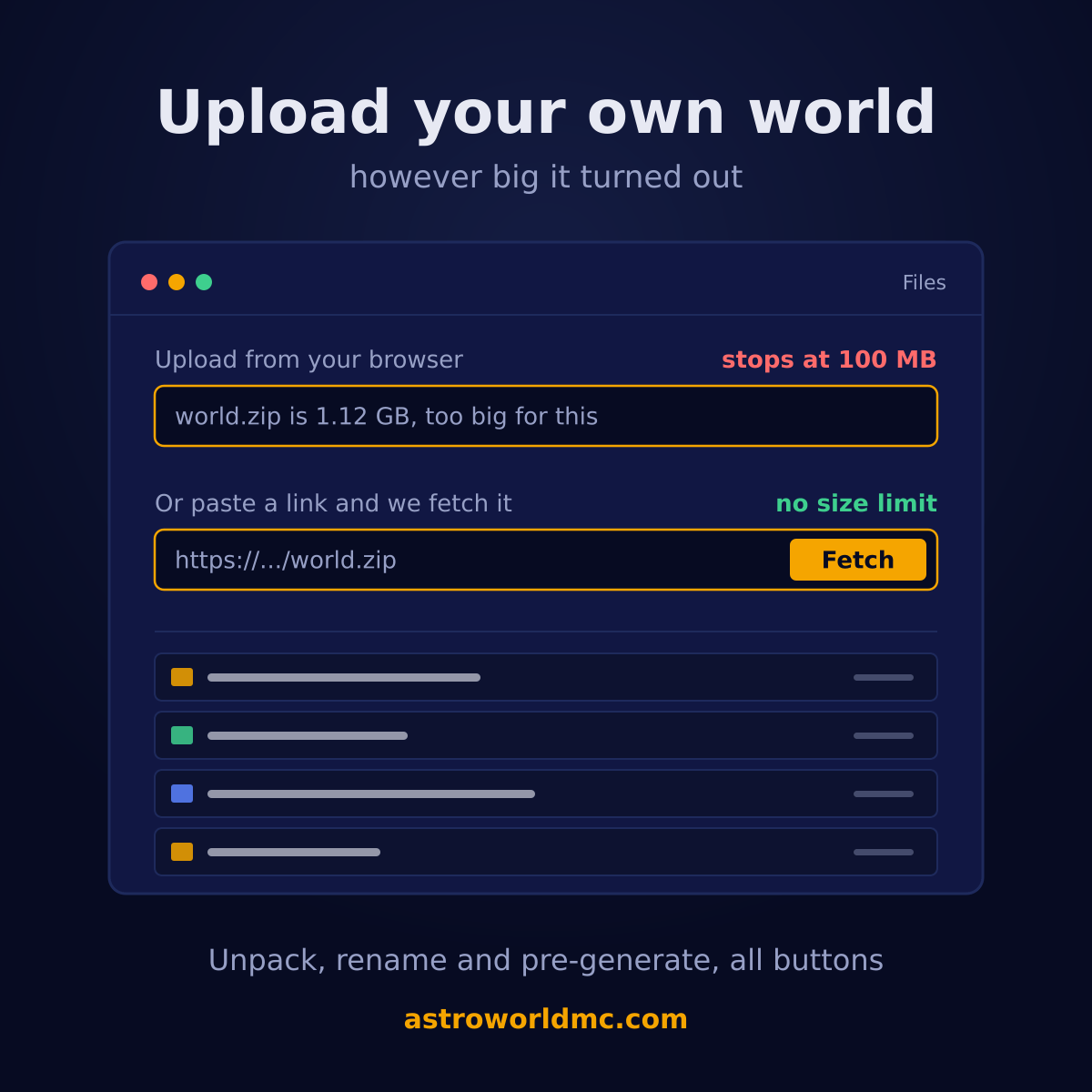
Three ways in, and which one you actually need
Most guides about this assume you are moving a handful of megabytes. A real world is much larger. Before you look at how to upload it, answer one question: which of these three ways should you be using?
| The way in | What it is | When it is the right one |
|---|---|---|
| The upload buttonUp to 100 MB | Drag the file into the file manager. Fine for a config, a plugin or a small map, and the simplest thing in the world when it fits. | It travels through your browser and through our edge, and that path stops at 100 MB. A world folder or a modpack is usually past that before you have finished zipping it. |
| Fetch from a linkNo size limit from us | Paste an address and the machine goes and gets the file itself, straight into the folder you name. | Your browser is not in the path at all, so nothing has to travel through your own connection twice and there is no ceiling in the way. A gigabyte is as easy as a megabyte, and it keeps going if you close the tab. |
| SFTPFor a lot of files at once | Connect with any SFTP client using the details on the Files tab and copy folders across as you would anywhere else. | Best when you are moving many files rather than one large one, or when you want to keep a local folder in step with the server. |
The middle one is the one worth knowing about, because it is the one most hosts do not have. It exists because a customer with a world too big for a browser used to mean somebody here putting the file on the machine by hand, which meant a support ticket for them and hours of work for us.
How to upload your own world, start to finish
Zip the world folder, not the files inside it
You want one archive containing the folder itself. On a single player world that folder is the one with level.dat in it, and its name is the name you saw in the world list. Everything else in there comes along on its own.
Put it somewhere with a direct link, or upload it if it is small
Anything under 100 MB can go straight through the upload button and you can skip ahead. Anything larger needs a link that points at the file itself rather than at a page with a download button on it, because the machine follows the address you give it and does not press anything.
Paste the link in the file manager
Open Files, choose the folder it should land in, and give it the address. The fetch happens on the server, so you can close the tab and come back to it. What arrives is the archive, exactly as it was.
Unpack it where it belongs
Unpacking is a button in the file manager, so nothing has to be done over a command line. The folder belongs in the root of your server, next to server.properties, and not inside another folder.
Point the server at it
Either rename the folder to the level name your server already uses, or change the level name in Settings to match the folder. One of the two has to be true, and it is the single most common reason an uploaded world does not appear.
Start it and watch the console
The first start after a world change is the one to watch. A world made in a newer version of the game than your server runs will refuse rather than half load, which is a good reason to check what version the world came from before you begin.
What we will not fetch, and why
Letting you hand our machine an address is a real thing to hand over, so four rules sit in front of it. None of them are about your file; they are about what an address can be made to point at.
| The rule | The reason |
|---|---|
| Only https | A plain http link is refused. The machine is fetching something on your behalf, and over http anybody between us and that address decides what arrives. |
| No credentials in the link | An address with a username and password in it is refused. Those end up in logs on both sides, and a link you paste once tends to live a long time. |
| A public address only | The name has to resolve to a public address. Without that rule, asking us to fetch a link would be a way of asking our machine what it can see on our own network. |
| Data, not programs | Executable files do not come through this route at all. A plugin or a mod belongs in the vetted catalogue or the verified upload, and never at an address somebody typed in a box. |
One thing we are open about on this route: the fetch itself is done by the machine, so an address that passes our check and only then redirects somewhere internal is not something we can see. That is exactly why only data comes through this route and never code, and why plugins and mods come from a vetted catalogue instead.
Or start a completely fresh one
The opposite job, and the one with more ways to go wrong. Resetting a world by hand fails in two specific ways that people only find out about afterwards, so the panel does it in steps, and each step is a check that refuses to continue until it passes.
The server has to be off
Not as a formality. A running server holds the world in memory and writes it back when it shuts down, so a reset done while it runs quietly undoes itself and you are left wondering why nothing happened. Every destructive step here refuses while the container is up.
A finished backup from the last day
Required before any world folder is removed. Recent matters as much as existing: a backup from three weeks ago passes the test of a backup existing while restoring it throws away three weeks. The only way past this is a plan with no backup slots at all, and then you have to say so yourself.
Only the three folders of your level
The level name in your settings decides what gets removed: that folder plus its nether and its end, and only the ones that actually exist. Nothing else on the disk is touched, so a world upload sitting next to it, your plugins and your configs all stay where they are.
Set a seed, or leave it empty for a new one
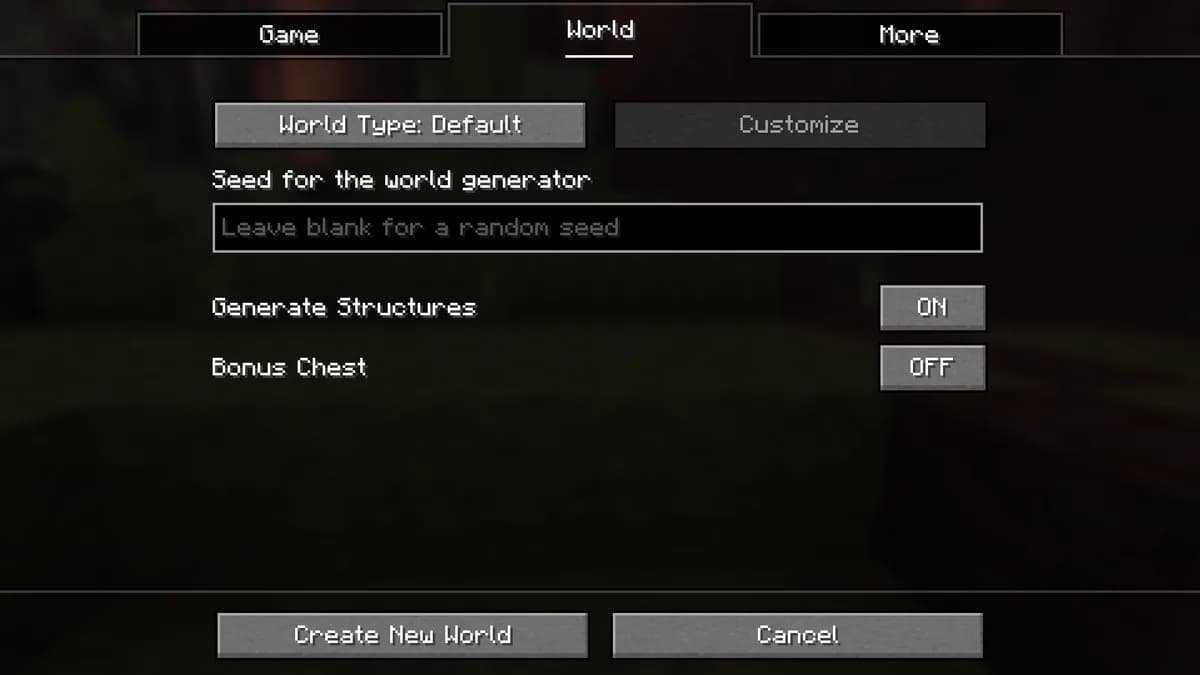
A seed goes in the same screen and is written into your settings before the server comes back up. Leave it blank and the game picks one, which is what you want unless you are recreating a specific world on purpose.
Generate it before anybody walks into it
Whether the world is yours or brand new, the same thing is true of it: making new terrain is the most expensive thing the game does, and it happens at the exact moment a player walks somewhere new. A server that runs smoothly while players stand still and stutters when you explore is almost always short of pre-generated terrain.
The panel installs the tool for it, sets a radius and starts it, and it works out beforehand whether the result fits on your disk instead of finding out halfway. These are the radii it offers. Every figure in the table below is for one dimension on its own, and the area is worked out at the game's own scale of one block to the metre, so a square a thousand blocks out in every direction is four square kilometres of ground to make and to keep:
| Radius | Roughly on disk | What that covers |
|---|---|---|
| 1,000 blocks15,625 chunks | about 92 MB | A square 2,000 blocks across, centred on spawn, so 4 square kilometres of ground. The smallest on offer and the quickest to sit through, so this is the one to pick if what you mostly want is for spawn to stop stuttering. |
| 2,000 blocks62,500 chunks | about 366 MB | A square 4,000 blocks across, centred on spawn, so 16 square kilometres of ground. Four times the ground of the row above it for four times the disk, which is the trade at every step down this table. |
| 3,000 blocks140,625 chunks | about 824 MB | A square 6,000 blocks across, centred on spawn, so 36 square kilometres of ground. From here the disk climbs faster than the distance does, because the ground grows with the square of the radius and not with the radius. |
| 5,000 blocks390,625 chunks | about 2.2 GB | A square 10,000 blocks across, centred on spawn, so 100 square kilometres of ground. The largest on offer, and the one where checking your free space beforehand matters most, which the panel does for you before it starts. |
Generating the overworld, the nether and the end all out to the same radius therefore costs roughly 3 times whatever a row says, and you can leave out the two you do not expect anybody to walk across. You can run any of it while people are playing. It costs noticeable speed while it runs, so it is worth pointing out instead of blocking it: sometimes a night of generating is exactly what you want, and the rest of what makes a server stutter has its own guide.
How often the world is written to disk
Everything above turns on one fact: a running server keeps the world in memory and writes it out at intervals, which is why a reset done while it runs undoes itself and why a crash costs you whatever happened since the last write. The panel lets you set that interval instead of leaving it to whatever the server software chose: every fifteen minutes, every half hour, every hour, or off.
Which one you want depends on how much stutter you can accept on a large world. Writing a world is disk work, and on a large explored world it is enough disk work that players notice a small stutter when it happens. Fifteen minutes means a crash costs you a quarter of an hour and your players feel it four times as often. An hour is the other trade. Off is the one to think about twice: it is there for people who take their own save at their own moment, usually before something big, and it means a crash loses everything since the last one. Whatever you pick, a proper shutdown from the panel still writes the world out first, so stopping the server is never the thing that loses your progress.
Questions about uploading a world
How do I upload my own world to my Minecraft server?
Zip the world folder, get it onto the server, unpack it in the root next to server.properties, and make sure the folder name and the level name in your settings match. Small files go through the upload button; anything over 100 MB goes faster by pasting a link and letting the machine fetch it itself.
Is there a size limit?
Not on our side for the link route. The upload button stops at 100 MB because it travels through your browser and our edge, and that is a ceiling in the path rather than a rule we set. Fetching from a link takes the browser out of the path completely, so the size stops being the interesting part; a gigabyte world arrives the same way a small one does.
I uploaded a world and the server still generates a new one. Why?
Almost always one of two things. Either the folder is nested one level too deep, so the server sees a folder containing your world rather than the world, or the folder name and the level name in your settings do not match. The server does not guess: it looks for the exact name it was told and makes a fresh one when it is not there.
Can I upload a world from a different Minecraft version?
Forward, yes: Minecraft upgrades a world when it opens it in a newer version, and that upgrade is one way. Backward, no, so a world made in a newer version than your server runs refuses to load rather than half loading. Check what the world was made in before you start, and change your server version first if you have to.
How do I start a completely fresh world instead?
The World tab resets it for you, in steps that cannot go wrong the way a hand-run reset can: the server has to be off, a finished backup from the last day has to exist, and only the folders belonging to your configured level are removed. Set a seed in the same screen or leave it empty, and start.
Which links will you refuse to fetch?
Four kinds, and all four for the same reason: you are asking our machine to go and get something. It has to be https, the address cannot contain a username and password, the name has to resolve to a public address rather than something inside our network, and executables do not come through this route at all. A plugin or a mod belongs in the vetted catalogue instead.
Do I need SFTP or a command line for any of this?
No. Zipping is yours to do, everything after that is a button: uploading, fetching from a link, unpacking, renaming and moving. SFTP is there on the Files tab if you would rather work that way or you are moving a lot of files at once, but nothing here requires it and nothing here requires a shell.
Should I pre-generate the world before people join?
It is worth doing on any server people will explore. Generating new terrain is the most expensive thing the game does and it happens exactly when somebody walks into it, which is why a server can feel fine standing still and stutter the moment you go somewhere new. The panel installs the tool, sets the radius and starts it, and it works out beforehand whether the result fits on your disk rather than filling it up.
How much disk does a pre-generated world take?
a radius of 1,000 blocks is about 92 MB, a radius of 2,000 blocks is about 366 MB, a radius of 3,000 blocks is about 824 MB, a radius of 5,000 blocks is about 2.2 GB, per dimension. Doing the overworld, the nether and the end all to the same radius costs roughly three times that. The panel checks the free space before it starts and refuses rather than filling your disk.
Can I get my old world back if the new one is a mistake?
Yes, if there is a backup from before you changed anything, which is exactly why the reset insists on one. A restore replaces the whole server folder with how it was at that moment, so your old world comes back along with the plugins and configs that went with it. Nightly backups run on every plan, so in practice last night's is already there.
Where to find it
Files and World are two of the tabs in your own server panel, on every plan, with nothing to order. Everything on this page is what those two tabs really do, with the limits they really enforce and the guards that really refuse, so you can read the whole thing before you commit a world to them. There is no public sandbox to click around in yet and no account needed to try any of this reading, so the screens are set out here in words instead. Six questions will put one plan in front of you rather than a price list to work through on your own.
Answer six questions and get one plan Everything the panel does Changing your version or server type How the nightly backups work How to restore a backup Installing a modpack the same way Why a server stutters when you explore Ask us a question first
The pre-generation radii and their disk estimates are read when this page is built from the same calculation the panel uses to decide whether it fits, and the 100 MB figure is the limit of the upload path itself. Written 31 August 2026.
Written and checked by the Astroworld Hosting team. Last reviewed on 6 September 2026.
Delivery: most servers are handed over instantly and run within seconds of payment, the rest follow within 60 minutes during the day and within 12 hours at night.