What you get
A Discord bot for your Minecraft server, on every plan
Your community already lives in Discord. Asking it whether the server is up should not mean opening a panel, and telling forty people the address should not mean typing it forty times. 6 commands put the server in the channel: status, who is online, the address for Java and Bedrock, seven days of numbers, and a restart your admins can run without you handing out a panel login.
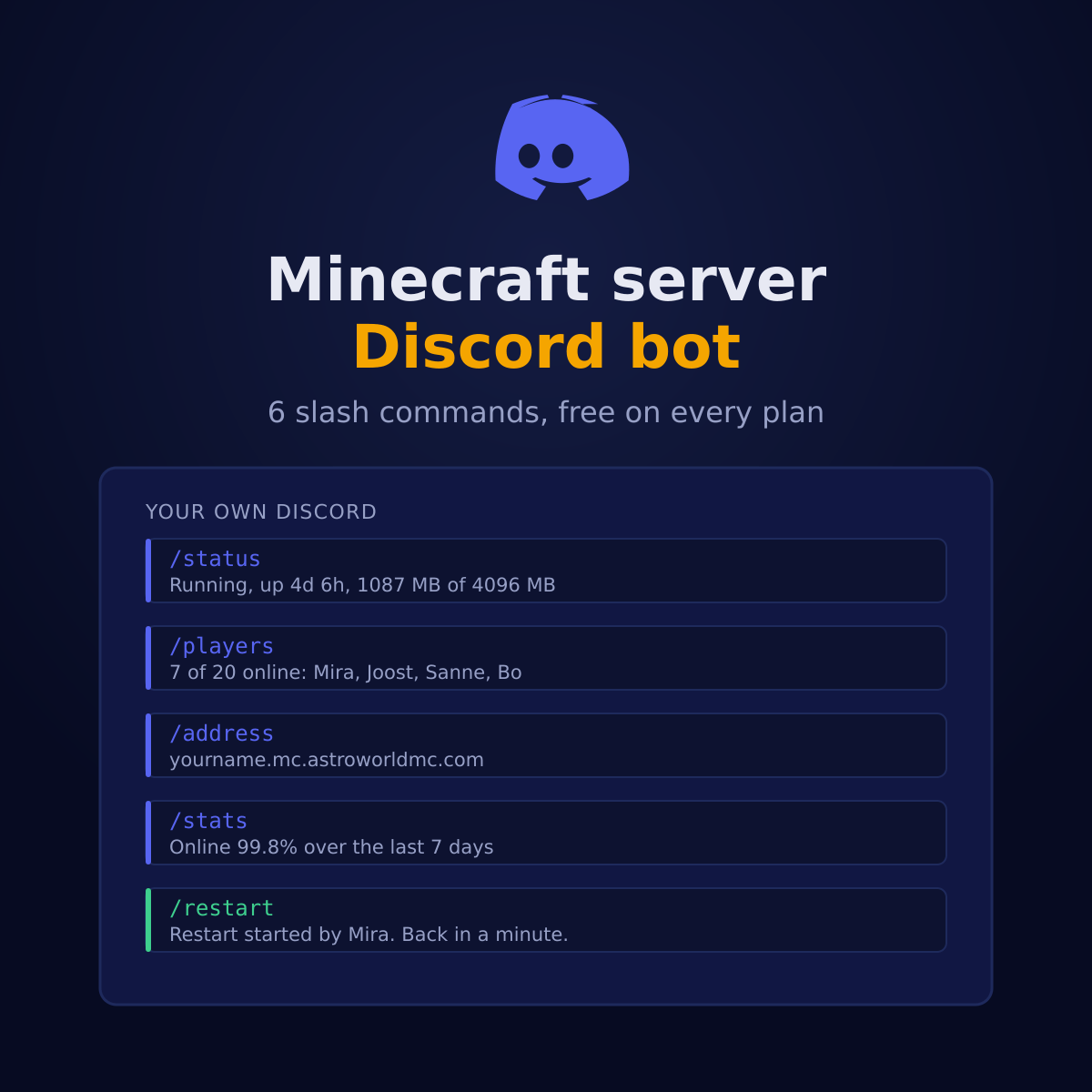
6 commands, and who may use them
Everything except the restart and the one time link is open to everyone in your Discord, because the answers are things a player is allowed to know. The two that change something check who is asking, on our side, out of what Discord signs and sends rather than out of what a menu happened to show.
| Command | What it answers | Who may use it |
|---|---|---|
| /status | Whether it is running, how long it has been up, which address belongs to it, and how much memory, processor and disk it is using out of its own limit. That last part is written as a fraction rather than a percentage of nothing, so you can see at a glance whether 1100 MB is a lot on your plan or barely anything. | Everyone |
| /players | How many players are online out of how many slots, with their names when your server sends them. This is a real ping to the play address, so it is what a player would see themselves, not what we happened to write down a minute ago. | Everyone |
| /address | The address to connect to, ready to copy. If you run crossplay, the Bedrock address and its port sit on a line of their own underneath, because that is a different address and a different port from the one Java uses. | Everyone |
| /restart | Restarts the server from Discord, with the name of whoever did it in the reply. We tell our own crash watch first, so it does not read this as a fault and email you about a restart you asked for yourself. | Manage Server, or the role you choose |
| /stats | Seven days of history: what share of the time it stayed up, the average and highest player count, and average processor and memory use. It comes from our own measurements, which are written down every five minutes. | Everyone |
| /link | The one time connection between this Discord and your server, using a code you make in your panel. After that you never type it again, and no other command anywhere carries a server ID that somebody could guess at. | Manage Server |
How to connect it, in four steps
Add the bot to your Discord
One link from your panel opens Discord's own approval screen. It asks for nothing beyond being in your server and being allowed to have commands, because that is genuinely all it uses. A bot that asks to read every message in order to tell you the player count is a bot you should refuse, ours included.
Make a link code in the panel
Settings, Discord commands, one button. You get 8 characters that are good for 30 minutes and for exactly one use. That short life is the point: the code is the only moment anybody decides which Discord belongs to which server.
Type /link with that code
In your Discord, once. Only someone with Manage Server can do it, so a member cannot attach your server to a Discord you have never heard of. The code is burned the moment it works, and the panel shows which Discord you are now attached to by name.
Everyone can ask, admins can act
From then on your members type the commands and get an answer in the channel. Restarting is the one that checks who you are: Manage Server, or a role you point at yourself in the panel, and anybody else gets a polite refusal only they can see.
What this bot cannot do, by design
Most bots ask for a pile of permissions on the way in and you click through it because you want the feature. This one joins with a permission set of zero, which Discord shows you on its own approval screen before you agree to anything.
- Reading your messages
- Managing your members
- Kicking or banning anyone
- Any channel but the one you use it in
There is a second half to that, and it is the part that matters more. No command takes a server ID. Which server a command is about follows from which Discord it came out of, and that was decided once, by a 8 character code that lives 30minutes and works once. So there is no number for somebody to change in a request and reach a stranger's server with, because there is no number.
Every request that reaches us carries Discord's own signature, and we check it against the key of our application before we read a single field out of it. Anything that does not verify is refused before it can mean anything, whatever it claims to be.
The restart, and why it tells our crash watch first
A restart from Discord is the same restart as the one in the panel, so it has to behave the same way in every respect. That includes one thing you would never think to ask about: we tell our own crash watch that this was deliberate before we press anything.
Without that, the watch would see your server disappear for half a minute, decide it had fallen over, put it back up and email you about a fault. You would get a crash report for a restart you asked for yourself. So the command says so first, exactly as the panel button does, and you get one line in the channel with the name of whoever ran it.
What this is not: a chat bridge
When people search for a Minecraft Discord bot, a good half of them mean something we do not do: a bridge that copies in game chat into a Discord channel and back again, so people who are not playing can still talk to the ones who are. Ours does not do that, and it is not going to pretend otherwise.
The reason is that a bridge has to live inside the game. It needs to see every chat message, every join and every death as the server produces them, which means a plugin or a mod on your own server rather than something we run beside it. DiscordSRV is the usual answer on Paper, Purpur and Spigot, and it is in the vetted catalogue our panel installs from, so it is two clicks and a config file rather than an upload.
The two sit next to each other perfectly well. DiscordSRV carries the conversation; our bot answers the questions the conversation cannot, because a plugin inside a server that is down cannot tell you that the server is down. The plugin catalogue has it, and installing a plugin walks through the rest.
Neither of them decides what the Discord server itself looks like. The channels to open, the roles to hand out and where the chat link belongs are laid out in Minecraft Discord server setup on astroworldmc.site, with a channel list for a Minecraft community to start from.
The other direction: telling you before you ask
Commands are for the moment somebody wonders. The other half is the moment nobody is wondering yet: the server goes down at four in the morning, or a backup finishes, or the console starts repeating a word you asked us to watch for. Those come in over a webhook, need no bot at all, and are 7 separate ticks in the same Settings tab.
Most people end up with both, and they are still two things you switch on separately. Neither one needs the other to be useful.
Questions about the Minecraft Discord bot
Is there a Discord bot for my Minecraft server?
Yes, ours, on every plan at no charge. It adds 6 slash commands to your own Discord: the server's status with its memory and processor against your plan limit, who is online right now, the play address for Java and Bedrock, seven days of statistics, and a restart for your admins. You link it once with a code from your panel and there is nothing to install anywhere.
Can my admins restart the server from Discord?
Yes, with /restart, and only them. The permission is checked on our side against what Discord sends with the request, not by hiding the command in the menu, because hiding is not a lock. Manage Server always counts, and you can point at one extra role in the panel for the people who should be able to without running your Discord. The answer in the channel names who did it.
Can a random member restart my server?
No. Anyone without Manage Server or your chosen role gets a refusal that only they can see. And no command anywhere takes a server ID: the server follows from which Discord the command came out of, which was decided once by the link code. There is nothing for somebody to guess their way into.
How do I connect the bot to my server?
Add the bot from the link in Settings, Discord commands. Press the button there for a link code, 8 characters good for 30 minutes and one use. Type /link with it in your Discord, from an account with Manage Server. The panel then shows the name of the Discord it is attached to, and you never type the code again.
What if somebody sees my link code?
It stops working the moment you use it, so a code in an old screenshot is worth nothing. Even unused it lasts 30 minutes, and there are about 1.1 trillion of them, so guessing is not a route either. If you are worried, press the button again: making a new one replaces the old one.
What permissions does the bot ask for?
None. It joins with the commands scope and a permission set of zero, which Discord shows you on the approval screen. It cannot read your messages, cannot manage members, cannot kick or ban, and only ever speaks in the channel where somebody used a command. It knows the name of your Discord, and that is so the panel can show you what you are attached to.
Does /address show the Bedrock address too?
Yes, if you run crossplay. Java and Bedrock are different addresses on different ports, and the Bedrock port is the thing people get wrong, so it is printed separately rather than folded into one line. On a Java only server you get the one address, and no line about a port nobody needs.
What is in /stats?
Seven days: the share of the time the server was up, the average and highest player count, and average processor and memory use. It comes from our own measurements, written every 5 minutes, so a full week is up to 2016 of them rather than a guess. It is the same data behind the uptime graph in your panel.
Is this the same as Discord notifications?
No, they are two halves and you can have either on its own. Notifications go from us into your channel: 7 events including crashes, backups and words you pick out of the console, over a webhook, with no bot involved. The bot goes the other way, answering what your members ask.
Can one Discord handle two servers?
One Discord is linked to one server, deliberately. A command in a channel would otherwise have to guess which server you meant, and the wrong guess on /restart is somebody's evening. Two servers means two Discords, or one server per Discord and the second one on notifications only.
Can I see in game chat in Discord?
Not with our bot, and that needs saying plainly rather than being left vague. A chat bridge has to read every message as the server produces it, which means a plugin inside your server rather than something we run beside it. DiscordSRV does exactly that and it is in the vetted catalogue our panel installs from, so it is a couple of clicks. Our bot answers questions about the server instead, including the ones a plugin cannot answer because the server is down.
Can I run console commands from Discord?
No, and that one is deliberate rather than unfinished. A console line can hand out operator, wipe a world or read a file, so a Discord message that reaches the console is a Discord message that owns your server. Restarting is the one action we do expose, because it is safe to repeat and impossible to misuse, and it checks the permission on our side rather than trusting the menu. Everything else stays behind your panel login, where you can see what you are typing at.
Does it work if my server is somewhere else?
No. The bot reads live data straight from the machine your server runs on, so it only works on servers we host. There is nothing to move if you are already elsewhere: the panel imports an existing world, and the address you hand out stays yours to keep on the Discord side.
Does the bot cost anything?
No. It is on every plan including the smallest, with nothing to order and nothing to enable on our side beyond the link code. If a host charges you for a Discord integration, that is a pricing decision and not a technical one.
Can I disconnect it again?
Yes, one button in the same card, and the commands stop working in that Discord immediately. Your webhook and your ticked notifications stay exactly as they were: somebody removing the bot almost never wants to stop hearing about crashes at the same time.
Where to find it
On every plan, from the smallest up, with nothing to order. In your panel: Settings, then the Discord commands card. Add the bot, press the button for a code, type /link once in your own Discord, and the 6 commands work from that moment on.
Discord notifications, the other half Everything else the panel does Staff permissions in the panel, right by right Your play address, and adding more Crossplay, and the second address it gives you Setting up crossplay step by step How the nightly backups work The AI Copilot in the panel What is included with every plan Answer six questions and get one plan View plans and prices Ask us a question first
The 6 commands on this page are read from the same file we register them with at Discord, so this list cannot name a command that does not exist or miss one that does. The 2016 measurements behind /stats follow from writing one every 5 minutes for seven days. Written 1 September 2026.
Written and checked by the Astroworld Hosting team. Last reviewed on 6 September 2026.
Delivery: most servers are handed over instantly and run within seconds of payment, the rest follow within 60 minutes during the day and within 12 hours at night.